How to Check Broken Links in Google Sheets
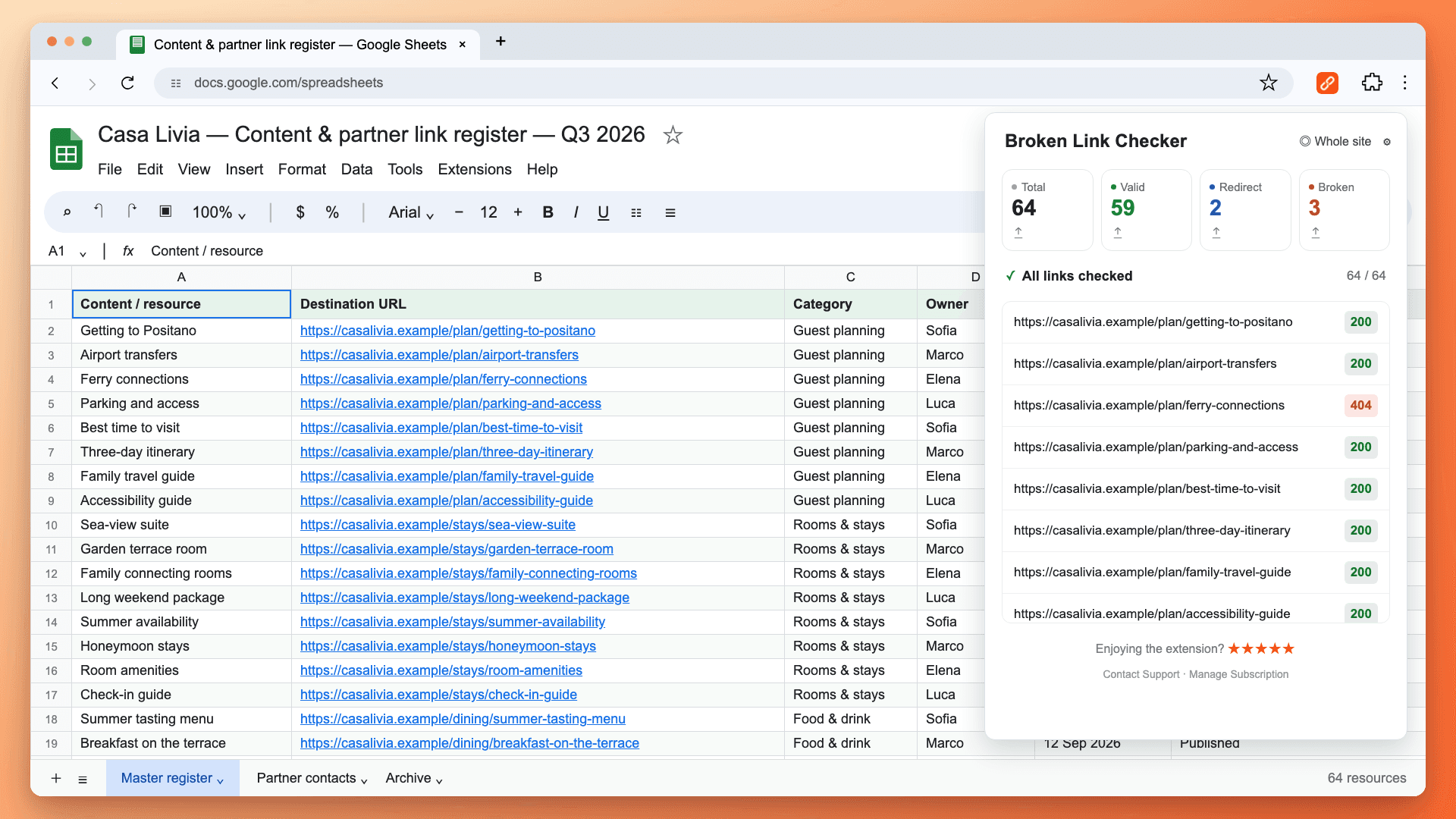
To check broken links in Google Sheets, open the spreadsheet in Chrome and run Broken Link Checker, or use Google Apps Script to check a column of URLs and put the results in a new sheet. The extension is the simplest option for links scattered across a file. The script below is useful when you want an editable status report inside the spreadsheet.
This is a check of the web addresses inside your spreadsheet. It does not repair a Google Sheets sharing link, formula reference, or #REF! error.
Choose a Method
| Your task | Method | Where results appear |
|---|---|---|
| Check clickable links across all sheets, including links attached to text | Broken Link Checker | Extension panel, with CSV export |
| Check a selected column of full URL strings | Apps Script below | A new sheet in the same file |
| Verify a few suspicious results or a restricted destination | Open the links manually | Browser tabs |
Start with the extension if you maintain a partner directory, content calendar, resource list, or campaign spreadsheet. Use the script if you prefer to work with the results as spreadsheet cells and are comfortable authorizing a script.
Method 1: Use Broken Link Checker in Chrome
Open the Spreadsheet and Start the Check
- Install Broken Link Checker from the Chrome Web Store.
- Open the Google Sheets file you want to check. Stay signed in to an account that can access it.
- Click the extension icon in Chrome. If it is hidden, open Chrome's Extensions menu and pin it first.
- Wait for the check to finish, then select Broken to focus on failed links.
The extension reads links from every sheet in the file, not only the currently visible sheet. It checks clickable URLs and links attached to cell text, so a cell labeled “Partner website” can be checked without replacing its label with a raw URL.
Review and Export the Results
The panel separates valid links, redirects, and broken links. Open a failed destination to confirm the problem, then update the original cell. A redirect deserves review, but it is not automatically an error.
Use the export icon on the relevant result card to download a CSV. This is useful when somebody else maintains the spreadsheet: they receive a list of URLs and results instead of a message saying “some links are broken.” The extension does not write statuses into the spreadsheet or change the original links.
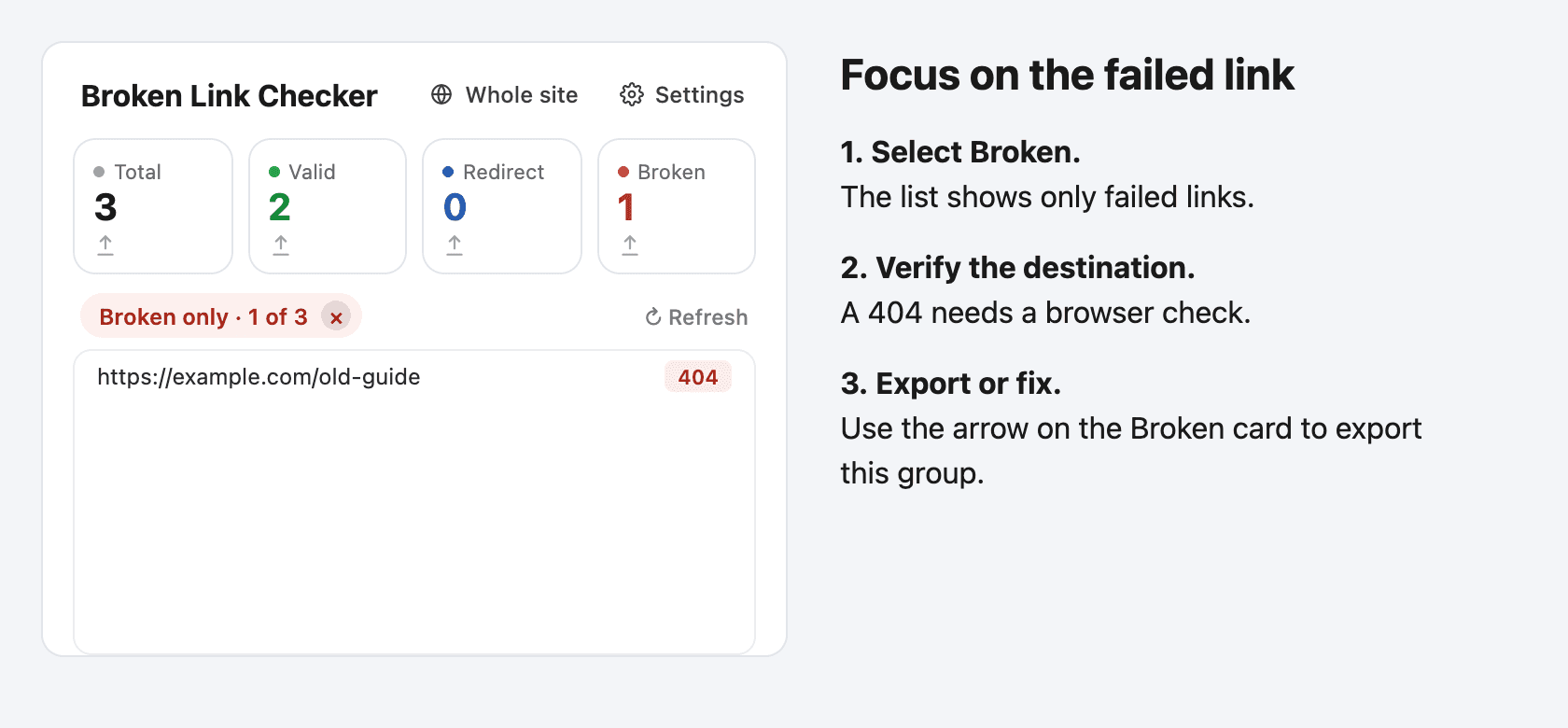
In this example, only one of three links needs investigation. Open that URL first. If the page is missing, return to the spreadsheet and edit the cell's link target. If the cell displays a label rather than an address, keep the useful label and change the destination behind it. Run another check after saving the edit.
The first 3 checks are free, with no signup or card required. Continued use requires a paid plan. See the Google Docs and Sheets feature page for current product details.
Shared Files and Access Restrictions
You do not need to publish the spreadsheet or make it public. However, an owner restriction on downloading or copying can prevent the extension from reading the file. Access to the spreadsheet also does not guarantee access to every destination linked from it.
The extension processes the check in your browser; document contents and results are not sent to our servers. Requests still go to Google to read the file and to linked websites to test their responses.
Method 2: Check a URL Column with Google Apps Script
This sample checks up to 50 selected cells in one column and creates a new report sheet. It leaves the source cells unchanged and checks repeated URL strings only once per run.
Use complete addresses such as https://example.com/resources, one per cell. This version reads displayed cell text: it does not extract hidden hyperlink targets from labels, smart chips, or a HYPERLINK formula displaying a friendly name. For those cells, use the extension or copy their actual target addresses into a separate URL column first.
Add and Run the Script
- Open a spreadsheet you can edit. Select a small range of URL cells, such as A2:A11, excluding the header.
- Choose Extensions → Apps Script. Google documents this entry point for scripts attached to a spreadsheet.
- In a new project, replace the default
myFunctionstub with the complete code below. If the project already has code, add a new script file instead of deleting it. - Save the project. Select checkSelectedLinks in the function dropdown and click Run. No deployment is needed.
- On the first run, review Google's authorization request. The script needs spreadsheet access to create the report and external-request access to test URLs. Only authorize code you have reviewed; a Workspace administrator may restrict execution.
- Return to the spreadsheet. A new sheet contains Source cell, URL, HTTP status, and Meaning. Return to the original sheet and select another range before running again.
function checkSelectedLinks() {
  const file = SpreadsheetApp.getActiveSpreadsheet();
  const selection = file.getActiveRange();
  if (!selection || selection.getNumColumns() !== 1 ||
      selection.getNumRows() > 50) {
    throw new Error('Select one column with up to 50 URL cells, without a header.');
  }
  const values = selection.getDisplayValues();
  const rows = [['Source cell', 'URL', 'HTTP status', 'Meaning']];
  const cache = new Map();
  values.forEach(([value], index) => {
    const url = value.trim();
    if (!url) return;
    if (!cache.has(url)) cache.set(url, checkUrl(url));
    const cell = selection.getCell(index + 1, 1).getA1Notation();
    rows.push([cell, url, ...cache.get(url)]);
  });
  if (rows.length === 1) throw new Error('The selected cells are empty.');
  // A leading apostrophe keeps user-supplied text from becoming a formula.
  const safeRows = rows.map(row => row.map(value =>
    typeof value === 'string' ? "'" + value : value
  ));
  const report = file.insertSheet();
  report.getRange(1, 1, safeRows.length, 4).setValues(safeRows);
  report.setFrozenRows(1);
  report.autoResizeColumns(1, 4);
}

function checkUrl(url) {
  if (!/^https?:\/\/[^\s]+$/i.test(url)) {
    return ['Skipped', 'Use a complete http:// or https:// URL'];
  }
  try {
    const code = UrlFetchApp.fetch(url, {
      muteHttpExceptions: true,
      followRedirects: false
    }).getResponseCode();
    let note = 'Review response';
    if (code >= 200 && code < 300) note = 'Responded; verify the content';
    else if (code >= 300 && code < 400) note = 'Redirect; check destination';
    else if (code === 404 || code === 410) note = 'Missing; verify in browser';
    else if (code === 401 || code === 403) note = 'Access denied; review manually';
    else if (code === 429) note = 'Rate limited; retry later';
    else if (code >= 500) note = 'Server error; retry later';
    return [code, note];
  } catch (error) {
    return ['Fetch failed', 'Network, quota, or URL issue; retry manually'];
  }
}
Understand the Report
The script makes a GET request for each unique nonempty address. It records the initial response and deliberately does not follow redirects, so a moved URL appears as a redirect instead of being hidden behind its destination's 200 response. Open redirected addresses to verify the final page. These request options are described in Google's URL Fetch reference.
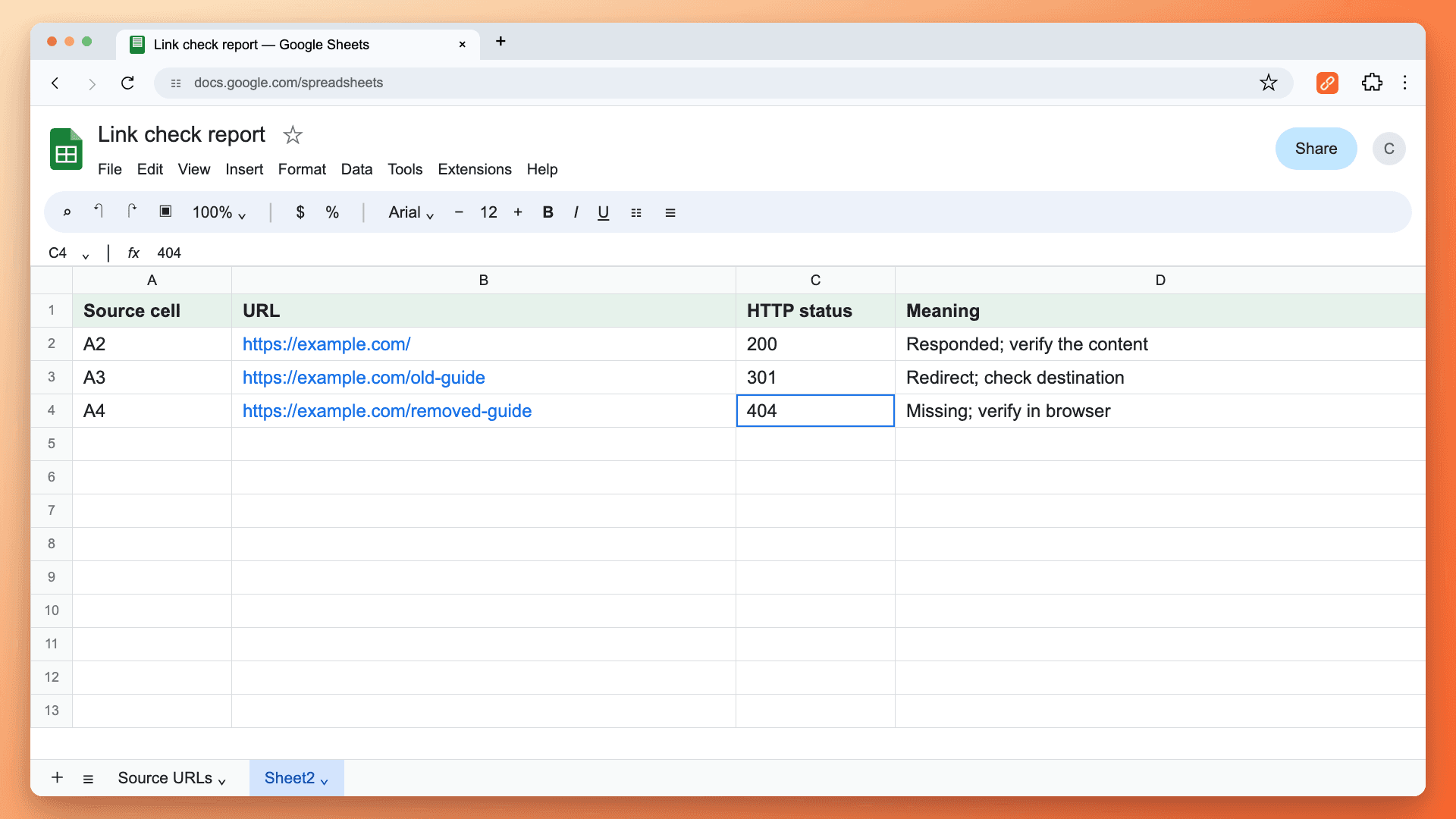
Read the report from left to right. Source cell identifies the position in the original sheet; URL is the address checked; HTTP status is the initial response; Meaning suggests the next action. In the example, A4 points to a missing guide. Open its destination to confirm the failure, then return to A4 on the source sheet and replace its link with the correct resource.
The new report sheet is separate from the original data. Editing its URL column does not repair the source cell. For A3's redirect, inspect the final destination before deciding whether to update the original address. For A2's 200, check that the content still matches the reason you linked to it.
This script is a manual batch check, not an automatically recalculating formula or scheduled monitor. It runs on Google's servers and does not inherit your browser's login cookies. A link that works for you may therefore return an access error to the script.
Start with about 10 URLs. Slow servers can make even small batches take time. Apps Script currently allows six minutes for an ordinary execution; custom functions have a shorter limit. Daily fetch quotas also apply. If execution times out, select fewer cells and retry; this sample writes its report after the checks finish, so an interrupted run may produce no report. See Google's current quotas.
If the Script Does Not Run as Expected
Google asks for permission. On the first run, review the permissions for the project you just created and the code you pasted. If your organization blocks Apps Script, ask its administrator about the approved workflow. Making the spreadsheet public will not resolve a script authorization restriction.
“Select one column with up to 50 URL cells.” Return to the original sheet and select a range such as A2:A11, excluding the header. Do not select the entire column or a rectangle spanning several columns. Then return to the editor and run checkSelectedLinks again.
The report says “Skipped.” Check the displayed value of the source cell. A friendly label such as “Partner site” is not a full URL, even if it is clickable. Put the actual target address in your selected URL column or use the extension, which can read links attached to cell text.
No report appears. Check the execution status in Apps Script. Empty input produces an error; a run that times out may end before creating the report. Try a smaller selection. Make sure the selected function is checkSelectedLinks, not the helper checkUrl, which expects a URL argument.
Several rows say “Fetch failed.” The sample uses this label for exceptions, which can include network failures, invalid addresses, or quota problems. Test a known public URL in a smaller batch and check Google's quota documentation linked above. Repeated immediate retries will not resolve a daily quota limit.
Which Results Actually Need Fixing?
- 404 or 410: confirm the destination is missing, then replace or remove the link.
- 301, 302, or another redirect: check where it ends. Update old URLs when an appropriate permanent replacement exists.
- 401 or 403: check permissions and possible automated-request blocking before changing the link.
- 429 or 5xx: retry later; a rate limit or server outage is not proof that the resource was deleted.
- 200: the server responded successfully. It can still be a login page, irrelevant content, or a soft 404.
After editing, run the check again on the affected links. Keep the report only as a record of that point in time: destinations can change later.
Frequently Asked Questions
Can I Check Links Without Writing Code?
Yes. Broken Link Checker checks the spreadsheet from Chrome and can export results to CSV. You do not need to add an Apps Script project or spreadsheet formula.
Does the Script Check Every Sheet?
No. This sample checks the selected range on the active sheet. The extension checks links across the file. Choose the approach that matches your scope rather than assuming every checker reads the entire spreadsheet.
Can I Use IMPORTXML to Detect Broken Links?
An import failure alone is not a reliable HTTP status report: extraction can fail for reasons unrelated to a missing page. Use an HTTP checker, then verify suspicious results in a browser.
What If My Links Are in a Google Doc?
Use our Google Docs link-checking guide. It includes the extension workflow and a script that reads linked document text instead of a spreadsheet column.

Pavel Molyanov
Creator of Broken Link Checker
Content marketer with 10+ years of experience. Founder of a content marketing agency. Writing about SEO, content workflows, and website maintenance.

Check Your Links in One Click
Broken Link Checker finds broken links and redirects on any page or across your whole website, and works in Google Docs and Sheets. Try 3 checks free, with no signup or card required.