How to Find and Fix Broken Links in Squarespace
· Updated
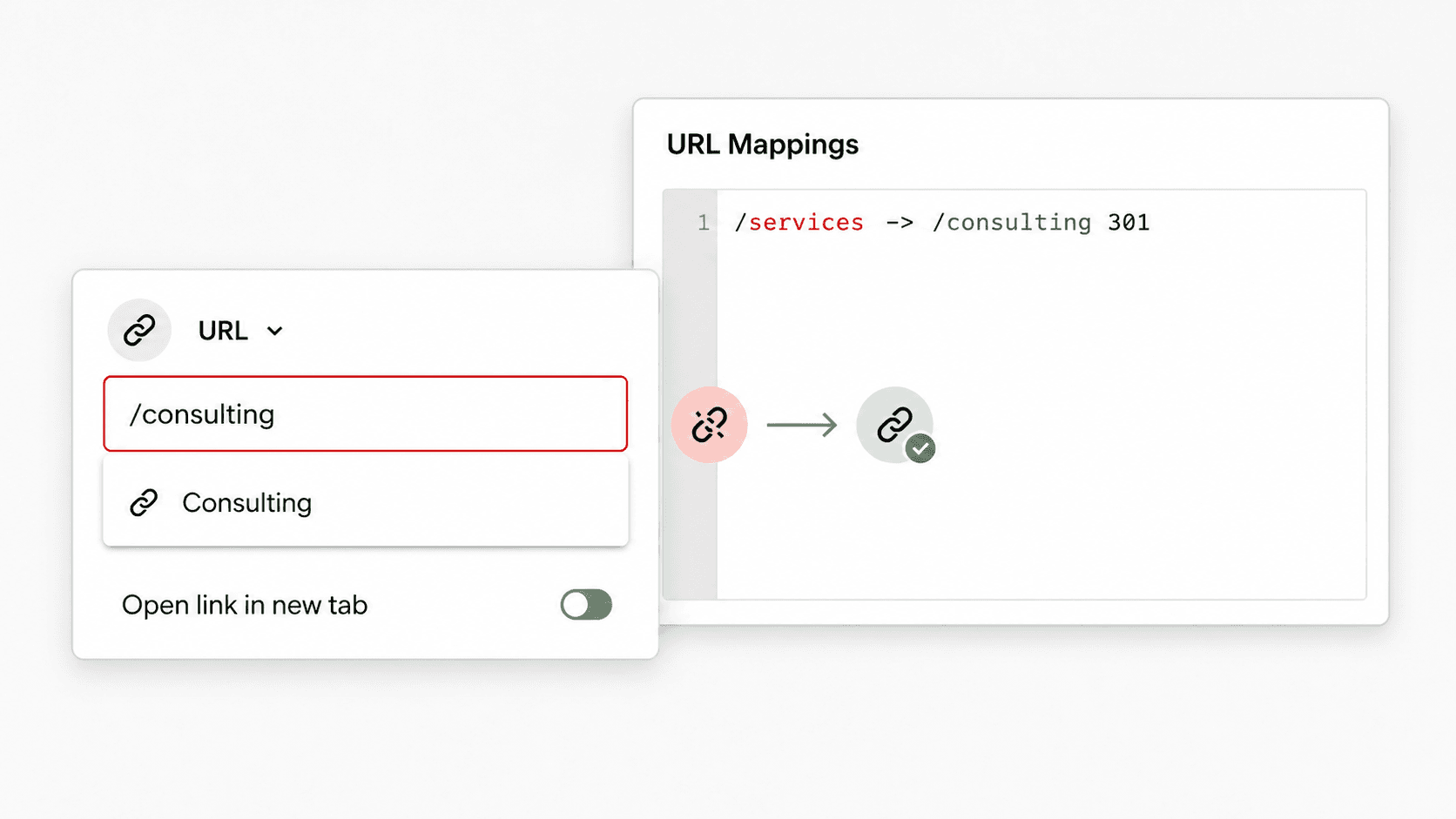
To find broken links in Squarespace, scan the published page with a browser extension for a fast page-level check or crawl the public site for broader coverage. Then edit the link where it appears. If a page permanently moved, also add a 301 rule in Developer Tools → URL Mappings so old bookmarks, backlinks, and search results still reach the correct destination.
Changing a Squarespace URL slug does not automatically redirect the old URL. Squarespace's URL slug documentation says you need to update links and create the redirect yourself.
Fast Squarespace Triage
| What you find | Best first action |
|---|---|
| A text, button, menu, or image points to the wrong URL | Edit the source link and select or paste the correct destination |
| A page permanently moved to a new URL | Update internal links and add a 301 URL mapping from old to new |
| A page was intentionally removed with no replacement | Remove links to it and leave a real 404 |
| An external page disappeared | Find a current equivalent or remove the reference |
| A link opens a Squarespace editing or built-in-domain URL | Replace it with the public URL on the primary domain |
| A blog, store, event, or portfolio path changed | Map the old collection pattern and test individual item URLs |
A result shows 403, 429, timeout, or 5xx | Verify it in a normal browser before deleting a useful link |
The important distinction is between the source page, where the clickable link appears, and the destination URL, where the visitor lands. A redirect can keep an old destination working, but it does not clean up the outdated link on the source page. For links you control, do both.
Why Squarespace Links Break
Squarespace handles hosting and page rendering, but it cannot know what should replace a URL after your content changes. Most broken links come from a few repeatable situations.
A Page Slug Changed
Renaming a page does not necessarily change its slug, but editing the slug changes its public address. A page that moved from /services to /consulting leaves every link to /services outdated.
Squarespace explicitly warns that traffic does not automatically redirect after a slug change. Existing page links, old QR codes, browser bookmarks, search results, and backlinks can all continue using the previous URL.
A Page or Collection Item Was Deleted or Disabled
Deleting or disabling a page removes the public destination. The same problem occurs when you remove a blog post, event, portfolio item, or product while navigation, content, email campaigns, or external websites still link to it.
Moving a page into Not linked is different: the page can remain public even though it no longer appears in navigation. Disabling it makes it unavailable to visitors.
A Collection Path Changed
Collection pages create paths for all their items. If a blog changes from /blog to /journal, a post can move from /blog/example-post to /journal/example-post. One collection-level change can therefore break many historical URLs at once.
Squarespace supports the [name] variable in URL mappings for these cases. A single carefully tested rule can preserve a whole group of blog posts, products, or events.
Imported Content Kept Its Old URL Structure
Content imported from WordPress, Blogger, or another platform may retain links written for the former site structure. For example, the old site might have used /post-title, while Squarespace publishes the imported post at /blog/post-title.
Squarespace's link troubleshooting guide recommends reselecting the corresponding site content in the link editor and using URL mappings where old public URLs still need to work.
The Link Uses an Editing URL or the Wrong Domain
When you are logged in, Squarespace can show an editing URL or its built-in example.squarespace.com domain. Copying that address into content may send visitors to the wrong domain or, in some cases, toward the editing area instead of the public page.
Open the destination in a private window, copy its public URL, and set the intended custom domain as the primary domain. For internal pages, use Squarespace's link picker instead of pasting the editing address.
Category, Tag, Anchor, and External Links Changed
Squarespace category and tag URLs are case-sensitive. Anchor links can stop working when the target section changes. External websites also move and delete pages over time, producing normal link rot even when your Squarespace site has not changed.
How to Find Broken Links on a Squarespace Site
No single report answers every link question. Use a page-level scan for immediate editing, a crawler for coverage across discovered public pages, and Search Console for URLs Google has actually attempted to crawl.
Method 1: Scan a Page or the Whole Site in Chrome
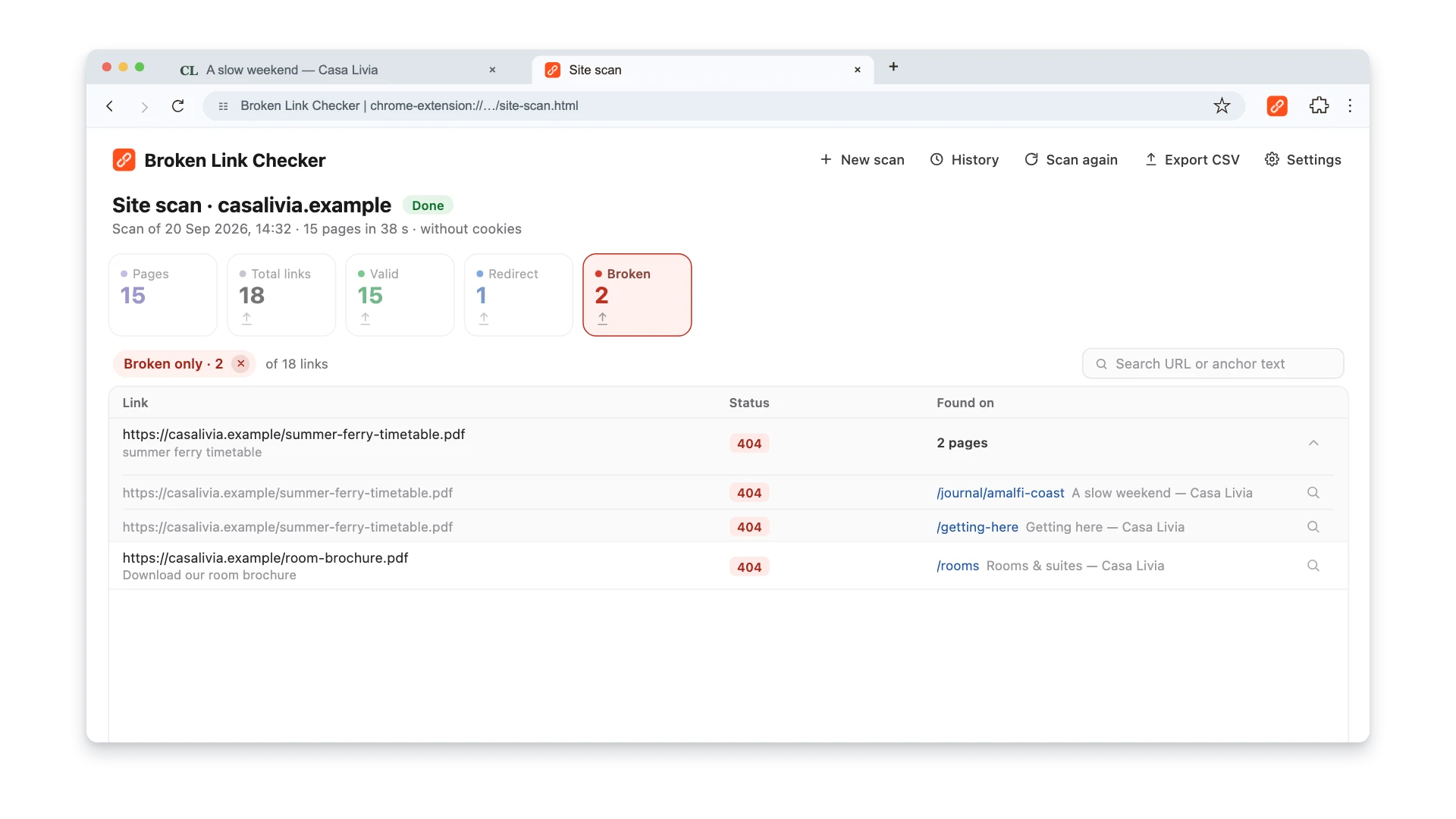
Open the extension on a newly edited page, post, product, or portfolio item to check its links. Use Whole site after changing slugs, collection paths, navigation, or a shared footer.
- Install the Broken Link Checker, choose Whole site, and confirm the public primary domain rather than an editor or built-in-domain URL.
- Set a page limit, start the scan, and keep the scan tab open and in front while pages render.
- Filter to Broken, expand Found on, and use the magnifying glass to highlight the text, button, image, or navigation link on its source page.
- Repair that source in Squarespace. If the same destination appears on many pages, check the header, footer, announcement bar, or collection content before editing pages individually.
- Publish and choose Scan again. Export CSV first when a larger collection-path or migration cleanup needs a repair list.
Run every scan on the public site, not only inside the Squarespace editor. A logged-in preview can have different URLs and access conditions from the page a visitor or search engine receives.
Watch this 3-minute walkthrough to see a page check, a whole-site scan, and report export on an example website. Use the same checking steps on your published Squarespace site, then follow the repair instructions below to edit links in your platform.
Method 2: Check Google Search Console
Open Google Search Console → Page indexing and review Not found (404) under the reasons pages are not indexed. This report contains URLs Google knows about and attempted to crawl.
Search Console is useful for finding:
- an old page URL that still appears in search;
- a deleted URL submitted in the sitemap;
- a historical URL reached through a backlink;
- groups of 404s created by a collection or migration change.
It is not a complete broken-link checker. It does not list every outbound link on your pages, and an unknown or intentionally removed URL can appear even when your current navigation is clean. Google recommends fixing 404s that your site links to or submits in a sitemap; an intentionally removed URL with no replacement can correctly remain a 404. See the full workflow for 404 errors in Google Search Console.
Method 3: Crawl the Whole Site
For a complete audit, use a crawler such as Screaming Frog SEO Spider. Its free version currently crawls up to 500 URLs.
- Enter the public Squarespace homepage URL and start the crawl.
- Filter response codes to Client Error (4xx).
- Select a failed destination and open Inlinks to find the source pages.
- Export the list before editing if several people will share the work.
- Crawl again after publishing the fixes.
Screaming Frog is an alternative for site-wide crawling and inlinks reports. The extension also offers Whole site scanning; its page check is useful when you are editing or verifying one rendered page.
Choose the repair based on what happened to the destination. Updating the source link is usually the cleanest fix; a URL mapping is additional protection for a page that genuinely moved.
How to fix broken links in Squarespace
A practical workflow for repairing a failed link and preserving a moved URL.
Verify the failure
Open the destination in a private window and confirm whether it is a real 404, a redirect, or a temporary access error.
Find the source
Use the page-level scan or a crawler's inlinks report to identify the page, menu, button, image, or collection item containing the link.
Choose the intended destination
Select the current page that best satisfies the visitor's original intent. Do not default unrelated missing pages to the homepage.
Update the source link
Edit the Squarespace content and reselect the internal page or paste and verify the complete external URL.
Add a URL mapping when needed
If your own page permanently moved, create a 301 mapping from the inactive old path to the live new path.
Publish and test
Test the edited page and the historical URL in a private window on the primary domain.
Rescan the result
Run the extension or crawler again and confirm that the source now points directly to the correct working URL.
Detailed Squarespace Repair Steps
Fix a Text Link, Button, or Navigation Item
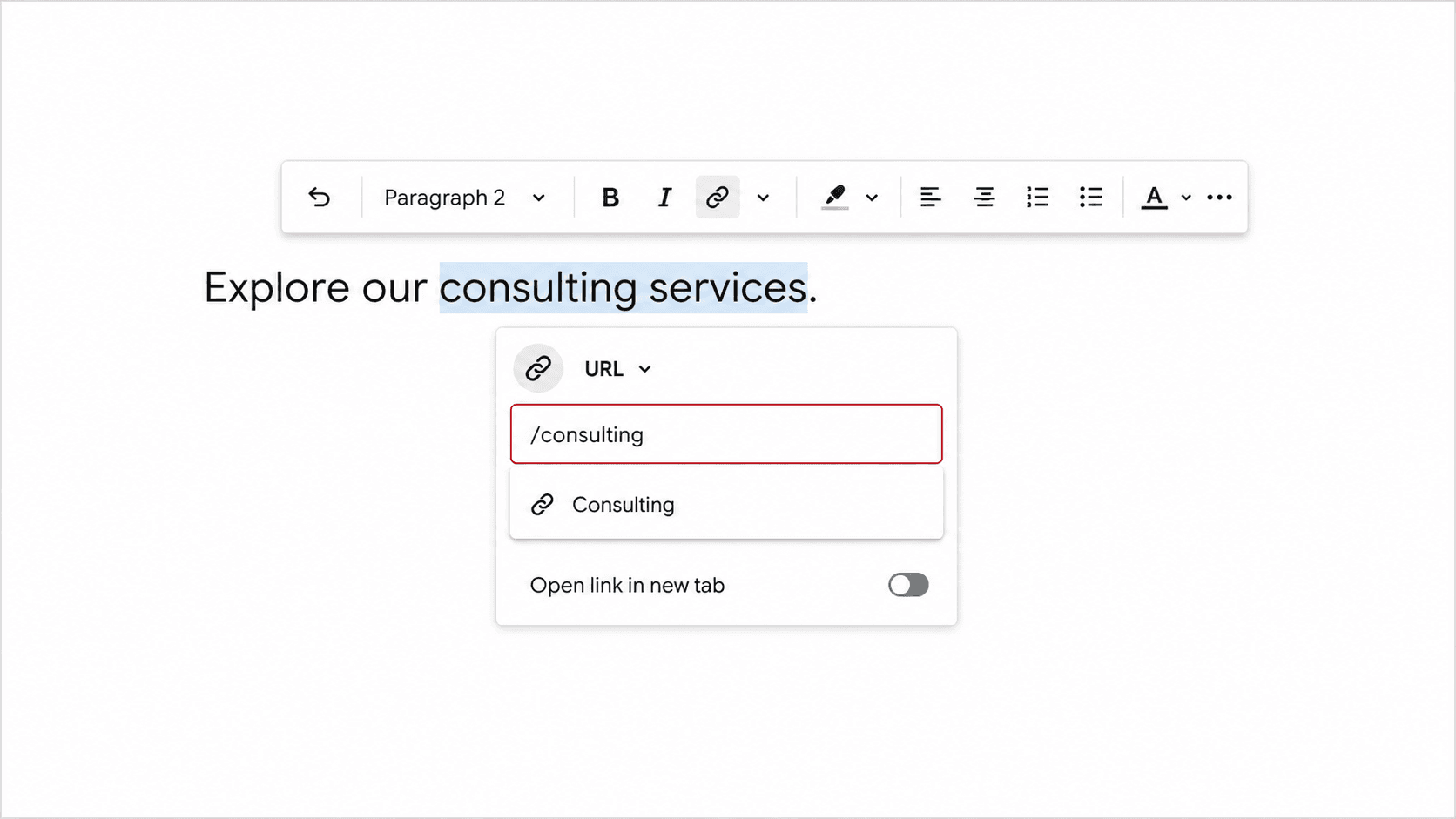
Open the page or site area containing the broken link, enter edit mode, and open the link editor. For a page or product on your own site, start typing its title or slug and select it from Squarespace's results. For an external destination, paste the complete public URL and press Enter.
Squarespace's official link editor guide notes that links to individual blog posts, events, and portfolio sub-pages may require the complete URL. After saving, test the page outside the editor.
Check every place the same destination may appear:
- text links inside pages and posts;
- button blocks and header buttons;
- primary and secondary navigation;
- footer links;
- announcement bars;
- product descriptions;
- image and gallery clickthrough URLs.
A broken link in a global header or footer can appear on the entire site. Fix the shared source once, then rescan several page types to make sure the published template updated everywhere.
Fix an Image or Gallery Clickthrough URL
Open the image block, gallery section, or gallery block and edit its link field. Choose a current internal page or paste a verified external URL. Squarespace documents the supported locations in its image clickthrough URL guide.
The image itself can load correctly while its click destination is broken. A visual review will not catch that problem, so click linked images or include them in a page-level scan.
Add a 301 URL Mapping for a Moved Page
Use a 301 when your page permanently moved and the old URL has a relevant new destination.
- Open the Developer Tools panel.
- Click URL Mappings.
- Add the old path, an arrow, the new path, and
301. - Save the mapping.
- Test the old URL in a private window.
For a page moved from /services to /consulting, enter:
/services -> /consulting 301
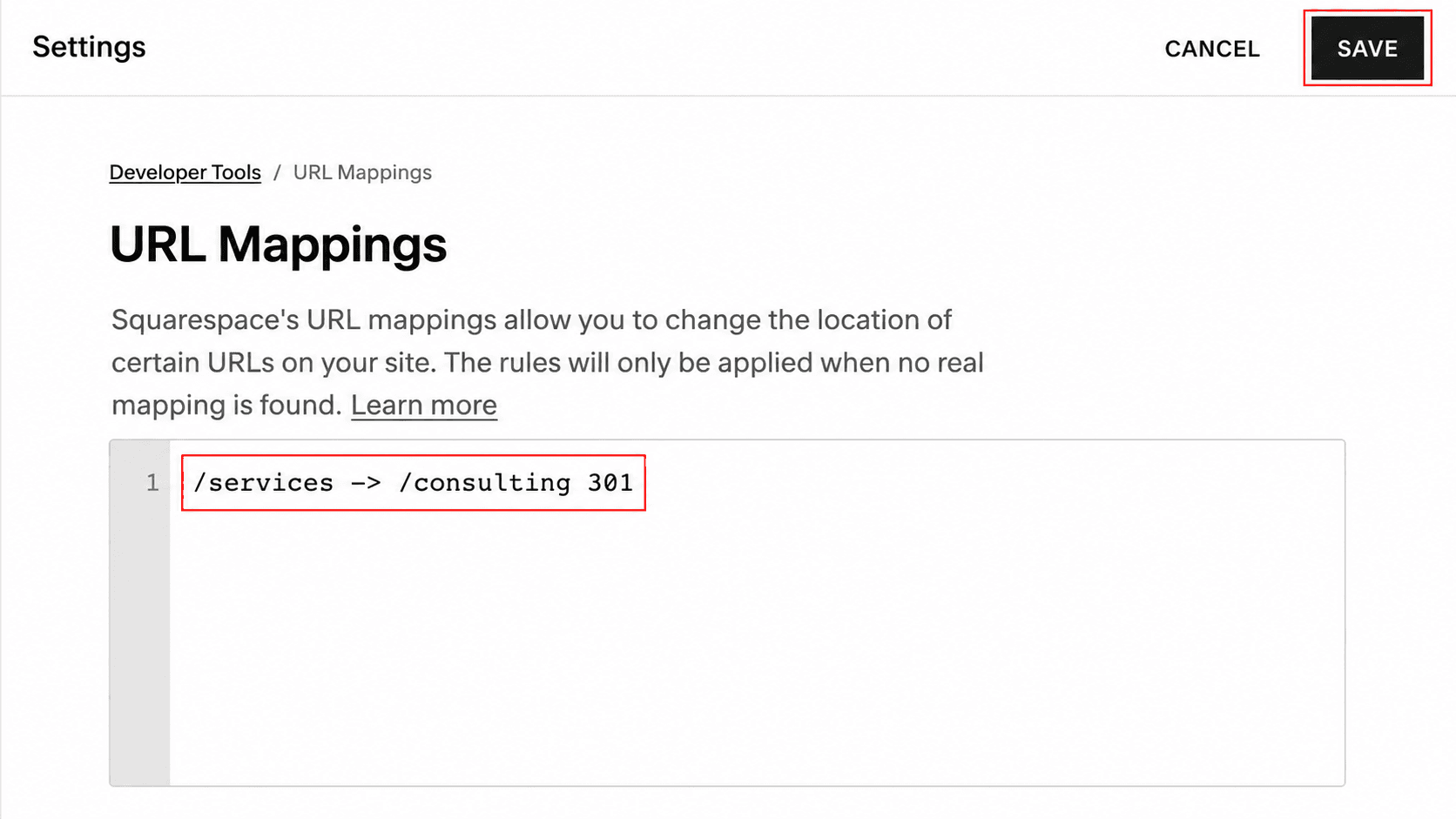
The old path must be inactive: deleted, disabled, or changed. Squarespace URL mappings do not override a live page at the source path.
Then update your current internal links to point directly to /consulting. The redirect is for historical traffic; it should not become a permanent extra hop in your own navigation. This also helps prevent redirect chains.
Map a Changed Blog, Store, or Collection Path
If the item names stayed the same but their parent collection path changed, Squarespace supports a [name] variable.
For a blog moved from /blog to /journal:
/blog/[name] -> /journal/[name] 301
For a Squarespace 7.1 store moved from /store to /shop:
/store/p/[name] -> /shop/p/[name] 301
Test multiple real item URLs before assuming the pattern covers the collection. A wildcard rule is safe only when the old and new structures preserve the same item names. If individual slugs also changed, create explicit mappings for those exceptions.
Squarespace activates mappings from top to bottom. Put specific exceptions above broad collection rules so the general pattern does not capture them first. Review the current syntax and migration examples in the official URL mappings guide.
Fix an External Broken Link
You cannot redirect a URL owned by another website. Verify the failure in a normal browser, then choose one of three actions:
- Replace the link with the resource's new official URL.
- Replace it with another source that supports the same statement or task.
- Remove the link and rewrite the surrounding sentence if no suitable replacement exists.
Do not replace a dead citation with the first page covering a similar topic. The new source should support the specific claim around the link.
Fix a Link to the Built-In Domain or Editing Area
Open the intended destination on the public site in a private window. Copy the URL from the primary domain, then replace the outdated link. For internal content, reselect the page in Squarespace's link editor instead of manually pasting the address displayed while editing.
If a visitor reaches a login screen, inspect the link for an editing path such as /config#/. That URL belongs to the site editor, not the public page.
Fix Category, Tag, Anchor, and QR Links
For category and tag links, use Squarespace's built-in link selection when possible. Manually written category and tag URLs are case-sensitive, so /Recipe and /recipe may not behave the same way.
For an anchor link, confirm that the target section still exists and that the anchor points to its current identifier. For a QR code tied to a changed page slug, either restore the old slug, add a redirect, or replace every printed and digital copy of the code.
When to Update, Redirect, Remove, or Leave a 404
| Situation | Update the source link? | Add a redirect? |
|---|---|---|
| Your page moved to a close replacement | Yes | Yes, usually 301 |
| A typo points to the wrong internal path | Yes | Only if the typo is widely used outside your site |
| An external page moved | Yes | No, you do not control that domain |
| Your content was permanently removed with no replacement | Remove the link | No; keep an honest 404 |
| A page is unavailable during a short update | Avoid linking visitors there | A temporary 302 may fit |
| A result is blocked or rate-limited but works for visitors | No, until confirmed | No |
Do not redirect every missing page to the homepage. Google says a proper 404 is correct for deleted content without a replacement, while an irrelevant redirect can be interpreted as a soft 404. Redirect only when the destination preserves the purpose of the old page.
For a permanent move, use 301. For a genuinely temporary change, use 302. The detailed comparison is in our guide to 301 vs. 302 redirects.
Squarespace URL Mapping Limits to Know
Squarespace's current documentation lists several constraints that affect broken-link repairs:
- The source URL must no longer be an active page.
- Image and file URLs cannot be redirected through URL mappings because Squarespace serves static assets through CDN providers.
- The homepage
/cannot be used as the source of a redirect. - Most mappings cannot include
?,&, or#in the source pattern. - The URL Mappings field is limited to 400 KB, usually about 2,500 redirect lines.
- Rules run from top to bottom, so specific mappings should appear above broader ones.
These constraints are another reason to fix the clickable source wherever possible. A redirect is a compatibility layer for a moved URL, not a substitute for maintaining current content.
Verify the Repair
After publishing, test from the public primary domain in a private or incognito window.
- Open the edited source page and click the repaired link.
- Open the old URL directly if you created a mapping.
- Confirm the old URL reaches the intended page in one redirect.
- Confirm the final page loads successfully and is not a login or editor view.
- Rescan the page with Broken Link Checker.
- Rerun the affected crawl scope for a site-wide repair.
- Check Search Console after Google recrawls the old and new URLs.
Do not judge the repair only by whether the browser eventually displays a page. A redirect loop, a chain ending in 404, or an unrelated homepage redirect can all look superficially “handled” while remaining poor fixes.
Prevent Broken Links Before They Publish
Squarespace's site launch checklist explicitly includes checking for broken links. Make that check part of later content changes too.
- Record the old and new URL before changing any published slug.
- Add and test the redirect as part of the same change.
- Use the internal content picker instead of copying editor URLs.
- Check header, footer, buttons, images, and navigation after a redesign.
- Crawl before and after a migration or collection path change.
- Scan important new pages before sharing them.
- Review Search Console for new 404 groups.
- Check external references on a recurring schedule.
For a small, mostly static site, monthly checks plus a scan after structural changes are often enough. Active stores, publications, and frequently edited sites need a tighter schedule. Use the decision guide for how often to check broken links.
Frequently asked questions
- Does Squarespace have a built-in broken link checker?
- Squarespace's current help documentation describes manually checking links, repairing them in the link editor, and creating URL mappings, but not a complete site-wide broken-link report. Use a page-level browser extension for quick checks, a crawler for full coverage, and Google Search Console for URLs Google has attempted to crawl.
- Does Squarespace automatically redirect an old URL when I change a slug?
- No. Squarespace states that traffic does not automatically redirect after a page slug changes. Update links to the page and create a 301 URL mapping from the inactive old path to the live new path.
- How can I check a Squarespace site for broken links for free?
- Use the three free checks in Broken Link Checker for a current page or a whole-site scan; the allowance is shared, and one fresh whole-site scan counts as one check. Google Search Console reports known 404 URLs, while Screaming Frog offers a free crawl within its 500-URL limit.
- Should I redirect every Squarespace 404 to the homepage?
- No. Redirect a missing URL only when a close replacement exists. If content was intentionally removed and has no replacement, remove internal links to it and leave a proper 404 response. An unrelated homepage redirect can create a soft 404 and confuse visitors.
- Can Squarespace URL mappings redirect broken images or files?
- No. Squarespace says image and file URLs cannot be redirected through URL mappings because static assets are hosted by CDN providers. Update or replace the source link to the asset instead.
- Should I use a 301 or 302 redirect in Squarespace?
- Use a 301 when the move is permanent, such as a changed slug or replaced page. Use a 302 only for a genuinely temporary move, such as disabling a page briefly while it is updated. Remove the 302 when the original page returns.
- Can Broken Link Checker scan an entire Squarespace website?
- Yes. Choose Whole site in the Chrome extension, confirm the public site address, and start the scan. Keep the scan tab open, and stay on it while pages load in the right-hand panel. The report shows broken destinations and the source pages where they were found.
The simplest reliable Squarespace workflow is: scan the published page, repair the link at its source, add a relevant redirect only when your own URL moved, and rescan the public result. For platform-specific comparisons, see the corresponding guides for WordPress, Shopify, Wix, and Webflow.

Pavel Molyanov
Creator of Broken Link Checker
Content marketer with 10+ years of experience. Founder of a content marketing agency. Writing about SEO, content workflows, and website maintenance.

Check Your Links in One Click
Broken Link Checker finds broken links and redirects on any page or across your whole website, and works in Google Docs and Sheets. Try 3 checks free, with no signup or card required.