How to Find and Fix Broken Links in Shopify
· Updated
To fix a broken Shopify URL, update links inside the store and create a redirect only when the old URL has a relevant replacement. In the current admin, redirects live under Content → Menus → URL redirects. For a handful of pages, create them individually; for a migration or catalog cleanup, import a CSV and test the old URLs after launch.
Shopify URLs are tied to products, collections, pages, blog posts, markets, and app routes. Deleting content, changing handles, removing a market, or uninstalling an app can leave links from navigation, campaigns, bookmarks, and search results pointing to dead pages.
Fast Shopify Triage
| Broken URL type | Preferred destination |
|---|---|
| Discontinued product | A true successor product; otherwise the narrowest useful collection |
| Renamed product or collection | Its new handle |
| Deleted seasonal collection | The current equivalent collection or sale hub |
| Removed article or page | A substantially equivalent resource, not the homepage by default |
| Old platform URL after migration | The matching Shopify product, collection, page, or post |
| App-created route | A replacement native page or app route, after confirming the old path is no longer valid |
Why Shopify Stores Get Broken Links
Understanding the causes helps you prevent the problem. Here are the most common reasons Shopify stores accumulate broken links:
Product Deletions and Archiving
The most common cause. When you delete a product from Shopify, its URL (/products/vintage-leather-bag) immediately returns a 404. Every link pointing to that product — from Google search results, social media posts, affiliate sites, email campaigns, Pinterest pins — now sends visitors to a dead page.
Archiving a product removes it from collections, search, and sales channels. Depending on your theme, the URL may return a 404 or display the page without a purchase option. To be safe, set up a redirect whenever you archive a product.
URL Handle Changes
Every product, collection, page, and blog post in Shopify has a URL handle — the part of the URL after the slash. When you change a product title, Shopify does not automatically update the URL handle. But if you manually edit the handle in the SEO section, the old URL stops working as soon as you save — unless you keep the redirect Shopify offers.
Here's the helpful detail most guides miss: when you edit a handle in the admin, Shopify shows a "Create a URL redirect for..." checkbox right below the field, pre-checked. Leave it on and Shopify generates the old-to-new 301 for you automatically. The only time you'd uncheck it is if the old handle was never public. That checkbox doesn't cover deletions, archives, theme switches, or app changes — those still need manual redirects.
For example, you rename "Blue Running Shoes" to "Blue Trail Running Shoes" and update the handle from /products/blue-running-shoes to /products/blue-trail-running-shoes. With the auto-redirect checkbox on, the old URL redirects to the new one. With it off, anyone visiting the old URL gets a 404.
Collection Changes
Restructuring your collections — merging two collections, deleting a seasonal collection, or renaming one — breaks every link to those collection URLs. This includes tag-based collection URLs like /collections/shoes/tag-name, which stop working when the parent collection changes.
Theme Switches
Switching to a new Shopify theme can break links in unexpected ways. Themes sometimes use different URL structures for custom pages, generate navigation links differently, or reference pages that don't exist in the new theme. If your old theme had custom template pages with specific URLs, those may not carry over.
App Installations and Removals
Third-party Shopify apps often create their own pages and URL routes. Product review pages, wishlists, size guides, lookbooks — when you uninstall the app, these URLs vanish. External links and Google-indexed pages pointing to those app-generated URLs all break.
Platform Migrations
Migrating to Shopify from WooCommerce, Magento, BigCommerce, or any other platform is the single biggest source of broken links. Your old URL structure (/shop/category/product-name.html) won't match Shopify's format (/products/product-name). Without comprehensive redirects, every existing link from external sites, Google's index, and bookmarks breaks simultaneously.
How to Find Broken Links in Your Shopify Store
You can't fix what you haven't found. Here are the most effective methods, from quickest to most thorough.
Method 1: Chrome Extension (Page or Whole Site)
Open the extension on a product, collection, or campaign page to check its links. Use Whole site after catalog cleanup, handle changes, a theme switch, or app removal.
- Install the Broken Link Checker, choose Whole site, and confirm the public storefront address.
- Set a page limit, start the scan, and keep the scan tab open and in front while storefront pages render.
- Filter to Broken and expand Found on. Use the magnifying glass to highlight the link on a product, collection, blog post, or page.
- Repair the source in Shopify. Check Content → Menus for navigation, the relevant content editor for descriptions or posts, and theme settings or Liquid when the same link appears in a banner, footer, or product template.
- Export CSV for a larger cleanup, publish the edits, and choose Scan again to verify the storefront.
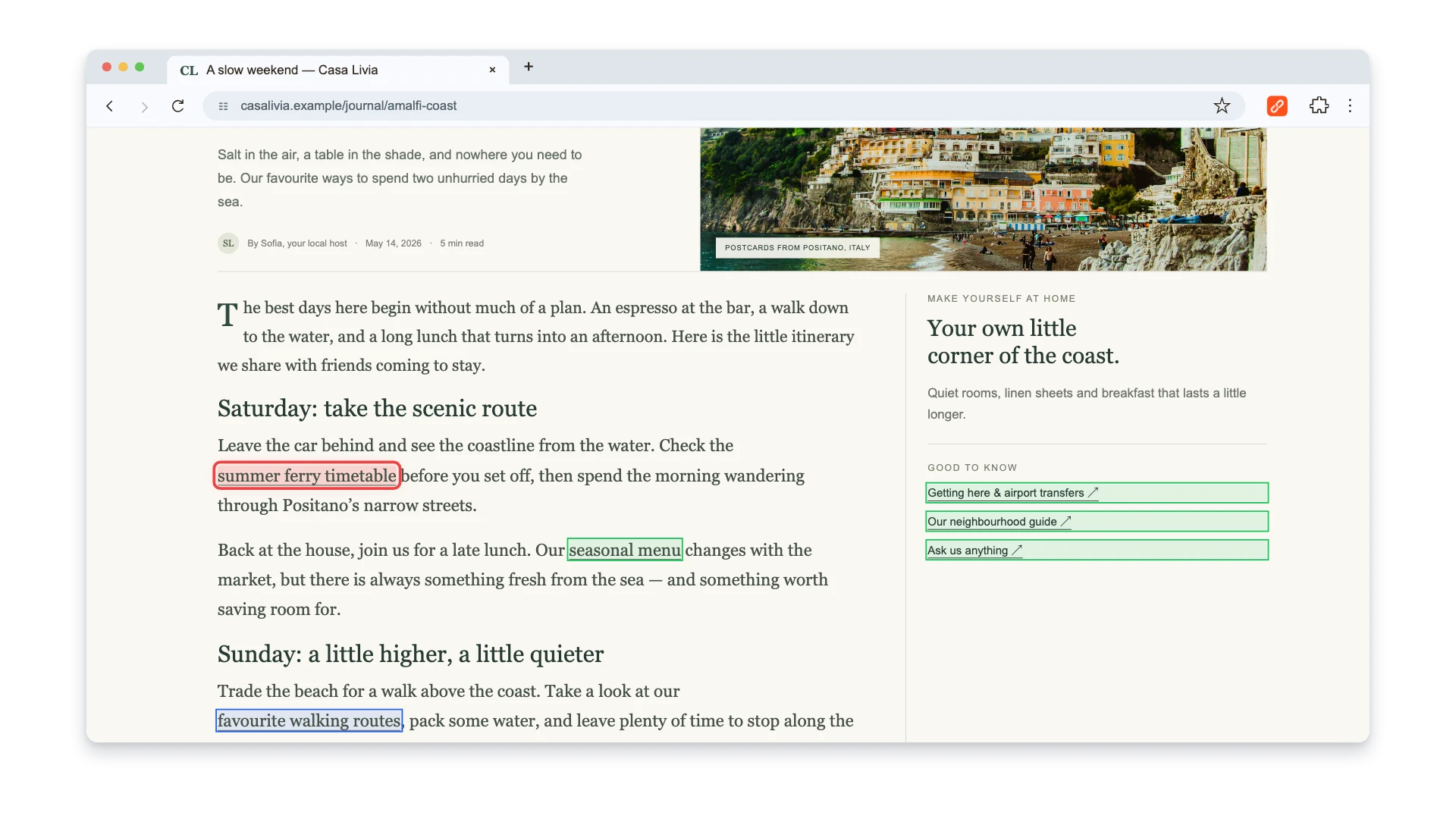
Watch this 3-minute walkthrough to see a page check, a whole-site scan, and report export on an example website. Use the same checking steps on your published Shopify site, then follow the repair instructions below to edit links in your platform.
Method 2: Google Search Console
If your Shopify store is connected to Google Search Console (it should be), go to Pages and look for "Not found (404)" under the "Why pages aren't indexed" section.
This shows every URL where Googlebot hit a dead end on your store. It's the most reliable source for finding broken internal URLs because it uses Google's own crawl data — the same data that affects your rankings.
Search Console also shows you which external sites link to your broken pages through the Links report, which helps you prioritize which redirects to set up first.
The downside: Search Console only shows pages Google has tried to crawl. It won't catch broken outbound links on your pages.
Method 3: Screaming Frog (Full Crawl)
For a comprehensive audit, Screaming Frog SEO Spider crawls your entire Shopify store and reports every broken link. The free version crawls up to 500 URLs — often enough for small to medium stores.
Enter your store URL, let it crawl, then filter the results by Response Codes → Client Error (4xx). You'll see every broken link, what page it's on, and the anchor text used.
Screaming Frog also catches redirect chains (where one redirect points to another redirect), which slow down your site and dilute link equity.
Method 4: Shopify Apps
Several Shopify apps monitor your store for broken links automatically:
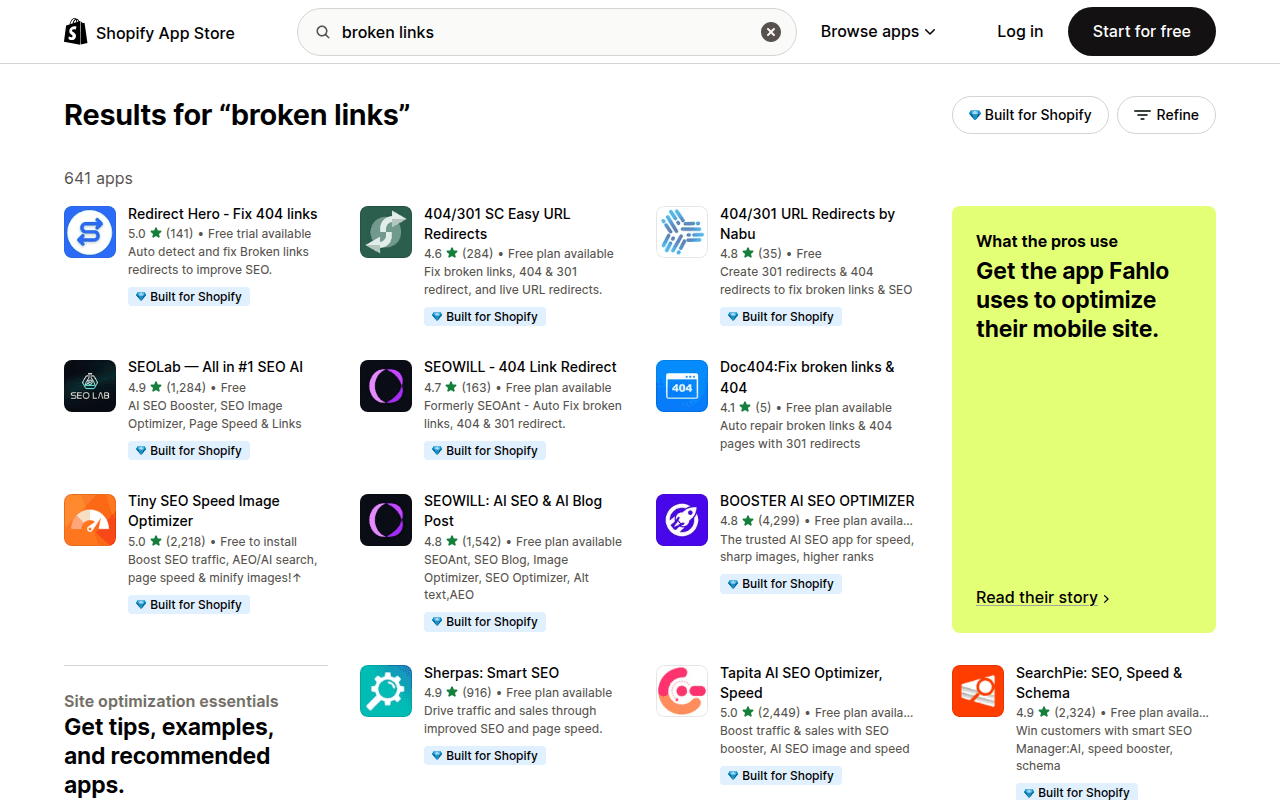
- SEOWILL (formerly SEOAnt) — detects 404 errors in real-time and generates daily or weekly reports. Can create redirects in bulk automatically.
- Ablestar Link Manager — scans for broken links and supports wildcard redirects for pattern-based fixes.
- SC Easy Redirects — automates 404 discovery and allows bulk fixes with CSV import.
These apps are useful for ongoing monitoring because they run continuously inside your Shopify admin. The tradeoff is another app on your store and a monthly subscription.
How to Fix Broken Links in Shopify
Once you've identified broken links, here's how to fix them — from single links to bulk operations.
Fix Individual Links: Shopify URL Redirects
Shopify has a built-in URL redirect system. Here's how to use it:
- In your Shopify admin, go to Content → Menus.
- Click URL redirects.
- Click Create URL redirect.
- In "Redirect from", enter the old (broken) URL path — for example,
/products/old-product. - In "Redirect to", enter the destination URL — for example,
/products/new-productor/collections/related-collection. - Click Save redirect.
Shopify's built-in tool creates permanent URL redirects. Choose a closely matching destination so visitors still get the product or information they expected.
Shopify also offers this automatically when editing handles. When you change a product or collection URL handle in the admin, Shopify prompts you with a "Create a URL redirect" checkbox that's enabled by default. If you leave it checked and save, Shopify creates the old-to-new redirect for you — no manual step required. This covers the most common case (renaming a handle), though you still need to create redirects manually when deleting products, consolidating collections, or migrating URLs from another platform.
Important limitations to know:
- You can only redirect from URLs that return a 404. If a page still loads (even if it's the wrong page), the redirect won't work.
- Non-Plus Shopify plans (Basic, Shopify, Advanced) allow up to 100,000 redirects. Shopify Plus allows up to 20 million.
- Shopify treats some
.htmlpaths specially. In particular, its documentation says you cannot redirect a URL ending in.htmlto the otherwise identical path without.html. Map legacy paths to the actual Shopify destination and test each pattern before migration cutover. - The "Redirect from" field takes only the path (starting with
/), not the full domain URL.
Before a large import, review Shopify's current URL redirect considerations and reserved paths. Rules for fixed paths, market subfolders, query strings, and account routes can affect whether a redirect is accepted.
Fix Links in Bulk: CSV Import
If you have dozens or hundreds of broken links — common after a migration or major product cleanup — creating redirects one by one is impractical. Use Shopify's CSV import:
- Create a CSV file with two columns: Redirect from and Redirect to.
- Use relative paths, not full URLs. For example:
/products/old-namenothttps://yourstore.com/products/old-name. - In Shopify admin, go to Content → Menus → URL redirects.
- Click Import and upload your CSV file.
- Review the preview and click Import redirects.
Here's what the CSV looks like:
Redirect from,Redirect to
/products/summer-sandals-2024,/products/summer-sandals
/collections/clearance-winter,/collections/sale
/pages/old-about-us,/pages/about
/blogs/news/outdated-post,/blogs/news
Download Shopify's sample CSV template from the import dialog to make sure your formatting matches exactly.
Fix Links in Content (Pages, Blog Posts, Product Descriptions)
Redirects handle external links and Google-indexed URLs. But you should also update broken links inside your store's content directly:
- Product descriptions — if a product description links to a deleted product, edit the description and update or remove the link.
- Blog posts — open the blog post editor and fix broken links in the content.
- Custom pages — same process as blog posts: edit, find the broken link, replace.
- Navigation menus — go to Content → Menus, open the relevant menu, and update or remove the broken menu item.
- Theme code — if broken links are hardcoded in your theme's Liquid templates (common for footer links, banners, promotional sections), edit the theme code directly at Online Store → Themes → Edit code.
Handle Product Variants and Collections
Shopify product variants don't have their own URLs — they use query parameters like /products/t-shirt?variant=12345678. These rarely break on their own because the variant is a parameter on the parent product URL.
However, if the parent product is deleted, all variant URLs break with it. When redirecting a deleted product that had multiple variants, redirect the base product URL. The variant parameters won't carry over, but customers will at least land on a relevant page.
For collection-specific product URLs like /collections/summer/products/t-shirt, redirect the collection URL if the collection was deleted. The product will still be accessible at its canonical /products/t-shirt URL.
Shopify-Specific Broken Link Patterns
Shopify's URL structure creates some unique broken link patterns worth knowing about.
The /collections/all Pagination Issue
Shopify stores often have URLs like /collections/all?page=2, /collections/all?page=3, and so on. If you reduce your product count (deleting products or hiding them), higher-numbered pagination pages may return 404s or empty results. Google may have indexed these pages, so they'll show up as errors in Search Console.
The fix: these pages typically resolve themselves as Google re-crawls your site. But if they persist, add noindex tags to paginated collection pages in your theme's Liquid code to prevent Google from indexing them in the first place.
Tag-Based Collection URLs
URLs like /collections/shoes/blue or /collections/shoes/size-10 are generated by Shopify's tag filtering system. If you remove tags from products or delete the parent collection, these URLs break. Since there can be hundreds of tag combinations, redirecting each one individually isn't practical.
Use wildcard redirects (available through apps like Ablestar Link Manager or SC Easy Redirects) to redirect entire patterns — for example, redirect everything matching /collections/old-collection/* to /collections/new-collection.
/products/ URLs After Migration
When migrating from another platform, your old product URLs likely don't match Shopify's /products/handle format. Common patterns that need redirecting:
/shop/product-name.html→/products/product-name/catalog/category/product→/products/product/item/12345→/products/product-name
Create these redirects in bulk via CSV before (or immediately after) switching your DNS to Shopify.
Tools for Finding Broken Links in Shopify
Here's a comparison of the main options:
| Tool | Best for | Coverage | Cost |
|---|---|---|---|
| Broken Link Checker extension | Page checks and whole-site scans | Current page or reachable site pages | 3 checks free; paid plans from $2.90/mo |
| Google Search Console | Finding 404s Google knows about | Google's crawl data | Free |
| Screaming Frog | Full site audit | Up to 500 URLs free | Free / £199/yr (~$209) |
| SEOWILL (Shopify app) | Automated monitoring | Full store | Free plan / from $5/mo |
| Ablestar Link Manager | Wildcard redirects + monitoring | Full store | From $5/mo |
| Ahrefs / Semrush | Comprehensive SEO audit | Full site + backlinks | From $99/mo |
For most Shopify stores, the combination of Broken Link Checker for spot checks and Google Search Console for ongoing monitoring covers the basics. Broken Link Checker includes 3 free checks, with paid plans for continued use. Add a Shopify app if you want automated redirect creation.
Preventing Broken Links in Shopify
Fixing broken links is reactive. These habits stop them from appearing in the first place.
Create Redirects Before Deleting Products
Make this a standard operating procedure. Before you archive or delete any product:
- Go to Content → Menus → URL redirects.
- Create a redirect from the product URL to a relevant alternative (a similar product, the parent collection, or a category page).
- Then delete or archive the product.
This takes 30 seconds and prevents the most common source of Shopify broken links.
Freeze URL Handles After Publishing
Edit your product, collection, and page URL handles only when absolutely necessary. If you must change a handle:
- Note the current URL.
- Change the handle.
- Immediately create a redirect from the old URL to the new one.
Better yet: get the URL handle right before you publish. Editing the handle in the SEO section before the product goes live costs nothing. Changing it afterward requires a redirect.
Audit After Theme Changes
After switching or significantly updating your Shopify theme:
- Run the Broken Link Checker extension on your homepage, main collection pages, and navigation menus.
- Check your footer links — themes often hardcode these.
- Verify any custom pages still load correctly.
- Test product page links if your theme uses custom product templates.
Plan Migrations Carefully
If you're migrating to Shopify from another platform:
- Export all existing URLs from your current platform.
- Map each old URL to its Shopify equivalent in a spreadsheet.
- Format as a CSV and import as bulk redirects immediately after migration.
- Monitor Google Search Console for the first 2-4 weeks to catch any URLs you missed.
Use the pre-redesign link audit checklist to assign and verify the complete old-to-new map. Read our guide on preventing link rot for ongoing maintenance after launch.
Run Monthly Link Checks
Add a monthly task to your store management routine. A quick scan catches new broken links before they accumulate:
- Check Google Search Console for new 404 errors.
- Run the Broken Link Checker extension on your top 10 pages.
- Review any Shopify app reports if you have a monitoring app installed.
Fifteen minutes a month prevents the kind of SEO damage that takes months to recover from.
FAQ
Does Shopify automatically create redirects when I delete a product?
No. Shopify does not create automatic redirects when you delete, archive, or unpublish a product. Create the redirect manually under Content → Menus → URL redirects, or use an automation you have tested for your catalog workflow.
Can I redirect URLs with .html extensions in Shopify?
Sometimes, but not every source-and-destination combination is supported. Shopify specifically documents that an .html URL cannot redirect to the same URL with only the extension removed because the platform treats those paths as equivalent. Use a genuinely different Shopify destination, then verify the exact legacy URL in a browser or with an HTTP status checker.
How many URL redirects can I have in Shopify?
Non-Plus Shopify plans (Basic, Shopify, Advanced) support up to 100,000 URL redirects. Shopify Plus plans support up to 20,000,000 redirects. If you're approaching the limit, audit your redirects to remove any that point to pages that no longer receive traffic.
Will broken links hurt my Shopify store's SEO?
Yes. Broken links waste crawl budget, harm user experience (which Google measures through engagement signals), and leak link equity that your pages accumulated over time. For e-commerce stores where every product page matters for search rankings, broken links directly translate to lost revenue.
How do I find broken links on my Shopify store for free?
Use Google Search Console to find 404 errors that Google has detected, and start with the 3 free checks in the Broken Link Checker Chrome extension. The same allowance is shared by current-page and whole-site checks, and one fresh whole-site scan counts as one check. Continued extension use requires a paid plan. For a full crawl of stores with under 500 URLs, the free version of Screaming Frog works as well. See our complete guide on how to find broken links for more methods. If you are comparing CMS workflows, see the corresponding guides for WordPress, Webflow, and Wix.

Pavel Molyanov
Creator of Broken Link Checker
Content marketer with 10+ years of experience. Founder of a content marketing agency. Writing about SEO, content workflows, and website maintenance.

Check Your Links in One Click
Broken Link Checker finds broken links and redirects on any page or across your whole website, and works in Google Docs and Sheets. Try 3 checks free, with no signup or card required.