Link Rot: Why Your Links Break Over Time and How to Stop It
· Updated
You write a blog post. You cite your sources, link to useful resources, reference a tool you recommend. Two years later, half those links go nowhere. The study you cited? The journal reorganized their website. The tool you recommended? The startup shut down. The government data you linked to? The page moved during a site redesign and nobody set up a redirect.
This is link rot — the gradual decay of hyperlinks over time. It affects every website on the internet, and it happens faster than most people realize.
What Is Link Rot?
Link rot (also called link decay or reference rot) is when hyperlinks stop working because the destination page was moved, deleted, or is no longer accessible. The link still exists in your content, but it points to a dead end — usually a 404 error page.
The term was coined in the 1990s, but the problem has only gotten worse as the web grows. More pages get created every day, and more pages get abandoned, reorganized, or taken offline.
Link rot isn't just about websites disappearing entirely. It also happens when:
- A site redesigns and changes its URL structure without redirects
- A page gets moved to a different section or subdomain
- A paywall goes up around previously free content
- A SaaS tool shuts down or rebrands under a new domain
- A social media post gets deleted by its author
- A government or academic site merges with another organization
The result is always the same: a link that used to work now leads nowhere.
How Fast Does Link Rot Happen?
Faster than you'd think.
In 2013, researchers Jonathan Zittrain and Kendra Albert at Harvard Law School analyzed hyperlinks in U.S. Supreme Court opinions. They found that 49% of those links no longer worked. These aren't obscure blog posts — they're citations in legal documents meant to be permanent records.
The New York Times investigated their own archive in 2024 and found that roughly 25% of all links they had published were broken. Deep links — URLs pointing to specific pages within a site rather than the homepage — failed at even higher rates.
Studies on academic papers show similar patterns. Links in scientific citations decay steadily — within a few years of publication, a significant portion of referenced URLs become inaccessible.
The exact decay rate depends on the type of content you link to. Startup landing pages disappear faster than government databases. Blog posts rot faster than Wikipedia articles. But the trend is consistent: every year, a chunk of your outbound links quietly dies — without you changing a single thing on your own site.
Why Link Rot Hurts Your Website
Link rot isn't just an academic problem. It has real consequences for your site's SEO, credibility, and user experience.
SEO Impact
Search engines use links as signals of quality and relevance. When Google's crawler follows a link on your page and hits a 404 error, several things happen:
Wasted crawl budget. Google allocates a limited number of pages it will crawl on your site during each visit. Every broken link wastes part of that budget on a dead end. On large sites, this can mean important pages don't get crawled and indexed as frequently.
Lost link equity. If your own pages have broken internal links, the "link juice" (PageRank) that would flow through those links is lost. Your site's internal linking structure develops holes.
Trust signals decay. A page full of links to dead websites looks abandoned — because from Google's perspective, it functionally is. The information is stale, the references are gone, and the page hasn't been maintained.
For a deeper look at how broken links affect rankings, read our guide on what broken links are and how they hurt SEO.
User Experience
A visitor clicks a link expecting useful information and gets a 404 page. Their trust in your content drops immediately. If it happens twice on the same page, they're gone — and they're unlikely to come back.
This is especially damaging for:
- Resource pages and curated lists — where the entire value proposition is "we found the best links so you don't have to"
- Tutorial and how-to content — where a broken reference link means the reader can't complete the steps
- Academic and research content — where citations are expected to be verifiable
Professional Credibility
If your site links to dead pages, visitors assume you don't maintain your content. For businesses, consultants, and content creators, this is a direct hit to credibility. It suggests you published something and forgot about it.
How to Detect Link Rot on Your Site
You can't prevent what you can't see. Regular link audits are the foundation of any link rot prevention strategy.
Quick Check: Browser Extension
The fastest way to check any page for broken links is the Broken Link Checker Chrome extension. Install it, navigate to a page, click the icon. Every link gets checked and color-coded in seconds.
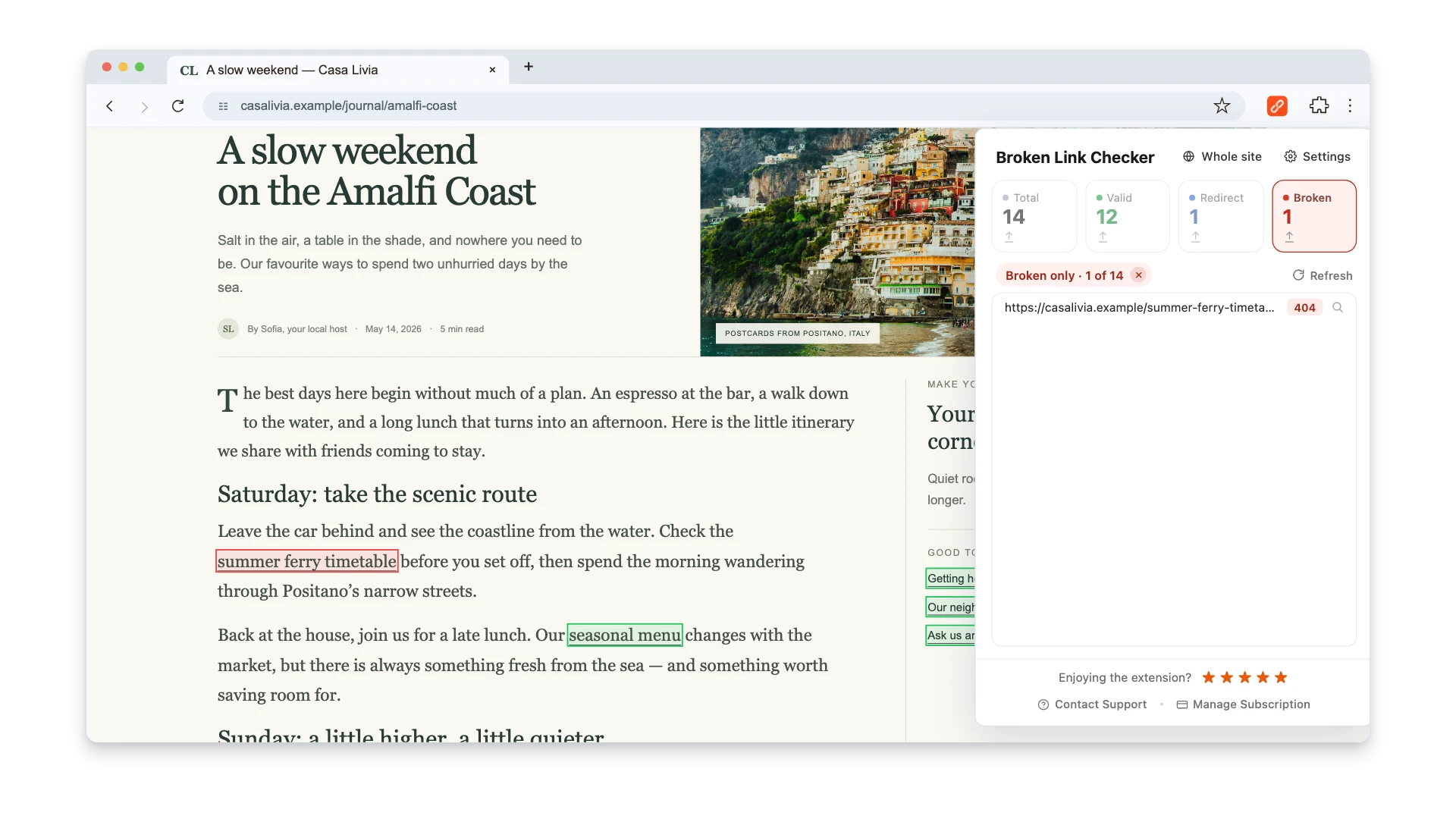
This is ideal for spot-checking your most important pages — homepage, top landing pages, highest-traffic blog posts. If link rot has crept in anywhere, these pages are where it matters most.
Full Site Audit
For a broader manual audit, open Whole site in the extension, enter the site address, set a page limit from 1 to 10,000, and select Start scan. The crawler follows discovered links on the same host and uses available sitemaps, then groups results into Broken and Redirect filters. It does not automatically include arbitrary subdomains, private pages that require cookies, or URLs it cannot discover.
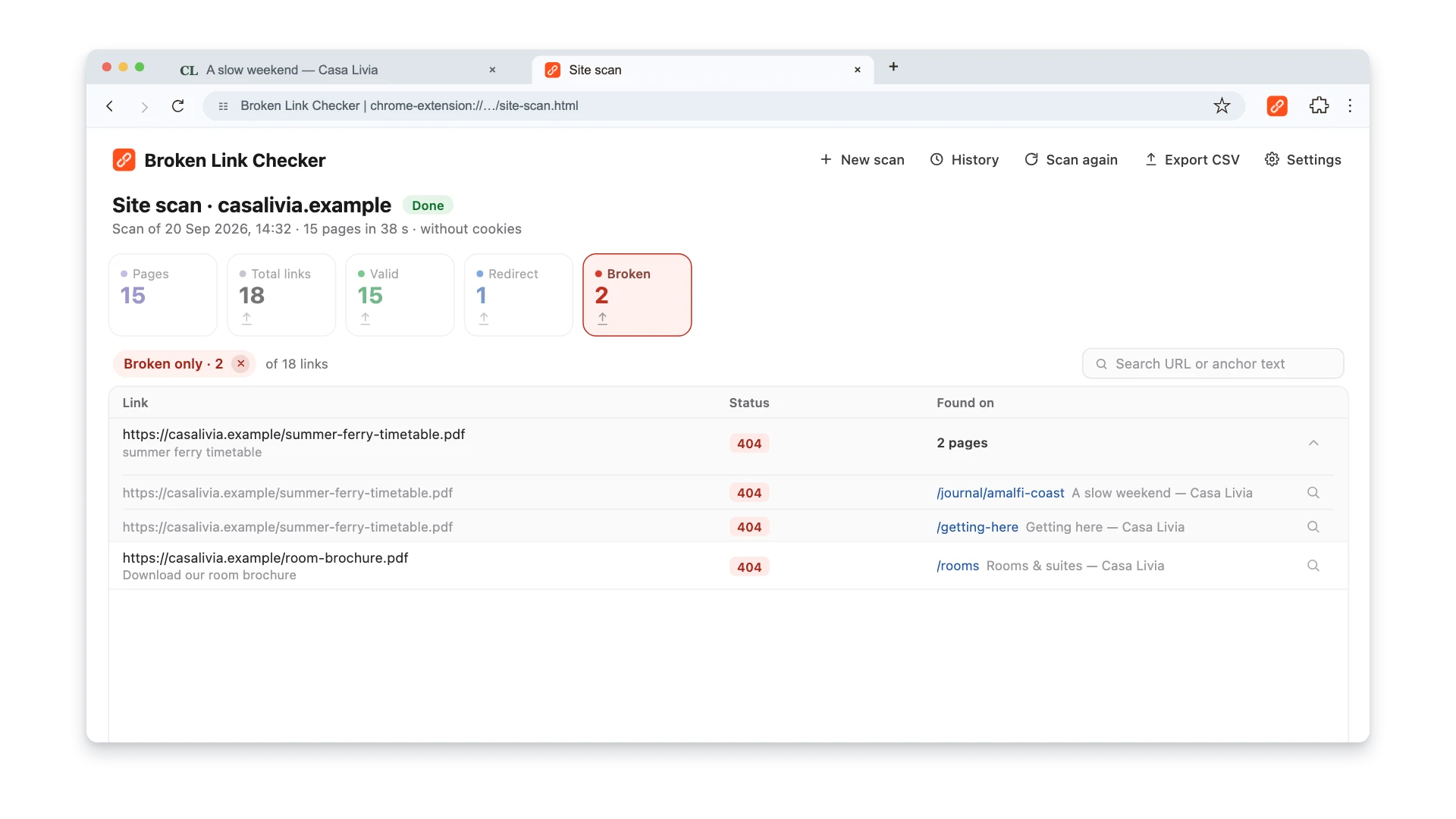
Use URL or anchor search to narrow a large report. Expand Found on to see every recorded source page for a destination, and use the magnifier to open a source page and highlight the link in context. JavaScript-heavy pages are loaded in the scan panel; keep the scanner tab open and in the foreground while that panel is working.
Start full audits quarterly at minimum, or monthly if your site has hundreds of pages or links to many external resources. These scans are manual: use a calendar reminder or a separate scheduled monitoring tool if you need unattended checks.
How to Prevent Link Rot
You can't stop other websites from changing their URLs. But you can build your site in a way that minimizes the damage and catches problems early.
1. Archive Important References
The Wayback Machine by the Internet Archive captures snapshots of web pages over time. If a page you linked to disappears, the archived version might still be available.
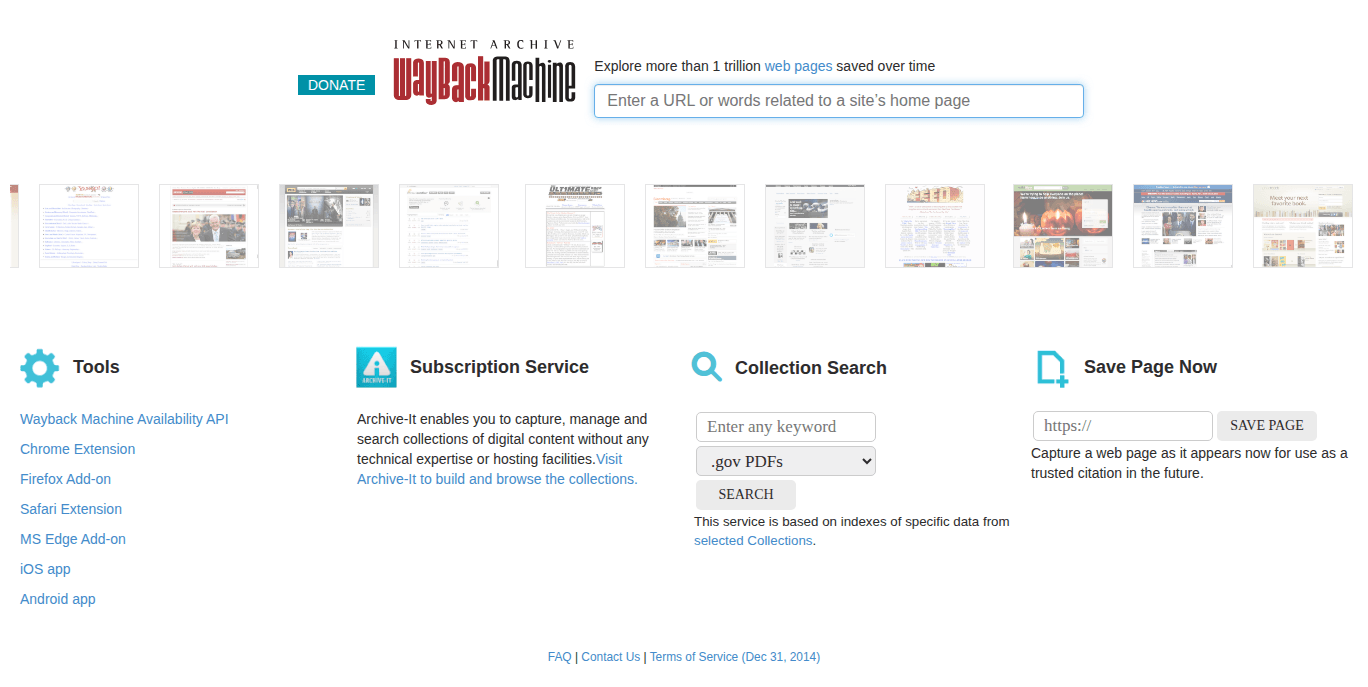
You can proactively archive pages you link to:
- Go to web.archive.org.
- Paste the URL into the "Save Page Now" box.
- Click Save Page. The Wayback Machine creates a permanent snapshot.
Now even if the original page disappears, the archived version exists as a backup. You can update your link to point to the archived version if needed.
For academic or journalistic content where source verification matters, consider using Wayback Machine links as your primary references. The URL format web.archive.org/web/[timestamp]/[original-url] points to a frozen snapshot that won't change.
2. Use Permanent URLs on Your Own Site
Link rot starts at home. If other sites link to your content and you change your URLs without redirects, you're creating link rot for them — and losing the backlink equity for yourself.
- Don't change permalink structures without setting up 301 redirects for every old URL
- Use descriptive, stable slugs —
/blog/link-rot-prevention/is less likely to need changing than/blog/post-47/ - Never delete a page that has inbound links without redirecting it to a relevant alternative
- Avoid date-based URLs like
/2026/04/05/post-title/— they look outdated quickly, tempting you to change them later
3. Monitor Your Links Automatically
Manual audits catch existing problems. Automated monitoring catches them as they appear.
Google Search Console sends email alerts when new 404 errors appear on your site. Set this up once and you'll know within days when an internal page breaks.
WordPress users can install the Broken Link Checker plugin for automated scanning of both internal and external links. Read our WordPress broken links guide for setup details.
For manual checks, keep the Broken Link Checker extension installed in your browser. Scan an individual page after an edit, or start a whole-site scan for a wider audit. Recent reports stay in local history for the last 10 scans per site; they are not compared automatically.
4. Schedule Regular Content Audits
Link checking is part of a broader content maintenance practice. Set a recurring calendar reminder — quarterly works for most sites — to:
- Run a full-site broken link scan
- Fix or remove every broken link found
- Review your highest-traffic pages for outdated information
- Update any references to tools, statistics, or resources that may have changed
- Check that your own redirects still work (redirect chains can break too)
Export the report to CSV when the audit needs to be shared or retained. It records one row per link and source page across eight columns, including the final URL and redirect chain, so repeated links remain traceable to the pages that contain them.
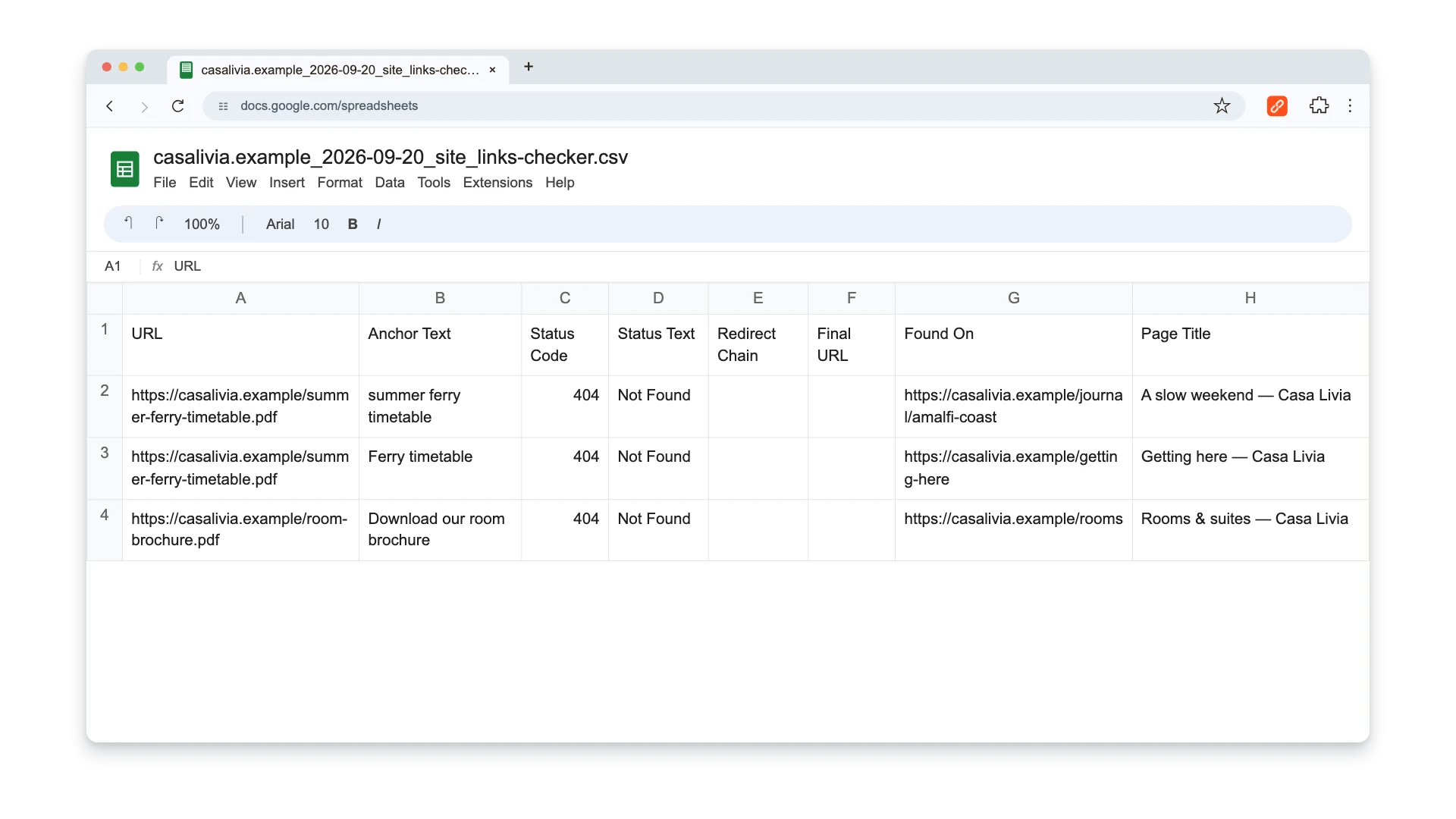
Selected columns from the CSV report. The full export also includes Status Text, Redirect Chain, Final URL, and Page Title.
This isn't glamorous work. But it's the difference between a site that looks maintained and trustworthy, and one that's slowly decaying beneath a surface of stale content.
Start with a quick scan: install the Broken Link Checker extension, check your top 10 pages, and fix what you find. Then set up monitoring so you catch the next round before your visitors do.

Pavel Molyanov
Creator of Broken Link Checker
Content marketer with 10+ years of experience. Founder of a content marketing agency. Writing about SEO, content workflows, and website maintenance.

Check Your Links in One Click
Broken Link Checker finds broken links and redirects on any page or across your whole website, and works in Google Docs and Sheets. Try 3 checks free, with no signup or card required.