How to Fix Broken Links in WordPress: Step-by-Step Guide
· Updated
To fix a broken link in WordPress, first identify whether the source link is wrong or the destination URL no longer exists. Edit a wrong link in the post or template where it appears. If a useful page moved or was replaced, update internal links and add a 301 redirect from the old URL to the closest new destination.
Use this guide for a quick page check, a site-wide WordPress scan, redirect setup, and the platform-specific places where broken links tend to hide.
Choose the Right Fix
| What you found | Best action |
|---|---|
| Typo or outdated URL in a post | Edit the link in that post |
| Repeated wrong URL across many posts | Back up the database, dry-run a search-and-replace, then verify samples |
| Published page moved to a new URL | Update internal links and create a 301 redirect |
| Deleted page with a close replacement | Redirect to that specific replacement |
| Deleted page with no replacement | Remove internal links; return a genuine 404 or 410 rather than redirecting everything to the homepage |
| External resource disappeared | Find an equivalent source or remove the link |
Find Broken Links First
You can't fix what you haven't found. Here are the three fastest ways to scan a WordPress site for broken links.
Option 1: Browser Extension (Page or Whole Site)
Open the extension on the current page after editing one post, page, or template. Use Whole site when a permalink change, migration, menu edit, or plugin update may have affected links across WordPress.
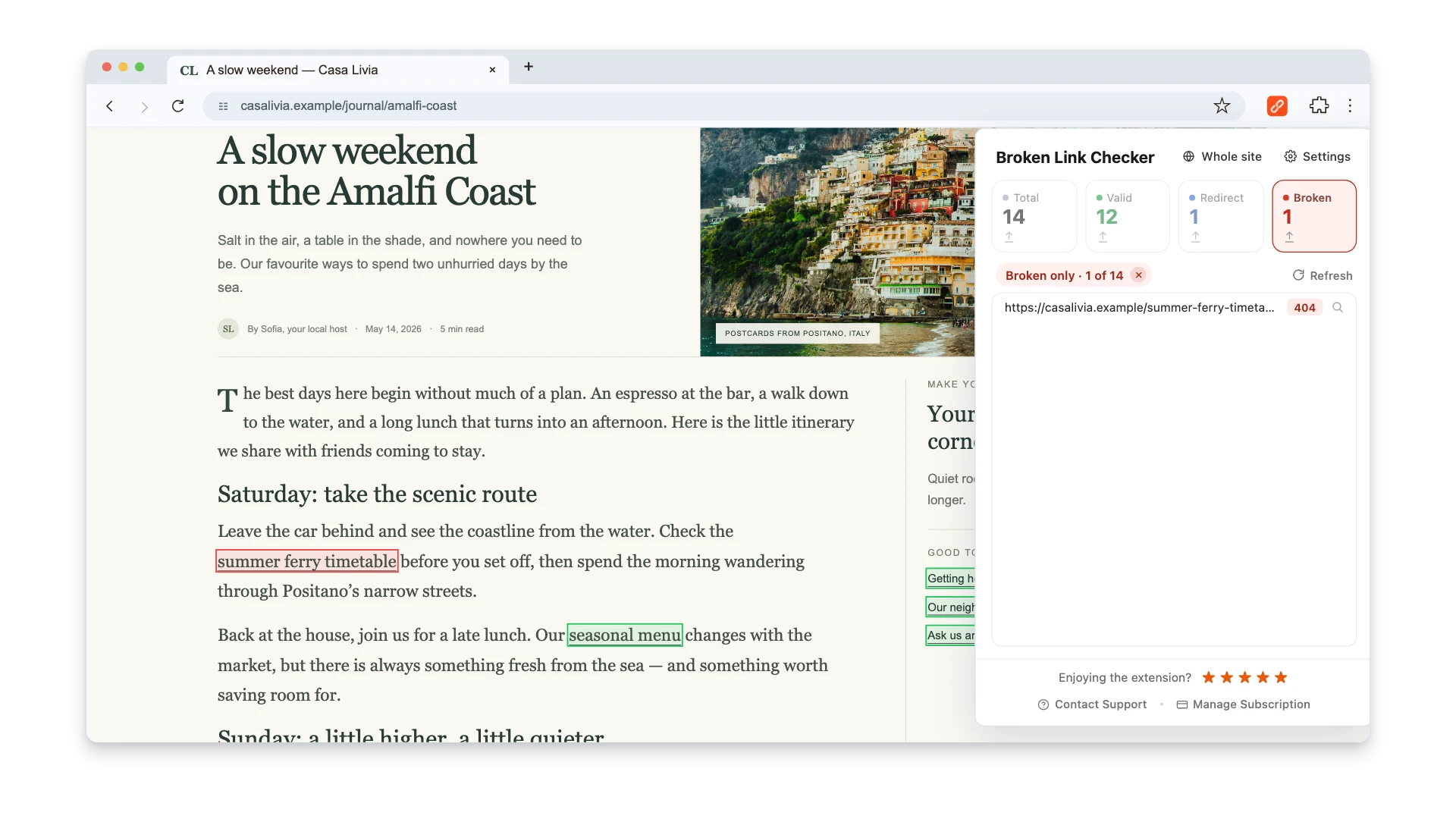
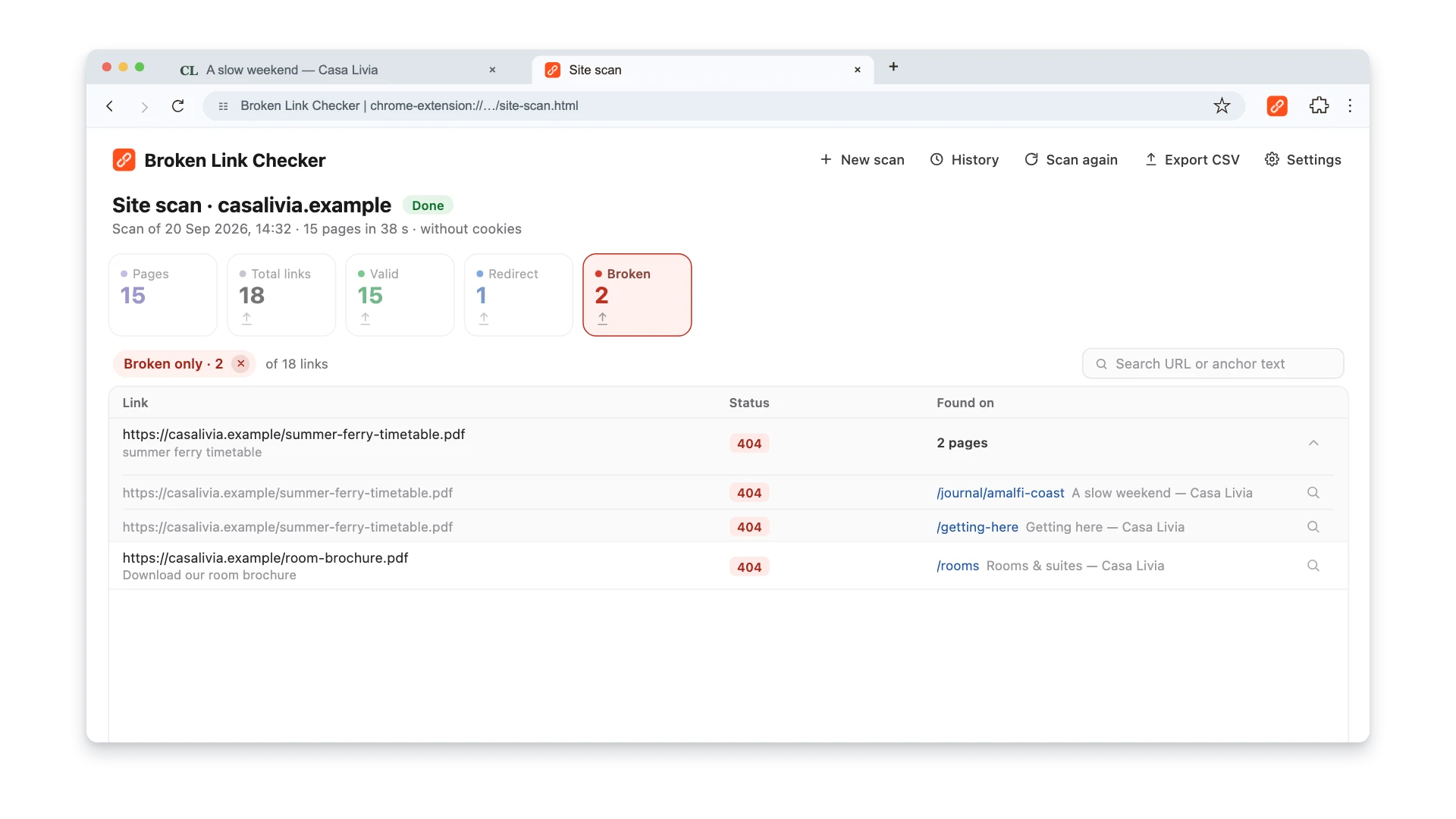
- Install the Broken Link Checker, choose Whole site, and confirm the public site address.
- Set a page limit, click Start scan, and keep the scan tab open and in front while pages render in the right-hand panel.
- Filter the report to Broken, open Found on, and use the magnifying glass to highlight the failed link on its source page.
- Edit that source in WordPress. A result from a post may live in the block editor; a link repeated across many pages may belong to Navigation, a synced pattern, a footer widget, a page-builder template, or a custom field.
- Export CSV if the repair list is shared, then run Scan again after publishing the fixes.
Watch this 3-minute walkthrough to see a page check, a whole-site scan, and report export on an example website. Use the same checking steps on your published WordPress site, then follow the repair instructions below to edit links in your platform.
Option 2: WordPress Plugin (Automated)
The Broken Link Checker plugin by WPMU DEV scans your entire site automatically. Install it from the plugin directory, activate it, and it starts crawling your content in the background.
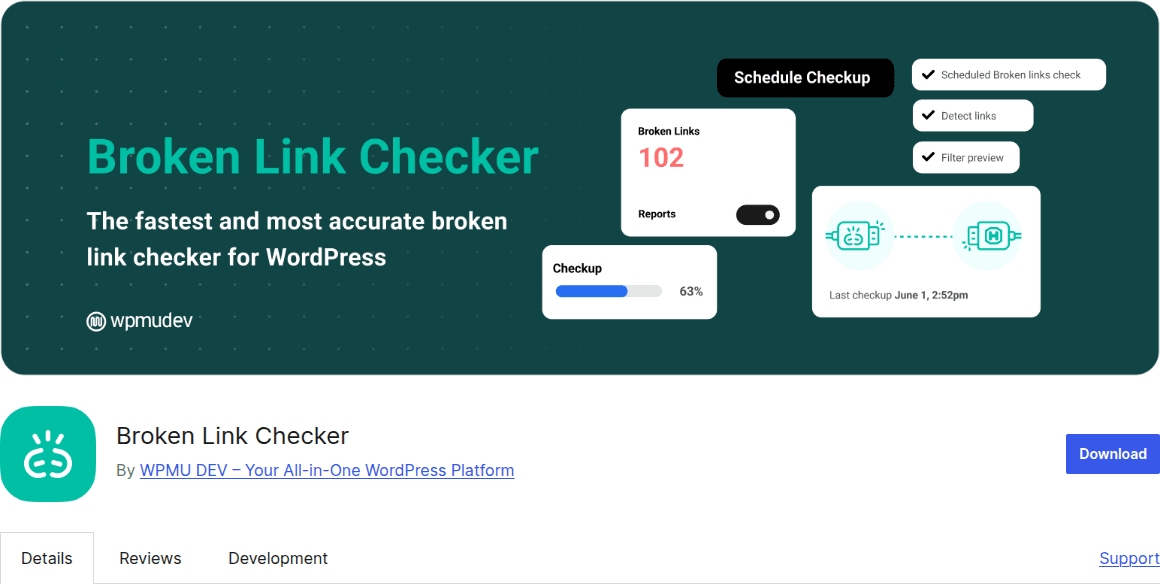
The plugin checks links in posts, pages, comments, and custom fields. When something breaks, you get an email notification. The dashboard at Tools → Broken Links shows every broken URL with the page it appears on, the anchor text, and the HTTP status code.
Plugin features and quotas can change, so confirm the current scanning mode and limits on its WordPress.org listing before relying on it for a large site. Continuous scans also consume resources; on busy or shared hosting, schedule them for quieter periods and watch server load.
Option 3: Google Search Console
If your site is connected to Google Search Console (and it should be), go to Pages → look for "Not found (404)" under "Why pages aren't indexed." This shows every URL where Google's crawler hit a dead end.
Search Console won't show you which pages contain broken outbound links — it only reports pages on your site that return errors. But it's the most reliable source for finding internal 404s because it uses Google's own crawl data.
Fix Broken Internal Links
Internal broken links — links between your own pages — are the highest priority. You control both the link and the destination, so there's no excuse to leave them broken.
Edit the Link in the Post
The simplest fix. Open the post in the WordPress editor, find the broken link, and update the URL to the correct destination.
- Go to Posts (or Pages) in your WordPress dashboard.
- Open the post containing the broken link.
- Click on the broken link in the editor.
- Update the URL to the correct page, or remove the link entirely.
- Click Update to save.
If you're using the Broken Link Checker plugin, you can skip the post editor entirely. From the Tools → Broken Links dashboard, click Edit URL next to any broken link and type the new destination. The plugin updates every instance of that URL across your entire site.
Set Up 301 Redirects
If you deleted or moved a page, the right fix is a 301 redirect — not just editing links one by one. A redirect tells browsers and search engines: "This page permanently moved to a new location."
301 redirects tell browsers and search engines that the old URL has permanently moved. Use them when there is a relevant replacement, especially when the old page has traffic, backlinks, or bookmarks.
Using a plugin (easiest): Install Redirection — it's free, lightweight, and has over 2 million active installations. Go to Tools → Redirection, enter the old URL as the source, the new URL as the target, and save. Done.
Using .htaccess (if you're comfortable with it): Add a line to your .htaccess file in the WordPress root directory:
Redirect 301 /old-page-slug /new-page-slug
The .htaccess method is faster (no plugin overhead) but riskier — a syntax error can take your site down. Always back up .htaccess before editing it.
Bulk-Fix with Search and Replace
Sometimes a broken link pattern affects dozens of posts. Maybe your domain changed, or you restructured your URL format. Editing posts one by one would take hours.
Better Search Replace lets you find and replace URLs across your entire WordPress database. Enter the old URL pattern, enter the new one, select which tables to search, and run it.
Important: Always run a dry run first (the plugin has a checkbox for this). And back up your database before running a real replacement. There's no undo button.
Fix Broken External Links
External broken links — links to other people's websites — are trickier because you can't fix the destination. But you can fix your end.
Replace with a Working Alternative
If the original resource moved to a new URL, update your link to point there. Check the Wayback Machine to see if the content was archived — you might find the new location from there.
If the site is gone entirely, find a different resource that covers the same topic and link to that instead. Your readers clicked that link for a reason — give them somewhere useful to go.
Remove the Link
If no good replacement exists, remove the hyperlink but keep the text. A dead link is worse than no link — it signals neglect to both readers and search engines.
In the WordPress editor, select the linked text and click the "Unlink" button (or press Ctrl+Shift+K). The text stays, the link disappears.
Prevent Broken Links from Happening
Fixing is reactive. Prevention saves you from the cycle entirely.
Use WordPress's Link Picker for Internal Content
When linking to another post or page, search for it in the block editor's link control instead of retyping its URL. This reduces slug typos. It does not remove the need for redirects when a published URL changes, because links from search results, newsletters, bookmarks, and other websites still point to the old address.
Check Links Before Publishing
Before you hit Publish on a new post, open the preview and run the Broken Link Checker extension on it. Takes 30 seconds and catches typos, copy-paste errors, and links to pages that got deleted while you were writing.
Set Up Automated Monitoring
The Broken Link Checker WordPress plugin runs scheduled scans automatically. Configure it at Settings → Link Checker to check every 24-72 hours. You'll get an email when new broken links appear — no manual scanning needed.
Pair this with Google Search Console email alerts for 404 errors, and you'll catch problems within a day or two of them appearing.
Be Careful with Permalink Changes
Changing your WordPress permalink structure (Settings → Permalinks) breaks every existing URL on your site. If you must change it, set up redirect rules for the old format first.
The same applies to changing post slugs. WordPress doesn't create automatic redirects when you edit a slug (unless you use a plugin like Redirection that monitors for these changes).
Audit After Theme or Plugin Updates
Major theme changes and plugin updates can alter URL structures, especially for custom post types, portfolios, or WooCommerce products. After any significant update, run a quick scan of your key pages to catch anything that broke.
WordPress and WooCommerce Places People Miss
A crawl report tells you which URL failed; WordPress context tells you where to repair it. Check these sources before adding a redirect as a shortcut:
- Reusable blocks, synced patterns, menus, and footer widgets. One stale URL here can appear across the entire site.
- Custom fields and page-builder templates. Links saved by a builder may not appear in the standard post editor.
- Image and file URLs. Replacing or deleting an item in the Media Library can break links from posts, download buttons, and external sites.
- Category, tag, author, and custom post type archives. Changing a taxonomy base or plugin-generated slug can affect many URLs at once.
- WooCommerce products and categories. Before deleting or changing a product slug, record its public URL and choose a specific successor product or relevant category. Also check navigation, related-product blocks, product descriptions, and campaign landing pages.
After a bulk change, test a sample from every affected content type rather than checking only blog posts. If the work is part of a migration or redesign, build the full old-to-new URL map first with the pre-redesign link audit checklist.
Start with a quick scan: install the Broken Link Checker extension, check the current page or choose Whole site, fix what you find, then set up the WordPress plugin for automated monitoring.
For a deeper dive into why broken links matter, read our guide on what broken links are and how they hurt SEO. If you need to scan beyond WordPress, compare seven methods to find broken links on any website. We also have platform-specific workflows for Shopify, Webflow, and Wix.

Pavel Molyanov
Creator of Broken Link Checker
Content marketer with 10+ years of experience. Founder of a content marketing agency. Writing about SEO, content workflows, and website maintenance.

Check Your Links in One Click
Broken Link Checker finds broken links and redirects on any page or across your whole website, and works in Google Docs and Sheets. Try 3 checks free, with no signup or card required.