Does Google Have a Broken Link Checker? What Each Google Tool Can Find
Google has no broken link checker for site owners in Search Console or Chrome. The only tool Google calls a broken-link checker is a Cloud Monitoring synthetic monitor for developers: it runs inside a Google Cloud project on a schedule and tests the links on one URL. No Google tool takes a website and returns every broken link with the page it appears on.
For site owners, the closest thing is Google Search Console. Its Page indexing report lists URLs on your site that returned 404 Not Found when Googlebot requested them. That is useful, but it is a different question. Search Console reports missing destinations that Google has encountered. It does not scan the links on your pages, it ignores broken links pointing to other websites, and it does not show which page contains each bad link.
To get an actual list of broken links on your pages with their source pages, run a link checker. Broken Link Checker for Chrome does this, for one page or a whole site. It is an independent extension and is not made by Google. The rest of this guide explains what each Google tool can and cannot tell you, so you can pick the right one for the problem in front of you.
What Each Google Tool Can Find
| Google tool | What it finds | What it misses | Best for |
|---|---|---|---|
| Search Console: Page indexing | URLs on your property that returned 404, soft 404, 5xx, or redirect errors to Googlebot | Outbound links, source pages, URLs Google has not crawled; example tables stop at 1,000 rows | Spotting important pages that stopped working for Google |
| Search Console: URL Inspection | One URL's last crawl, a live test, and sometimes a referring page | Everything beyond that one URL; the referring page may be missing | Diagnosing a specific reported 404 |
| Search Console: Links report | Pages that link to a given page, based on a sample | Any status information; links may already be removed | Seeing where a URL was linked from |
| Google Cloud broken-link checker | Whether the links on one URL return HTTP 200, on a schedule; the first 10 <a href> links by default | Every other page of the site, source pages; needs a Google Cloud project | Developers watching one critical page |
| Google Analytics 4 | Visits to your 404 page and the previous page | Links nobody clicked; untracked visits; status codes | Prioritizing broken links that real visitors hit |
| Chrome DevTools | Failed requests on one page: images, scripts, CSS, fonts, API calls | Ordinary links, because Chrome does not request them until clicked | Debugging missing resources on one page |
| Lighthouse / PageSpeed Insights | An error status on the audited page itself, uncrawlable href values, vague link text | Whether link destinations work | SEO hygiene for a single page |
| Google Docs and Sheets | Nothing: no link status check | — | — |
| Refresh Outdated Content tool | Lets anyone ask Google to update a search result for a page that no longer exists | Links on your site | Reporting a dead result in Google Search |
Tool names and menu paths were checked against Google's documentation on September 30, 2026.
What Happened to the Webmaster Tools Broken Link Checker?
If you remember a broken link report in Google Webmaster Tools, you are thinking of the old Crawl Errors report. Google renamed Webmaster Tools to Search Console in May 2015, then removed the Crawl Errors report in 2019 along with its API.
Google's stated reason was that a long list of crawl errors was not actionable. Googlebot regularly requests URLs that do not exist, and most of those do not need a fix. Crawl problems moved into the Index Coverage report, known today as the Page indexing report. So when people search for a "Google webmaster tools broken link checker," the current answer is Search Console's Not found (404) issue, with the limits that come with it.
Google Search Console: The Closest Thing for Site Owners
Search Console is free and uses data from Google's own crawl. It is the only Google tool that tells you which of your URLs Google tried to fetch and could not.
Find 404 Pages in the Page Indexing Report
- Open Search Console and select your property.
- Go to Indexing → Pages.
- Under Why pages aren't indexed, open Not found (404).
- Review the example URLs and export them.
- Check Soft 404, Server error (5xx), and Redirect error as well. These are separate issues in the same table.
According to Google's Page indexing report documentation, the report covers URLs that Google knows about in your property. The examples table is limited to 1,000 rows and does not necessarily show every affected URL.
Find the Page That Links to a 404
The Page indexing report does not tell you where a broken URL is linked from. To trace it, open URL Inspection for a reported URL and expand the page indexing details. Under discovery, Search Console may show:
- Sitemaps that list the URL (only those submitted in Search Console)
- Referring page, which Google describes as a page it possibly used to discover the URL
Treat the referring page as a lead, not proof. It may be an ancestor page rather than the direct source, or a page that has changed since Google crawled it. Google also says the field may simply be absent. URL Inspection works on one URL at a time and has a daily quota per property, so it does not scale to hundreds of 404s.
The Links report is the other place to look. Under Internal links, open a target page to see which of your pages link to it. The Links report documentation is clear about its limits: it is a sample, tables are capped at 1,000 rows, and some listed links may have been removed or point to pages that no longer exist. It shows link relationships, not whether a link works.
What Search Console Misses
- Broken outbound links. A link from your article to another website that now returns 404 is not a problem with your property, so it does not appear in the Page indexing report.
- The page to edit. You get the failed URL. Finding the article, menu, or template that contains it is a separate job.
- Links Google has not crawled. A new page or a link Google has not processed will not appear until Google finds it. Fixes also take time to show up.
- Context about priority. Many reported 404s are correct and need no action. Google's crawl history also keeps old URLs visible long after you removed the links to them.
For a step-by-step process to decide which reported 404s to restore, redirect, or ignore, see how to fix Not found (404) errors in Google Search Console.
Google Cloud's Broken-Link Checker (for Developers)
Google Cloud Monitoring has a synthetic monitor template called Broken link checker. You give it one origin URL. By default it finds the <a href> links on that page, requests the first 10 one after another, waits up to 30 seconds for each, and checks that the response is HTTP 200. You can raise the number of links, test other elements and attributes, add retries, and set how often it runs. Each run produces a table of the tested URLs, and an alerting policy can notify you when the check fails.
Setup is a developer job. You need a Google Cloud project, IAM roles, and several APIs enabled, including Cloud Monitoring, Cloud Functions, Cloud Build, and Cloud Run Admin. Creating the monitor deploys a Cloud Run function that runs the test. Cloud Monitoring charges $1.20 per 1,000 synthetic monitor executions after the first 100 each month per billing account.
The monitor tests one page. It does not crawl your site or follow links to other pages, and it cannot tell you which other pages contain the same broken URL. It suits a page you cannot afford to break, such as a homepage or a docs index, not a site-wide audit.
Google Analytics 4: Broken Links That Real Visitors Hit
Google Analytics does not check links either, and GA4 has no built-in broken link report. What it can do is count visits to your 404 page, provided your error page loads the same Google tag as the rest of the site. That makes it a good way to decide which broken links deserve attention first.
See Traffic to Your 404 Page
- Open a 404 URL on your site and note its page title, for example
Page not found. - In GA4, go to Reports → Engagement → Pages and screens.
- Switch the table dimension to Page title and screen class.
- Search for your 404 page title.
The number of views tells you how often visitors reach an error. To see which URLs they requested and where they came from, build an exploration.
Find the Page That Sent Visitors to a 404
- Open Explore and start a Free form exploration.
- Import the dimensions Page title, Page path + query string, and Page referrer, plus the Views metric.
- Add Page path + query string and Page referrer as rows and Views as the value.
- Add a filter where Page title exactly matches your 404 page title.
Each row now shows a missing URL and the previous URL. When the page referrer is one of your own pages, you have found a source page with a broken internal link. When it is another website, you have found a broken backlink worth redirecting or reclaiming.
The limits are important. GA4 does not know HTTP status codes; it only knows which page title loaded. It records nothing for links nobody clicked, visits blocked by consent choices or ad blockers, or broken images and files that never render your 404 template. The referrer can also be empty. Treat this as a traffic-weighted to-do list, not an audit.
Chrome DevTools and Lighthouse: Useful, but Not Link Checkers
Because Chrome is Google's browser, many people expect it to include a link checker. It does not, but two built-in tools cover part of the job.
Chrome DevTools: Failed Resources on One Page
- Open the page, then press
F12(orCmd+Option+Ion macOS) to open DevTools. - Select Network and reload the page.
- Type
status-code:404in the filter box. Google documents this property filter for matching status codes. - Open Console to see errors such as
Failed to load resource: the server responded with a status of 404.
This is the right tool for a missing image, script, stylesheet, font, or failed API call. It does not test ordinary hyperlinks. Chrome requests an <a href> destination only when someone clicks the link, so a broken link in your article text never appears in the Network panel. Our guide to fixing broken images covers the resource side in more detail.
Lighthouse and PageSpeed Insights: No Link Destination Checks
Lighthouse runs in DevTools and powers PageSpeed Insights. Three checks in its SEO category sound relevant, but none of them tests where your links lead:
- Page has unsuccessful HTTP status code checks the page you are auditing, not the pages it links to.
- Links are not crawlable flags anchors with missing or unusable
hrefvalues, such asjavascript:links. - Links do not have descriptive text flags anchors such as "click here."
A page with an SEO score of 100 can still contain several links to missing pages.
Google Docs and Google Sheets: No Built-In Link Check
Google Docs and Sheets let you add, edit, and preview links, but they have no feature that tests every link in a file and reports failures. For a document full of references or a spreadsheet of partner URLs, you have two practical options:
- Broken Link Checker in Chrome. Open the file and click the extension icon. It reads the links in every tab of a document or every sheet of a spreadsheet, including links attached to text, and lists them as valid, redirected, or broken. Results stay in the extension panel and can be exported to CSV; the file itself is not changed.
- Google Apps Script. A short script can check a column of URLs or the links in a document. It needs authorization and has execution quotas.
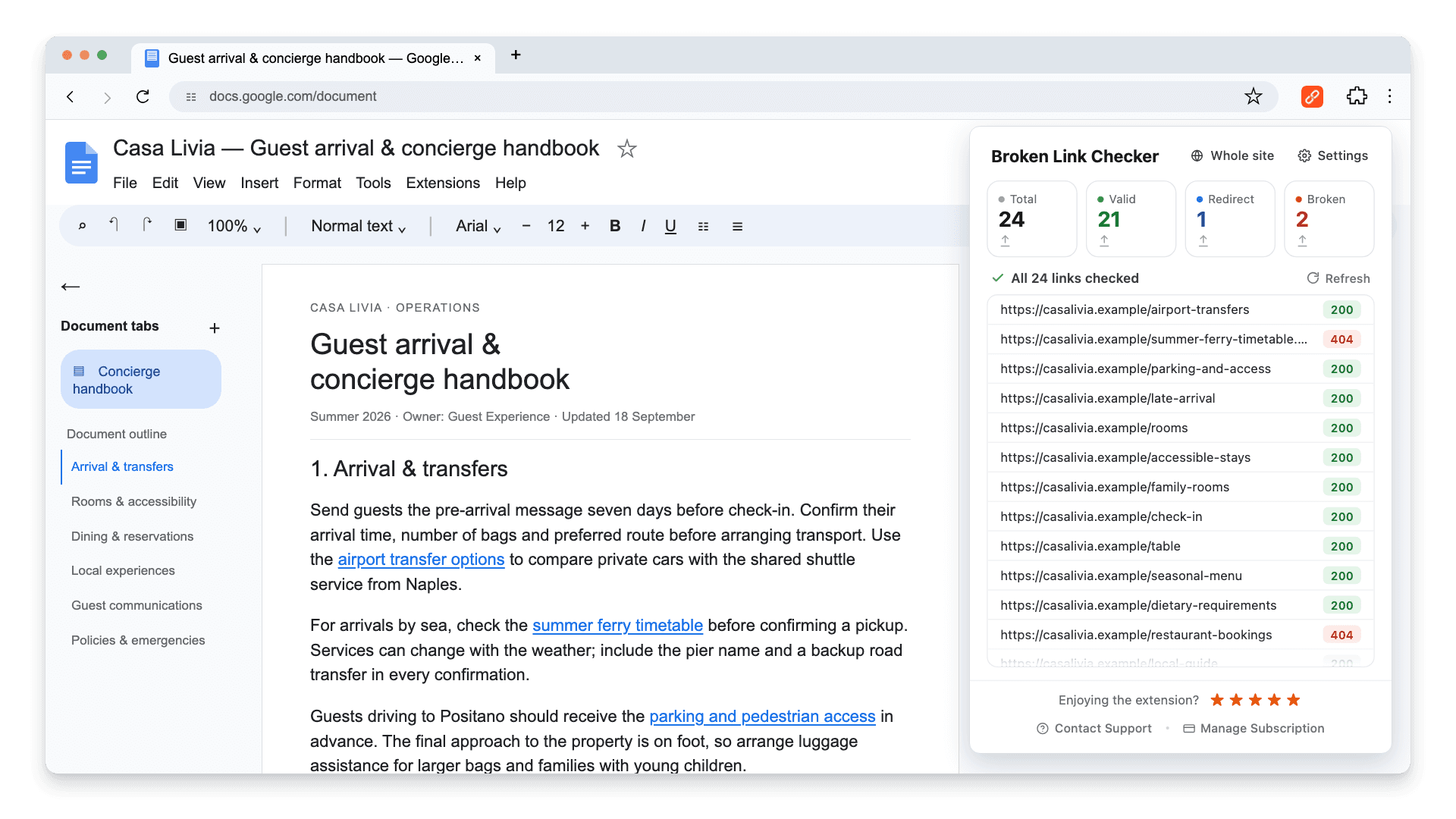
Both methods are covered step by step in our guides for Google Sheets and Google Docs. The Docs and Sheets feature page describes what the extension reads and what can block access to a shared file.
How to Report a Broken Link to Google
Sometimes the problem is not your site. A Google Search result leads to a page that no longer exists, and you want Google to stop showing it.
Use Google's Refresh Outdated Content tool. You do not need to own the website. Submit the URL of the dead page, and Google checks whether the page is really gone or significantly changed before updating the result. The request fails if the page still exists.
If the dead page is on a site you verified in Search Console, fix the URL itself: restore it, redirect it to a close replacement, or leave a real 404 or 410. Use the Removals tool in Search Console only when you need to hide a result quickly.
How to Check Every Link on Your Site
When the goal is "show me every broken link and where it is," you need a tool that visits your pages and tests each link. Broken Link Checker does that inside Chrome. The first 3 checks are free, with no signup or card. After that, plans cost $2.90 per month, $19 per year, or $29 once for lifetime access. Every plan includes page checks, whole-site scans, Google Docs and Sheets, and CSV export.
To check one page, open it and click the extension icon: links turn green if they work, red if broken, and blue if redirected, even on pages behind a login. To check a site, click Whole site, confirm the address, and click Start scan. If the scan starts loading pages in a panel on the right (it does this for sites built with JavaScript), keep that tab in front so their links are found. The whole-site scan page explains the settings, and the BrokenLinkCheck.com alternative guide walks through each step.
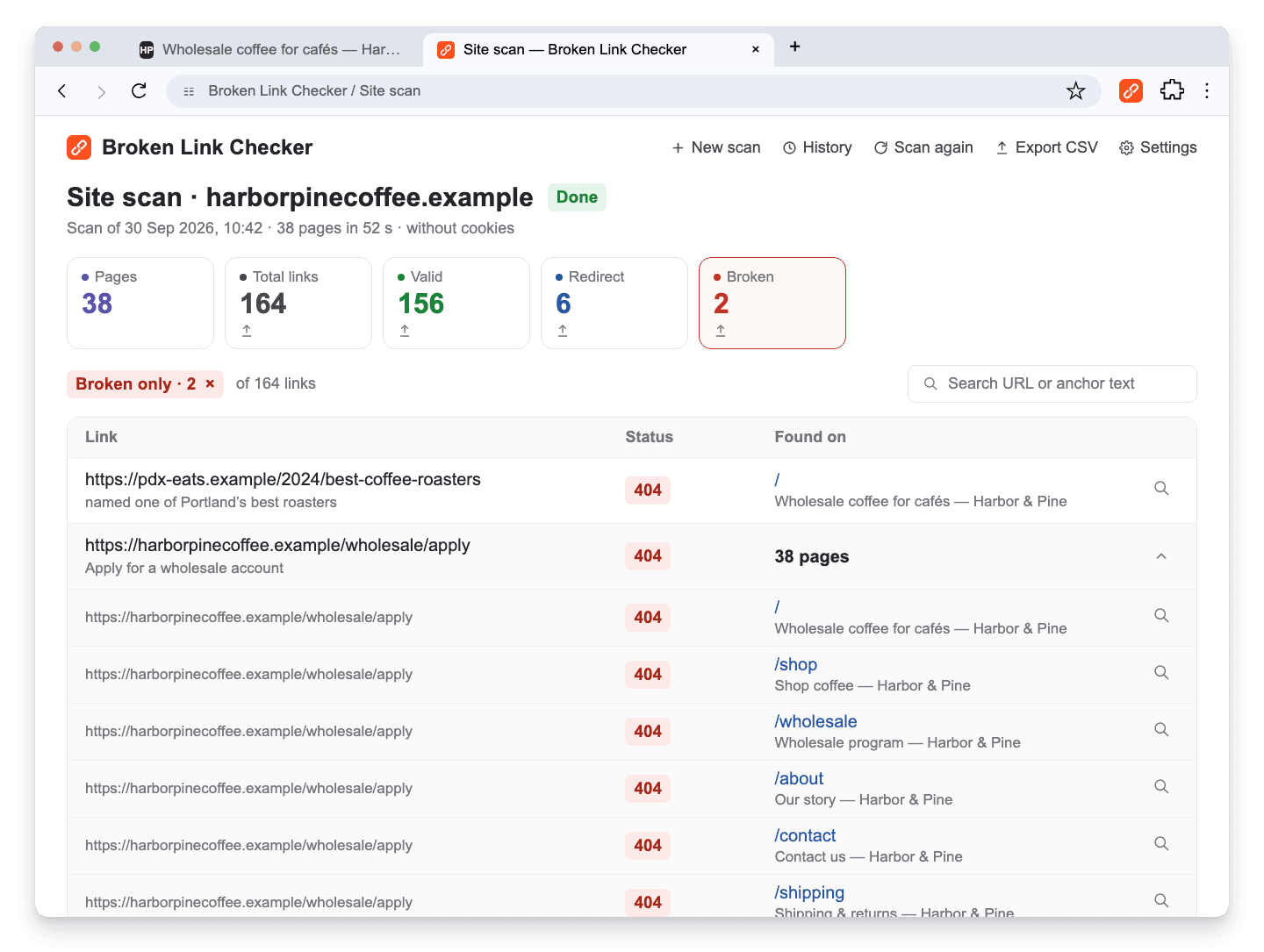
This is the view Search Console cannot give you. The footer link to a retired wholesale application page is broken on all 38 pages, so one fix in the footer template clears every instance. Search Console might list that URL as a 404, but not the footer it lives in. The dead article on another website appears too, because the scan tests outbound links without crawling other sites. Click the magnifying glass next to a source page to open it with the broken link highlighted.
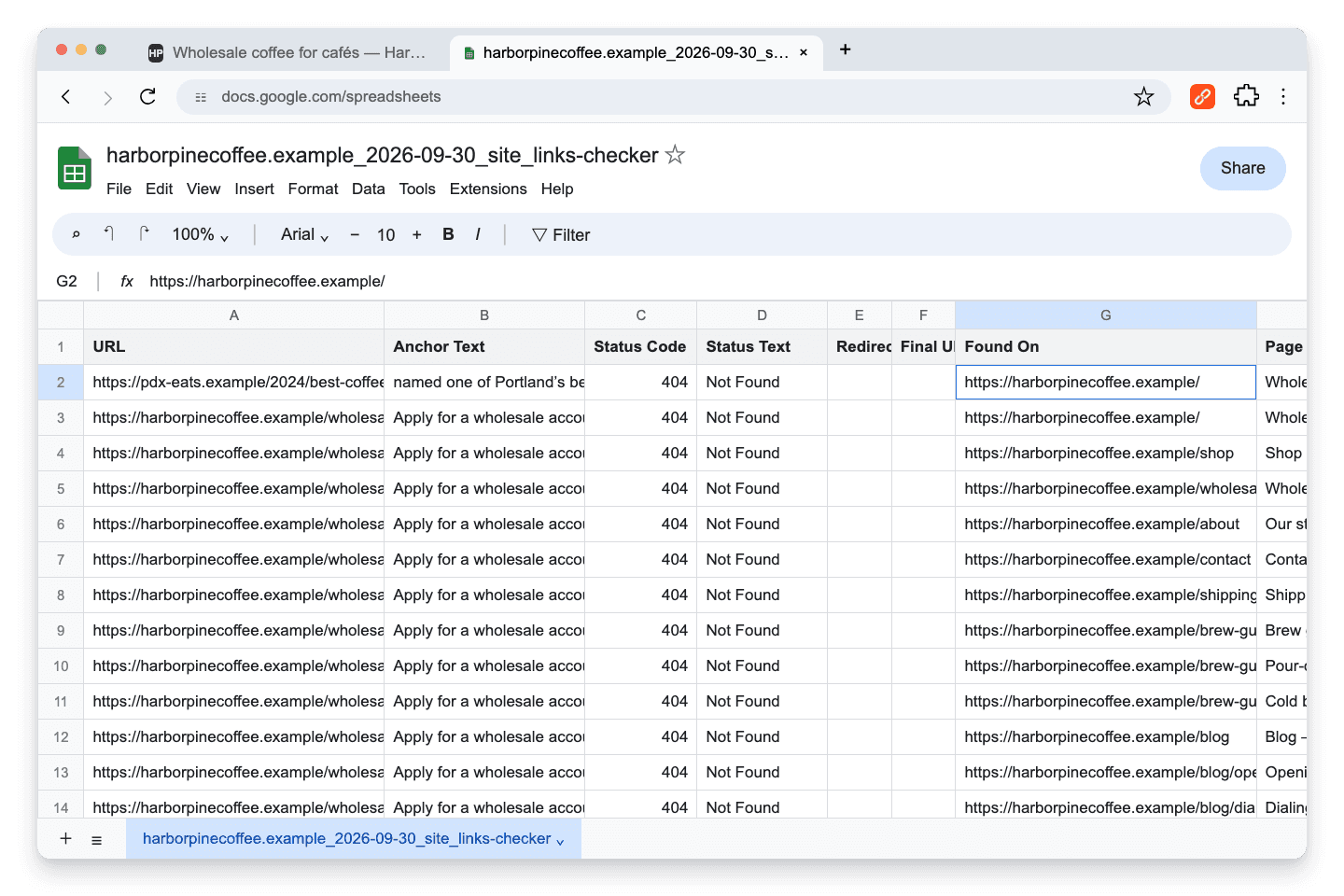
With the Broken filter active, Export CSV downloads only the failed links, one row per link and source page. Import the file into Google Sheets and share it with whoever maintains the pages.
What It Does Not Do
Know its limits:
- Scans start manually in desktop Chrome. There is no scheduled monitoring or email alert.
- A page that nothing links to and that is missing from the sitemap cannot be discovered.
- It checks links, not the whole SEO picture: no title, canonical, or soft-404 audits.
Which Should You Use?
Pick the tool by the question you need answered:
- "Which links on my site are broken, and where are they?" Run a whole-site scan in Broken Link Checker. If you prefer a desktop crawler with a broader technical SEO audit, compare it with Screaming Frog.
- "Google says some of my pages are 404." Use Search Console's Page indexing report and URL Inspection, then follow the 404 decision guide.
- "Which broken links cost me visitors?" Use the GA4 exploration above.
- "I just published or edited one page." Run a page check in the extension. It also works on pages behind a login.
- "An image or script is missing on this page." Use Chrome DevTools.
- "My Google Doc or Sheet has dead links." Use the extension or an Apps Script from our Docs and Sheets guides.
- "I want checks to run on a schedule without me." For one critical page in a Google Cloud project, the Cloud Monitoring broken-link checker fits. For a whole site, use a setup from the automatic broken link monitoring guide and keep Search Console as a free safety net.
If you are comparing browser-based checkers, see our Check My Links alternative comparison. For online checkers you run without installing anything, read the BrokenLinkCheck.com alternative guide.
A practical routine combines them. Check Search Console's Page indexing report every few weeks. Scan the site after content changes, migrations, and redesigns. Look at 404 traffic in GA4 when you need to prioritize. For the right interval for your site, see how often to check for broken links.
Frequently Asked Questions
Does Google Have a Free Broken Link Checker?
Not for site owners. Search Console is free and reports URLs on your site that returned 404 to Googlebot, but it does not check outbound links or show the page containing each broken link. Google Cloud's broken-link checker is a developer tool: it runs in a Cloud project, tests the links on one URL, and charges for executions beyond a small monthly free allotment.
How Do I Report a Broken Link to Google?
If a Google Search result points to a page that no longer exists, submit it with Google's Refresh Outdated Content tool. You do not need to own the site. If the page is on your own site, fix the URL and use Search Console instead.
Is There a Google Broken Link Checker for iPhone or Android?
No. To check a website's links from a phone, use an online checker such as BrokenLinkCheck.com, which runs in any mobile browser. Chrome extensions, including Broken Link Checker, need Chrome on a computer.
Is Broken Link Checker a Google Product?
No. Broken Link Checker is an independent Chrome extension published in the Chrome Web Store. It uses Chrome to check links on web pages, whole sites, Google Docs, and Google Sheets, but it is not affiliated with Google.

Pavel Molyanov
Creator of Broken Link Checker
Content marketer with 10+ years of experience. Founder of a content marketing agency. Writing about SEO, content workflows, and website maintenance.

Check Your Links in One Click
Broken Link Checker finds broken links and redirects on any page or across your whole website, and works in Google Docs and Sheets. Try 3 checks free, with no signup or card required.