How to Find Broken Links in Your XML Sitemap
· Updated
Your XML sitemap is supposed to be a clean list of every page you want Google to index. But when some of those URLs return 404 errors, redirect loops, or server errors, the sitemap stops being helpful and starts actively working against you. Google's crawler follows the URLs you listed, hits dead ends, and starts trusting your sitemap less — which means even your good pages may take longer to get indexed.
The worst part: most site owners never check their sitemap for broken links. They set it up once, submit it to Google Search Console, and forget about it. Meanwhile, pages get deleted, URLs change, and the sitemap quietly fills up with dead URLs that waste crawl budget and send the wrong signals to search engines.
What Is an XML Sitemap and Why It Matters for SEO
An XML sitemap is a structured file (usually located at yoursite.com/sitemap.xml) that lists all the URLs on your site that you want search engines to crawl and index. It acts as a roadmap — telling Google, Bing, and other search engines exactly where your important content lives.
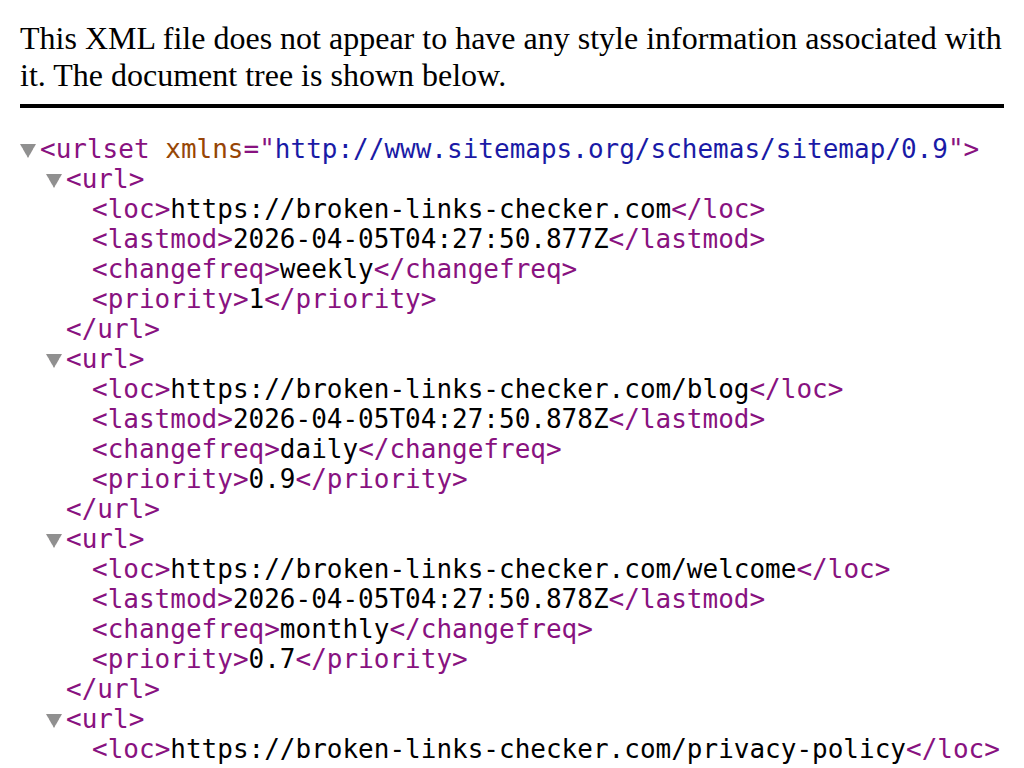
A basic XML sitemap entry looks like this:
<url>
  <loc>https://example.com/blog/some-article</loc>
  <lastmod>2026-03-15</lastmod>
  <changefreq>monthly</changefreq>
  <priority>0.8</priority>
</url>
The <loc> tag contains the URL. The <lastmod> tag tells crawlers when the page was last updated. <changefreq> and <priority> are hints about how often the page changes and how important it is relative to other pages on your site (though Google ignores these two fields and focuses on <loc> and <lastmod>).
For small, well-linked sites, a sitemap is more about monitoring and control than discovery. But for larger sites — those with hundreds or thousands of pages, frequently updated content, or deep pages that aren't easily reachable through internal links — a clean sitemap is critical for getting pages indexed efficiently.
Here's the problem: when your sitemap includes URLs that don't work, you're essentially handing search engines a map with wrong directions. Instead of helping crawlers find your content, you're sending them to dead ends.
How Broken Sitemap URLs Hurt Your SEO
A few broken links in your sitemap might seem like a minor issue. It's not. Here's what actually happens when Google crawls a sitemap full of errors.
Wasted Crawl Budget
Google allocates a finite crawl budget to your site — a limit on how many pages Googlebot will crawl in a given time period. Every time the crawler follows a sitemap URL and hits a 404 or 500 error, that's a wasted request. On a site with 10,000 pages, having 500 broken sitemap URLs means 5% of your crawl budget goes to dead ends instead of real content.
For small sites, this rarely causes noticeable problems. But for large sites and e-commerce stores with thousands of product pages, wasted crawl budget means new or updated pages take longer to get discovered and indexed.
Reduced Sitemap Trust
Google evaluates the quality of your sitemap over time. If it consistently finds errors — 404s, redirects, soft 404s, or URLs blocked by robots.txt — it starts treating your sitemap as unreliable. According to Google's documentation, Google doesn't guarantee that it will crawl or index all sitemap URLs, and a sitemap full of errors gives it even less reason to trust the ones that do work.
Indexing Delays
When you publish new content and it appears in your sitemap, you want Google to index it quickly. But if your sitemap has a history of pointing to broken URLs, Google may deprioritize crawling it. The result: your new blog post or product page sits unindexed for days or weeks longer than it should.
Mixed Signals with Search Console
Google Search Console reports sitemap-related errors in the Page Indexing report. When URLs submitted via your sitemap return errors, they show up as "Not found (404)" or "Submitted URL marked 'noindex'" under the "Why pages aren't indexed" section. These errors clutter your reports, making it harder to spot genuine indexing problems that need attention.
How Google Search Console Reports Sitemap Errors
Google Search Console is your first stop for identifying broken URLs in your sitemap. Here's where to look and what the reports mean.
The Page Indexing Report
Navigate to Indexing > Pages in Search Console. This report shows every URL Google has attempted to index, grouped by status. The categories that matter for sitemap issues:
- Not found (404) — Google crawled the URL and got a 404 response. If this URL is in your sitemap, it means you're telling Google to index a page that doesn't exist.
- Soft 404 — The URL returns a 200 status code but Google's algorithms determined the page has no meaningful content. Common with empty category pages or placeholder templates.
- Server error (5xx) — The server failed to respond properly. Could be intermittent, but if it persists, the URL shouldn't be in your sitemap.
- Blocked by robots.txt — You're telling Google to index a URL (via the sitemap) while simultaneously telling it not to crawl that URL (via robots.txt). These contradictions confuse crawlers.
- Submitted URL marked 'noindex' — The URL is in your sitemap but has a
noindexmeta tag or X-Robots-Tag header. You're asking Google to index a page you've told it not to index.
The Sitemaps Report
Go to Indexing > Sitemaps to see the status of each sitemap you've submitted. This report shows:
- Whether Google could successfully read your sitemap
- How many URLs it discovered
- When it last read the sitemap
- Any parsing errors (malformed XML, encoding issues)
If the status says "Has errors" or "Couldn't fetch," your sitemap has structural problems beyond just broken URLs. Common causes include incorrect XML formatting, the sitemap URL itself returning an error, or the server being too slow to respond.
Filtering for Sitemap-Specific Issues
In the Page Indexing report, you can filter results to show only URLs that were submitted via a sitemap. Click the "Sitemap" filter at the top and select your sitemap. This isolates the URLs you explicitly told Google to index, making it easy to see which ones have problems.
This filter is critical. Without it, you're looking at all URLs Google has ever encountered on your site — including old URLs from external links, crawl history, and other sources. The sitemap filter narrows the view to just the URLs you're actively submitting.
How to Check Your Sitemap Manually
Broken Link Checker's whole-site scan can use sitemap locations declared in robots.txt, sitemap indexes, and the default /sitemap.xml location to discover pages that ordinary navigation may not expose. It checks the discovered URLs and links found on their pages. A URL discovered only in a sitemap can show that sitemap as its source in the report. This is discovery support, not full XML validation: use Search Console or a sitemap validator for schema, encoding, namespace, size, and formatting errors, and verify sitemap-only URLs separately when you need a complete sitemap inventory.
Before reaching for tools, you can do a quick manual check of your sitemap. This won't scale for large sites, but it's useful for understanding what's in your sitemap and catching obvious problems.
Step 1: Open Your Sitemap
Most sites have their sitemap at one of these locations:
yoursite.com/sitemap.xmlyoursite.com/sitemap_index.xmlyoursite.com/sitemap/
You can also check your robots.txt file (at yoursite.com/robots.txt) — it usually references the sitemap location with a Sitemap: directive.
If your site uses a sitemap index (a sitemap that points to other sitemaps), open each child sitemap to see the actual URLs. A sitemap index looks like this:
<sitemapindex>
  <sitemap>
    <loc>https://example.com/post-sitemap.xml</loc>
  </sitemap>
  <sitemap>
    <loc>https://example.com/page-sitemap.xml</loc>
  </sitemap>
</sitemapindex>
Step 2: Spot-Check URLs
Pick 10-20 URLs from different sections of your sitemap and open them in your browser. Look for:
- Pages that return 404 errors
- Pages that redirect to a different URL
- Pages with thin or placeholder content
- URLs that load a homepage or generic page instead of the expected content
Step 3: Check Status Codes with curl
For a more precise check, use curl in your terminal to get the HTTP status code without loading the full page:
curl -o /dev/null -s -w "%{http_code}" https://example.com/some-page
This returns just the status code (200, 301, 404, etc.). You can check multiple URLs quickly by looping through them.
Using Command-Line Tools to Audit Your Sitemap
For developers and technically-minded site owners, command-line tools offer a fast, scriptable way to check every URL in your sitemap.
Extract and Check URLs with curl
This bash one-liner downloads your sitemap, extracts all URLs, and checks each one:
curl -s https://example.com/sitemap.xml | \
  grep -oP '<loc>\K[^<]+' | \
  while read url; do
    code=$(curl -o /dev/null -s -w "%{http_code}" "$url")
    echo "$code $url"
  done
The output shows the status code next to each URL. Filter for non-200 responses to find problems:
curl -s https://example.com/sitemap.xml | \
  grep -oP '<loc>\K[^<]+' | \
  while read url; do
    code=$(curl -o /dev/null -s -w "%{http_code}" --max-time 10 "$url")
    if [ "$code" != "200" ]; then
      echo "$code $url"
    fi
    sleep 0.5
  done
The sleep 0.5 prevents you from hammering your own server too fast. The --max-time 10 sets a timeout so the script doesn't hang on unresponsive URLs.
Using wget for a Spider Check
wget can test URLs in spider mode (checking them without downloading the full content):
wget --spider --input-file=urls.txt --output-file=results.log
First extract your sitemap URLs to a file, then let wget spider them all. The log file will show which URLs failed and why.
Handling Sitemap Indexes
If your site uses a sitemap index, you'll need to first extract the child sitemap URLs, then extract the page URLs from each:
# Get all child sitemaps
curl -s https://example.com/sitemap_index.xml | \
  grep -oP '<loc>\K[^<]+' | \
  while read sitemap; do
    # Get all URLs from each child sitemap
    curl -s "$sitemap" | grep -oP '<loc>\K[^<]+'
  done > all_urls.txt

# Check each URL
while read url; do
  code=$(curl -o /dev/null -s -w "%{http_code}" --max-time 10 "$url")
  if [ "$code" != "200" ]; then
    echo "$code $url"
  fi
  sleep 0.5
done < all_urls.txt
This approach works for any site regardless of the platform. It's free, requires no third-party accounts, and gives you raw data you can process however you want.
Auditing Your Sitemap with Screaming Frog
Screaming Frog SEO Spider is the go-to desktop tool for sitemap audits. It can crawl your sitemap directly and cross-reference it with a full site crawl to catch problems you'd miss with simpler tools.
Method 1: Crawl the Sitemap Directly (List Mode)
This is the fastest way to check every URL in your sitemap:
- Open Screaming Frog and switch to Mode > List
- Click Upload > Download Sitemap
- Enter your sitemap URL (e.g.,
https://example.com/sitemap.xml) - Click Start to crawl all URLs in the sitemap
Once the crawl finishes, go to the Internal tab and filter by Status Code. Sort to find:
- 3xx (redirects) — URLs in your sitemap that redirect elsewhere. The sitemap should contain the final destination URL, not a URL that redirects.
- 4xx (client errors) — URLs that return 404 or 410. These are broken and need to be removed from the sitemap.
- 5xx (server errors) — URLs where the server failed. Check if these are temporary or persistent.
Method 2: Cross-Reference with a Full Site Crawl
A more thorough approach compares your sitemap against your actual site structure:
- Go to Configuration > Spider and enable Crawl Linked XML Sitemaps (or manually add your sitemap URL)
- Run a full site crawl in the default Spider mode
- After the crawl completes, go to Sitemaps in the top navigation
This gives you two powerful views:
- URLs in sitemap but not found in crawl — These are orphan pages. They exist in your sitemap but no internal links point to them. They might be legitimate deep pages, or they might be old URLs that should be removed.
- URLs found in crawl but missing from sitemap — These are indexed pages you're not including in your sitemap. Not necessarily a problem, but worth reviewing.
What to Look For
Beyond status codes, check for:
- Canonicalized URLs — If a sitemap URL has a canonical tag pointing to a different URL, the sitemap should list the canonical version instead
- Noindex pages — URLs with a
noindexdirective shouldn't be in the sitemap - Redirect chains — URLs that go through multiple redirects before reaching the final destination
Online Sitemap Validators
If you don't want to install software or write scripts, several online tools can check your sitemap for errors:
- XML-Sitemaps.com — Offers a free broken link checker that can crawl your sitemap and flag URLs that return errors
- Screaming Frog's free version — Crawls up to 500 URLs for free, which is enough for smaller sitemaps
- Sitechecker — Validates sitemap structure and checks URLs for errors
- Ahrefs Site Audit — Checks sitemap URLs as part of a broader site audit (paid tool)
These tools are useful for one-off checks but aren't practical for ongoing monitoring. For regular sitemap health checks, you'll want either a crawler like Screaming Frog or automated scripts you can run periodically.
Common Causes of Broken Sitemap URLs
Understanding why broken URLs end up in your sitemap helps you fix the root cause — not just the symptoms.
Deleted Pages Still Listed in the Sitemap
This is the most common cause. You delete a blog post, remove a product, or unpublish a page — but your sitemap still includes the URL. If your sitemap is generated dynamically by your CMS, the deleted page should disappear automatically. If it doesn't, your CMS or sitemap plugin likely has a caching issue or bug.
Static sitemaps (manually created or generated by a one-time export) are especially prone to this. Every time you delete a page, you need to remember to update the sitemap — and that almost never happens consistently.
Auto-Generated Sitemaps Including Non-Indexable Pages
Many CMS platforms and sitemap plugins automatically add pages to the sitemap that shouldn't be there:
- Pages with
noindexmeta tags - Paginated archive pages (
/blog/page/2/,/blog/page/3/) - Parameter URLs from faceted navigation (
/products?color=red&size=large) - Login, registration, or admin pages
- Empty category or tag pages with no content
The sitemap generator sees these as valid pages with 200 status codes, so it includes them. But from an SEO perspective, they're wasting crawl budget and creating noise in your indexing reports.
Draft and Unpublished Pages Leaking into the Sitemap
Some CMS setups or custom sitemap generators accidentally include draft, scheduled, or password-protected content. The URLs might return 200 (because the CMS handles access control at the template level rather than the server level) but the pages shouldn't be indexed.
This is common with headless CMS setups where the frontend app pulls content from an API. If the frontend renders a page for every entry in the CMS database — including drafts — those URLs can end up in the sitemap.
URL Structure Changes Without Sitemap Updates
You migrate your blog from /blog/2024/post-title to /blog/post-title. You set up 301 redirects from the old URLs to the new ones (good). But your sitemap still lists the old URLs (bad). Now your sitemap is sending Google to URLs that redirect, wasting crawl budget and creating unnecessary redirect chains.
After any URL structure change — domain migration, permalink changes, HTTPS migration — your sitemap should only contain the new, final URLs.
Plugin or Platform Conflicts
Running multiple sitemap generators simultaneously creates duplicate or conflicting sitemaps. In WordPress, this happens when you have Yoast SEO, Rank Math, Jetpack, and WordPress's built-in sitemap all active at the same time. Each generates its own sitemap with potentially different URLs, and Google might be crawling the wrong one.
How to Fix Broken Sitemap URLs
Once you've identified the broken URLs, here's how to fix them based on the type of problem.
Remove Dead URLs from the Sitemap
If a page was intentionally deleted and won't come back, remove its URL from the sitemap. How you do this depends on your setup:
- Dynamic sitemaps — Make sure the page is properly deleted or unpublished in your CMS. The sitemap should update automatically. If it doesn't, clear your sitemap cache (check your SEO plugin or caching plugin settings).
- Static sitemaps — Open the sitemap XML file and manually delete the
<url>block containing the broken URL. Re-upload the file to your server.
Redirect Old URLs to New Ones
If the content still exists at a different URL, set up a 301 redirect from the old URL to the new one, then update the sitemap to include the new URL instead of the old one. The redirect handles anyone who visits the old URL directly (from bookmarks, external links, etc.), and the updated sitemap tells Google where the content actually lives now.
Fix the Underlying Page
If the URL should work but returns an error (500 error, database issue, template problem), fix the page rather than removing the URL. Check server logs to understand why the page is failing, resolve the issue, and verify it returns a 200 status code.
Handle Noindex Conflicts
If a URL in your sitemap has a noindex tag, decide which signal you actually want:
- If the page should be indexed: Remove the
noindextag and keep the URL in the sitemap. - If the page should not be indexed: Keep the
noindextag and remove the URL from the sitemap.
Sending both signals simultaneously confuses search engines. The noindex directive generally wins — Google won't index the page — but having it in the sitemap wastes crawl budget and generates warnings in Search Console.
Regenerate Your Sitemap
After making fixes, regenerate or update your sitemap. In most CMS platforms, you can trigger a sitemap rebuild:
- WordPress (Yoast): Go to Yoast SEO > General > Features, toggle the XML Sitemaps option off and on, then save.
- WordPress (Rank Math): Go to Rank Math > Sitemap Settings, save to trigger a rebuild. Also resave your permalink settings (Settings > Permalinks > Save) to flush rewrite rules.
- Shopify: The sitemap regenerates automatically, but it can take time. There's no manual trigger — changes to products, pages, and collections update the sitemap when Shopify's system processes them.
After regeneration, go to Google Search Console and click Resubmit on your sitemap in the Sitemaps report. This prompts Google to re-crawl the sitemap and process the updated URL list.
Platform-Specific Sitemap Issues and Fixes
Different platforms handle sitemaps differently, and each has its own set of common problems.
WordPress
WordPress generates a built-in sitemap at /wp-sitemap.xml since version 5.5. Most SEO plugins (Yoast, Rank Math, All in One SEO) replace this with their own, more configurable version.
Common problems:
- Multiple sitemaps active — If you're using an SEO plugin, disable WordPress's built-in sitemap and any other plugin-generated sitemaps. Having multiple sitemaps submitted to Search Console creates confusion. In Rank Math, you can disable the built-in WordPress sitemap under Sitemap Settings.
- Caching issues — Caching plugins (WP Rocket, W3 Total Cache, LiteSpeed Cache) sometimes cache the sitemap XML, serving stale versions that include deleted pages. Add
sitemap*.xmlto your caching plugin's exclusion list. - Noindex pages in sitemap — Both Yoast and Rank Math are designed to exclude noindex pages from the sitemap automatically. But conflicts with other plugins, custom code, or manual overrides can break this. If Search Console reports "Submitted URL marked 'noindex'," check your SEO plugin's settings for the affected pages.
- Empty taxonomy archives — By default, WordPress creates archive pages for every category and tag. If a category has no posts assigned, the archive page is essentially empty. Some SEO plugins exclude these automatically; others don't.
Fix: Review your SEO plugin's sitemap settings. Most let you include/exclude specific post types, taxonomies, and individual pages. Disable sitemap generation for post types you don't want indexed (attachments, custom post types used for internal data, etc.).
Shopify
Shopify auto-generates /sitemap.xml and you can't edit it — fix sitemap issues at the source by properly unpublishing products, adding redirects for removed content, and waiting for the sitemap to regenerate.
Wix
Wix generates the sitemap automatically with no direct control over its contents — republishing the site after content changes is typically what forces an update.
FAQ
Does Google penalize sites with broken URLs in their sitemap?
Google doesn't apply a manual penalty for having broken URLs in your sitemap. But broken sitemap URLs waste crawl budget, reduce sitemap trust, and can delay indexing of your good pages. The practical effect is similar to a ranking impact — your pages get indexed more slowly and Google treats your sitemap as less reliable. The fix is simple: keep your sitemap clean by only including URLs that return 200 status codes.
How often should I check my sitemap for broken links?
Monthly is sufficient for most websites. If you're running a large site with frequent content changes (e-commerce, news, classified listings), check weekly. You can automate this with a script that extracts sitemap URLs and checks their status codes, then emails you only when it finds non-200 responses. If you're interested in broader link rot prevention, apply the same schedule to checking all links on your site, not just sitemap URLs.
Should redirect URLs be in my sitemap?
No. Your sitemap should contain only final destination URLs that return a 200 status code. Including URLs that 301-redirect to another page wastes crawl budget — Google has to follow the redirect before reaching the actual content. If a URL redirects, replace it in the sitemap with the target URL. If you need help finding broken links that redirect across your site, a full-site crawl will catch them.
Can a broken sitemap hurt my entire site's rankings?
A broken sitemap (one that can't be parsed due to XML errors) won't tank your rankings overnight, but it removes a key discovery mechanism. Google will still find pages through internal links and external links, but it loses the explicit guidance your sitemap provides. Pages that rely on the sitemap for discovery — deep pages without many internal links — will be the most affected. Fix parsing errors immediately and resubmit.
What's the difference between a broken link on my site and a broken URL in my sitemap?
A broken link is a hyperlink on a page that visitors can click and get an error. A broken URL in a sitemap is a URL you've told search engines to index, but it returns an error when crawled. Both waste crawl budget and hurt SEO, but broken sitemap URLs are specifically a signal to Google that your technical SEO housekeeping needs attention. You can have pages with perfectly working links but a sitemap full of dead URLs — and vice versa. Both need regular monitoring.

Pavel Molyanov
Creator of Broken Link Checker
Content marketer with 10+ years of experience. Founder of a content marketing agency. Writing about SEO, content workflows, and website maintenance.

Check Your Links in One Click
Broken Link Checker finds broken links and redirects on any page or across your whole website, and works in Google Docs and Sheets. Try 3 checks free, with no signup or card required.