How to Fix Not Found (404) Errors in Google Search Console
Google Search Console says hundreds of your pages are "Not found (404)." Some are old URLs you recognize. Some look like typos. Others work perfectly when you open them in a browser.
The worst response is to redirect every URL to your homepage. The second worst is to spend days trying to clear every 404 from the report.
A 404 is not automatically an SEO problem. It is a problem when an important page disappeared, a moved page lacks a redirect, your sitemap lists a dead URL, or your own links keep sending users and crawlers to an error. When a page was deliberately removed and has no replacement, a 404 is the correct response.
This guide gives you a repeatable workflow for deciding which Search Console 404s to restore, redirect, remove, or safely ignore.
The Short Answer: What Should You Do With a 404?
Start with the intended state of the URL, not the number shown in Search Console.
| Situation | Correct action | Expected final response |
|---|---|---|
| The page should still exist | Restore the page and fix the cause | 200 OK |
| The page moved to a new URL | Add a direct permanent redirect | 301 to the closest replacement |
| The page was deleted and has no replacement | Remove references to it and leave it gone | 404 or 410 |
| The URL is in your XML sitemap by mistake | Remove it from the sitemap, then choose the appropriate action above | 200, 301, 404, or 410 |
| Your site links to the dead URL | Update or remove every internal link | Direct link to a 200 page, or no link |
| The URL is a common typo that receives traffic | Redirect the typo to the intended page | 301 |
| The URL never existed and has no useful traffic or links | Ignore it | 404 or 410 |
| The page works for you but Search Console reports 404 | Compare the last crawl with a live test and check server/CDN logs | Usually 200 after the underlying issue is fixed |
Google's official 404 guidance follows the same principle: many 404s require no fix, while submitted URLs, moved content, common misspellings, and URLs that should exist deserve investigation.
What "Not Found (404)" Means in Search Console
The status means Google requested a URL and your server returned an HTTP 404 Not Found response during Google's recorded crawl. Google therefore did not index that URL as a normal page.
You can find the issue under Indexing → Pages → Why pages aren't indexed → Not found (404). The report groups URLs by the reason they were not indexed and shows a sample of affected pages. It is not a complete server log and the examples table is limited, so use the export for analysis rather than treating the visible rows as the entire problem.
Three details matter for each URL:
- Last crawl: Google may be showing a response it received before you fixed the page.
- Discovery source: The URL may have come from a sitemap, an internal link, an external link, a redirect, or an old record Google already knew about.
- Intended state: Only you can decide whether that URL should exist, redirect, or stay gone.
Search Console reports broken destination URLs on your domain. It does not crawl every link on every page and give you a complete list of broken internal and external links. For that broader task, use a site crawler or the methods in our complete broken link audit guide.
Do Search Console 404 Errors Hurt SEO?
An ordinary 404 does not create a site-wide ranking penalty. Google says that URLs returning 404 generally do not affect a site's search performance when those URLs genuinely should not exist.
The surrounding mistake can still cost traffic and search visibility:
- An important page accidentally returns 404. Google cannot index the content, and visitors from search, bookmarks, or links hit an error.
- A moved page has no redirect. The old URL stops serving users while the new URL must be discovered and evaluated separately.
- Internal links point to the 404. Users and crawlers follow navigation paths that end nowhere.
- A dead URL remains in the sitemap. Your sitemap tells Google that you want a URL indexed while the server says it does not exist.
- Backlinks point to the missing page. Referral visitors get an error, and the old destination cannot serve the content that earned those links.
- The server returns
200 OKfor a not-found page. That creates a soft 404 instead of a correct hard 404.
The useful question is not "How many 404s do I have?" It is "Which valuable URLs, links, and discovery paths are broken?"
Step 1: Export and Prioritize the URLs
Open the Not found (404) issue and export the examples to Google Sheets, Excel, or CSV. Add columns for:
- Intended state: keep, move, or remove
- Discovery source
- Current HTTP status
- Replacement URL, if one exists
- Internal links found
- Backlinks or referral traffic
- Required action
- Owner and completion status
Do not process a large export from top to bottom. Group URLs by pattern first. A list of 5,000 errors may come from one broken template or URL rule:
/old-blog/indicates a migration without complete redirects/product/?id=may indicate retired parameters/tag/or/search/may come from an old CMS archive- Uppercase and lowercase variants may reveal inconsistent routing
- Trailing-slash variants may reveal a server configuration mismatch
- Random words or foreign-language paths may indicate spam links or a previous hack
- Image and PDF paths may point to moved assets rather than HTML pages
Prioritize URLs in this order:
- Pages that should be live and previously received organic traffic.
- URLs with valuable backlinks or referral traffic.
- Submitted URLs still present in an XML sitemap.
- URLs linked from navigation, templates, or important content.
- Common typos and alternate URL formats used by real visitors.
- Unknown URLs with no internal links, traffic, or useful replacement.
Search Console alone cannot tell you the business value of every URL. Combine its export with analytics, backlink data, your sitemap, and your CMS or route inventory.
Step 2: Verify the Current Response
Do not choose a fix from the report alone. Verify what the URL returns now.
Check the URL in a browser
Open it in a private window. This confirms the user-facing result, but it does not prove that the server returned the correct status code. A polished custom error page can look normal while returning either 404 or the incorrect 200 response.
Use URL Inspection
Open the URL in Search Console's URL Inspection tool and compare:
- The indexed or recorded result
- The last crawl date
- Page fetch status
- The referring sitemap, if listed
- The live test result
- The rendered page and loaded resources
The recorded result describes what Google saw during its last processed crawl. Test Live URL makes a new request and is more useful after a recent fix. Google's URL Inspection documentation explains the difference between indexed information and a live test.
Check the HTTP response directly
Use curl to inspect the headers and redirect path:
curl -sS -o /dev/null -D - https://example.com/old-page
curl -sS -o /dev/null -D - -L https://example.com/old-page
The first command shows the initial response. The second follows redirects and shows every hop. For a page that should exist, you want a stable 200 OK. For a moved page, you normally want one direct 301 followed by 200.
If the result may differ for Googlebot, test with a declared user agent as a clue:
curl -sS -o /dev/null -D - \
  -A "Mozilla/5.0 (compatible; Googlebot/2.1; +http://www.google.com/bot.html)" \
  https://example.com/page
A user-agent test does not reproduce Google's verified crawler IP, cookies, location, or rendering environment. Use Search Console's live test and your server or CDN logs for stronger evidence.
Step 3: Find How Google Discovered the URL
Fixing the response without fixing the source can leave users and crawlers following the same broken path.
Check the XML sitemap
If Search Console labels the URL as submitted or lists a sitemap under Discovery, inspect the current sitemap file. A sitemap should contain the canonical URLs you want Google to crawl and consider for indexing—not deleted pages, redirected URLs, or error pages.
Remove dead URLs from the source that generates the sitemap. Editing the generated XML once is not enough if the CMS adds the URLs again on the next build. Google's sitemap documentation also makes clear that a sitemap is a hint, not a command or a guarantee of indexing.
For a complete cleanup process, see how to find and fix broken links in an XML sitemap.
Check internal links
Search your templates, navigation, database content, and page source for the exact URL. You can also start a Broken Link Checker site scan, search the report for the missing destination, and expand Found on to see every source page found during that scan.
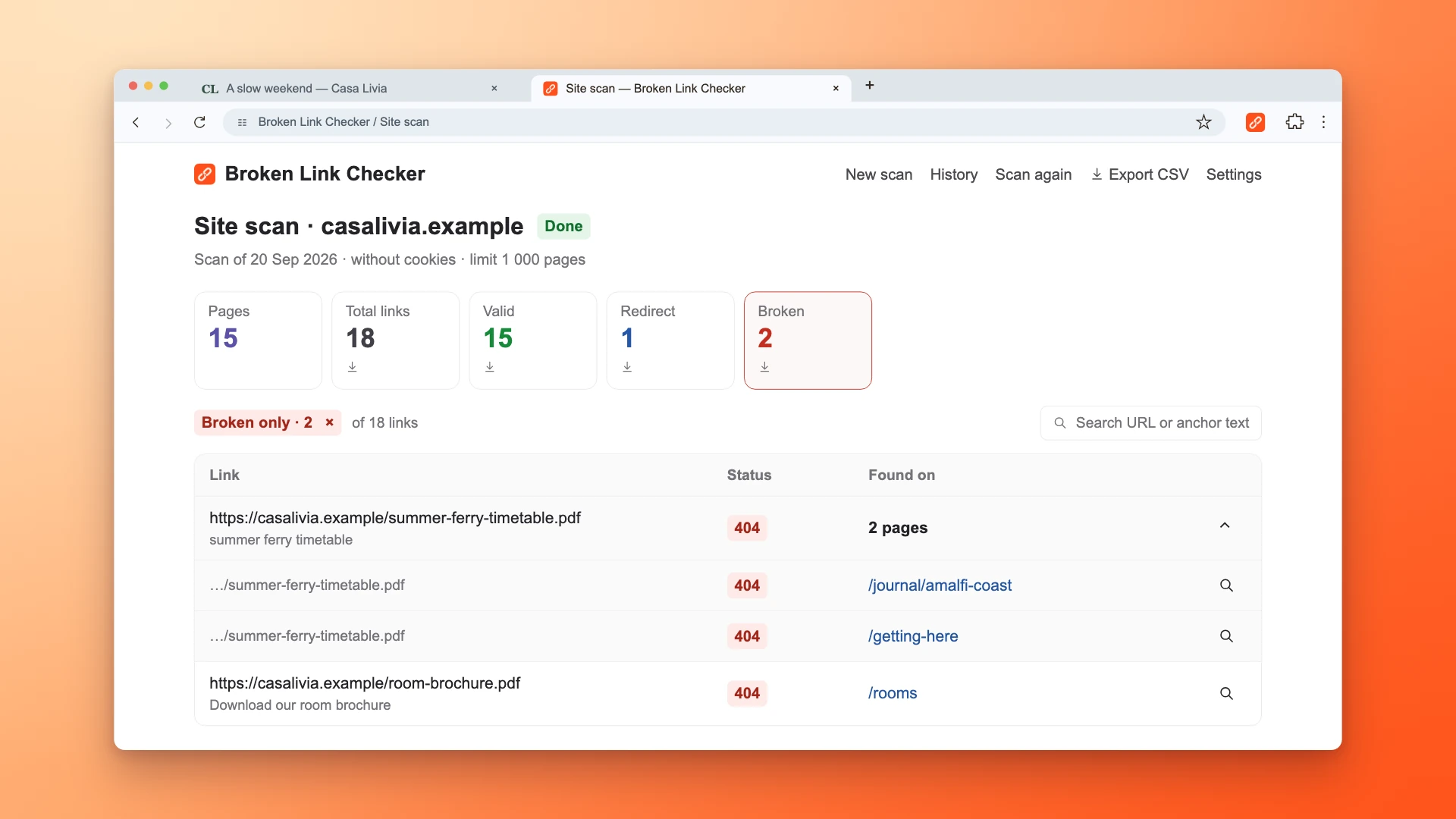
The Broken Link Checker Chrome extension complements Search Console: Search Console identifies URLs Google could not fetch, while the site scan searches the pages it discovers and shows which of those pages link to the failed URL. Sitemap discovery can help it reach listed pages, but the result is not a complete server log or a guarantee that every page was found.
When a page has moved, update your own internal links to point directly to the final URL. Do not rely on a redirect forever when you control the source link.
Check backlinks and external references
Google may know a URL because another website links to it. If the old page earned useful backlinks, restore the content or redirect to a close replacement. If the external link contains a harmless typo, a redirect can recover visitors who would otherwise land on the 404.
Do not redirect unrelated external URLs merely because they have backlinks. Relevance matters. Our broken backlink recovery guide covers how to evaluate and reclaim those links.
Check historical routes
Old CMS paths, staging URLs, previous domains, and retired URL parameters can remain discoverable for years. Compare the 404 patterns with:
- Previous sitemap exports
- Migration redirect maps
- Web server logs
- Analytics landing-page history
- Archived versions of the site
- Old campaign and email links
Google can continue revisiting a URL it discovered in the past. Its presence in Search Console does not prove the URL is still present in your current sitemap or navigation.
Step 4: Choose the Correct Fix
Every URL should end in one of four states: restored, redirected, intentionally gone, or ignored as an invalid request.
Case 1: The page should exist
Restore the page at the same URL and return 200 OK. This is usually the best outcome when the deletion was accidental, the page still has demand, or no URL change was intended.
Check the full delivery path:
- The content is published rather than drafted or archived
- The application route exists in production
- The database record is available
- The CDN is not caching an old 404
- Authentication does not hide a public page
- Mobile and desktop requests receive the same essential content
- The canonical URL points to the intended version
After the page returns a stable 200, run a live inspection and request indexing for an important URL.
Case 2: The content moved
Add a direct permanent redirect from the old URL to the closest equivalent live page. Use a 301 or another permanent server-side redirect supported by your platform.
Good redirect:
/guides/old-seo-audit -> /guides/technical-seo-audit
Bad redirect:
/guides/old-seo-audit -> /
Redirecting every removed URL to the homepage does not satisfy the visitor's original intent and may be treated as a soft 404. Google's redirect guidance recommends permanent server-side redirects when a page has moved.
Also update internal links, canonical tags, hreflang annotations, and the sitemap to use the new destination. Keep the redirect long enough for users, crawlers, bookmarks, and external links to migrate.
If you are choosing between redirect types, read 301 vs 302 redirects.
Case 3: The page was intentionally removed
If the content is permanently gone and there is no close replacement, return 404 Not Found or 410 Gone. Remove the URL from your sitemap and update internal links that point to it.
Do not:
- Redirect it to the homepage
- Redirect it to an unrelated category
- Return
200 OKwith a "page not found" message - Create thin replacement content only to eliminate the report entry
- Block the URL in
robots.txtbefore Google can see the removal response
Google currently treats 404 and 410 similarly for Search. The important distinction is between a truthful not-found response and a misleading success page or irrelevant redirect.
Your error page can still help visitors with navigation, search, and relevant links, as long as the HTTP response remains 404. See our guide to building a useful custom 404 page.
Case 4: The URL never existed
Typos, malformed external links, bots, and attempts to discover vulnerable files create URLs that were never part of your site. If the URL has no traffic, backlinks, internal references, or obvious intended destination, let it return 404.
Create a redirect only when the intended destination is unambiguous and useful. Examples include a common product-name misspelling or a URL format that your old site genuinely used.
A growing list of random 404s is normal on a public website. A sudden pattern of spam pages, foreign-language paths, or old URLs that previously returned content deserves a security and migration review—not thousands of speculative redirects.
Why Search Console Shows 404 When the Page Works
This is one of the most confusing versions of the issue. You open the URL and see a working page, but Search Console still says Not found (404).
Google has not recrawled the fixed page
Check the last crawl date. If Google fetched the URL before you restored it, the recorded status is stale. Run Test Live URL. If the live test succeeds, request indexing for an important page or wait for normal recrawling.
The failure is intermittent
A deployment, database outage, cache miss, or overloaded origin may return 404 only some of the time. Test repeatedly from an external environment and inspect server logs around Google's recorded crawl time.
Returning 404 during application failures is especially misleading: the server is saying "this URL does not exist" when the real problem is temporary. Use an appropriate 5xx response for genuine server failures so monitoring systems and crawlers can distinguish an outage from deleted content.
A CDN or firewall treats Google differently
Bot protection can challenge or block a request before it reaches your application. User-agent rules, IP reputation, geography, rate limits, and cached edge responses can all produce different results from your logged-in browser.
Use Search Console's live test, verify Googlebot requests in CDN and server logs, and review rules that alter responses for crawlers. Google's crawl troubleshooting guide recommends URL Inspection and Crawl Stats when diagnosing availability problems.
The application route depends on client-side state
A single-page application may display content after JavaScript runs while the initial server response is 404. The same can happen when a route requires a cookie, local storage, a client-side API call, or authentication state.
Check the initial HTTP status and what Google's rendered page contains. A public indexable route should not require private browser state to produce its primary content.
URL variants behave differently
Test the exact URL from Search Console, including:
- HTTP versus HTTPS
wwwversus non-www- Uppercase versus lowercase characters
- Trailing slash versus no trailing slash
- Encoded characters
- Query parameters
- Mobile or language subdomains
Your browser may silently correct or redirect a variant while Google reports the original URL that returned 404.
How to Handle Hundreds or Thousands of 404s
Large 404 reports are usually a pattern problem, not a URL-by-URL problem.
Group by directory and template
Create a pivot table or extract the first one or two path segments. Count URLs by route pattern, discovery source, and intended action. Fix the generator, routing rule, or template responsible for the largest valuable group first.
Build a redirect map
For migrations, maintain a two-column map of old URL to new URL. Validate that:
- Every destination returns
200 - No destination redirects again
- The old and new pages serve the same or closely related intent
- Multiple old URLs are consolidated only when one destination genuinely replaces them
- Redirect rules do not catch unrelated paths
Avoid blanket rules until you test representative URLs and edge cases. A broad regular expression can turn a clean set of 404s into irrelevant redirects or redirect loops.
Fix the source before validating
If a template generates broken links, fix the template. If the sitemap generator includes deleted products, fix its query or filter. If a deployment drops dynamic routes, fix the build or data dependency.
Clearing individual URLs without correcting the source guarantees that new errors will return.
Keep intentional 404s out of the work queue
Label intentionally removed and invalid URLs separately. They may remain visible until Google processes later crawls, but they do not need replacement pages or redirects.
This prevents a common reporting failure: measuring SEO health by whether Search Console shows zero 404s. A healthy public site can have many correct 404 responses.
How Validate Fix Works
The Validate Fix button asks Google to recrawl known examples in the issue group. It does not change your website and is not required for Google to notice a corrected response.
According to Google's Page Indexing report documentation, Search Console first checks a sample of pages. If those checks pass, validation continues across the known affected URLs. Validation typically takes up to about two weeks and can take longer.
Before starting validation:
- Fix every URL in the group that is supposed to change.
- Verify representative URLs outside Search Console.
- Run live inspections on the most important examples.
- Confirm the sitemap and internal links no longer publish bad URLs.
- Leave intentional 404s alone rather than forcing them into an incorrect state.
Validation can fail because one sampled URL still returns the reported error, a redirect leads to another error, a CDN serves stale responses, or the underlying template continues creating broken URLs.
Do not repeatedly restart validation while it is running. Use the validation details to identify the failing examples, fix the common cause, and restart only after the affected group is ready.
Why Old 404s Keep Appearing
Removing a URL from a sitemap does not erase Google's history of that URL. Google may have discovered it through an old sitemap, an internal link, an external backlink, a redirect, browser activity, or a previous crawl.
Old 404s can remain visible because:
- The report reflects an earlier crawl
- Google has not processed the new response yet
- An external site still links to the URL
- An old internal link remains in a template or archived page
- The URL was historically submitted in a sitemap
- Different variants of the URL still exist
If the URL is intentionally gone, returns a real 404 or 410, and is absent from your current internal links and sitemap, there may be nothing left to fix. Wait for the report to update.
The Search Console Removals tool is not a way to repair a 404 or permanently erase its history from the Page Indexing report. Use removals when you need to hide a result from Search quickly, then implement the correct permanent response on the site.
A Practical 404 Cleanup Checklist
Use this checklist for each high-priority URL group:
- Export the Search Console examples
- Group URLs by directory, template, and likely cause
- Identify URLs that should still exist
- Check the exact live HTTP response
- Compare the last crawl with Test Live URL
- Remove dead URLs from the sitemap generator
- Find and update internal links
- Review traffic and backlinks before deleting or redirecting
- Restore valuable pages that disappeared accidentally
- Redirect moved pages to the closest equivalent destination
- Leave intentionally removed pages as
404or410 - Test redirect destinations and eliminate chains
- Fix the shared template, routing rule, or data source
- Start validation only after the affected group is ready
- Monitor the report and server logs for new patterns
For ongoing maintenance, pair Search Console with scheduled crawling or the options in our automatic broken link monitoring guide.
The Bottom Line
The goal is not to remove every 404 from Google Search Console. The goal is to make every important URL behave intentionally.
Restore pages that should exist. Redirect pages that genuinely moved. Remove dead URLs from sitemaps and internal links. Keep a truthful 404 or 410 when content is permanently gone. Ignore random invalid URLs unless they reveal a broader routing, migration, or security problem.
That approach protects users and search visibility without creating irrelevant redirects, thin replacement pages, or endless cleanup work.
Frequently asked questions
- Should I fix every 404 error in Google Search Console?
- No. Fix URLs that should exist, moved URLs without redirects, submitted URLs still present in a sitemap, and dead URLs linked from your site. If a page was intentionally deleted and has no replacement, a real 404 or 410 response is correct and can be left in place.
- Do 404 errors lower Google rankings?
- A normal 404 does not create a site-wide ranking penalty. Rankings and traffic can still be lost when an important page accidentally disappears, backlinks point to a dead destination, internal links are broken, or a sitemap keeps submitting URLs that should be indexable.
- Why does Search Console report a 404 when the page works?
- The report may reflect an older crawl, or Google may have received an intermittent, cached, blocked, or variant-specific response. Compare the last crawl date with Test Live URL, then check the exact HTTP response and your CDN or server logs.
- Should I redirect all 404 pages to the homepage?
- No. Redirect only when a close replacement exists. Sending unrelated deleted URLs to the homepage creates a poor user experience and can be treated as a soft 404. If there is no replacement, return a proper 404 or 410.
- Should I use 404 or 410 for a deleted page?
- Either is acceptable for a permanently removed page with no replacement. Google currently treats 404 and 410 similarly for Search. What matters is returning an honest not-found response instead of 200 OK or an irrelevant redirect.
- How long does Validate Fix take in Search Console?
- Google says validation typically takes up to about two weeks, but it can take longer. Search Console first checks sample URLs and then continues through known affected pages if the initial checks pass.
- Why does Google keep crawling old deleted URLs?
- Google can remember URLs discovered through old sitemaps, internal links, external links, redirects, or previous crawls. If the URL is intentionally gone, returns 404 or 410, and is no longer linked or submitted, continued occasional crawling does not require another fix.

Pavel Molyanov
Creator of Broken Link Checker
Content marketer with 10+ years of experience. Founder of a content marketing agency. Writing about SEO, content workflows, and website maintenance.

Check Your Links in One Click
Broken Link Checker finds broken links and redirects on any page or across your whole website, and works in Google Docs and Sheets. Try 3 checks free, with no signup or card required.