How to Fix Broken Links After a Domain Migration: Complete Guide
· Updated
You finally pulled the trigger on a domain migration. New brand, new domain, fresh start. Then you check your analytics a week later and organic traffic has dropped 40%. Google Search Console is lighting up with crawl errors. Pages that ranked for years are returning 404s. Backlinks you spent years earning now point to a domain that serves nothing.
Domain migrations break links at a scale that no other website change can match. Every single URL on your site changes — and every internal link, every external backlink, every bookmarked page, and every indexed URL in Google becomes a potential broken link overnight.
The damage compounds over time, so the sooner you set up redirects and audit the new domain the better. Here's exactly how to find and fix every broken link after a domain migration — and how to prevent most of them from breaking in the first place.
Why Domain Migrations Break Links
A domain migration means your entire URL structure shifts. oldsite.com/blog/great-article becomes newsite.com/blog/great-article — or worse, newsite.com/articles/great-article if you changed your URL patterns at the same time.
This creates broken links in four distinct places:
Internal links. Every page on your site that links to another page on your site is using the old domain. If your content has absolute URLs (like https://oldsite.com/about instead of /about), every single internal link is now broken. Even relative links can break if you restructured your URL paths during the migration.
External backlinks. Other websites link to your old domain. Those links won't automatically update. A backlink from a high-authority site that pointed to oldsite.com/resources now hits a dead end — unless you've set up redirects.
Google's index. Google has crawled and indexed your old URLs. After a migration, Google still serves the old URLs in search results until it discovers and processes the change. Without redirects, users clicking those search results land on 404 pages.
Hardcoded URLs. Email templates, PDF documents, social media profiles, browser bookmarks, third-party integrations — all still reference the old domain. You can't fix all of these, but you can make sure they redirect properly.
Understanding where broken links come from tells you where to look. Let's start with what you should do before the migration even happens.
Pre-Migration: Build Your URL Map
The single most important thing you can do to prevent broken links is to create a complete URL map before you migrate. This is a spreadsheet that maps every old URL to its new equivalent.
Crawl Your Current Site
Use Screaming Frog, Sitebulb, or Ahrefs Site Audit to crawl your entire current site. Export everything:
- All live URLs (status 200)
- All URLs that already redirect (status 301/302)
- All pages returning errors (status 404, 500, etc.)
- Internal link targets — every URL that any page on your site links to
- Canonical URLs
- Page titles and meta descriptions
This crawl is your baseline. Save it — you'll compare against it after migration to catch anything you missed.
Export Your Backlink Profile
Pull your backlink data from Google Search Console (Links report) and, if you have access, from Ahrefs or Semrush. You need:
- Every external URL pointing to your site
- The specific page on your site each backlink targets
- The referring domain's authority (to prioritize high-value backlinks)
Sort by the pages that receive the most backlinks. These are the URLs where a broken link costs you the most SEO value.
Create the URL Mapping Spreadsheet
Build a spreadsheet with these columns:
| Old URL | New URL | Status | Priority | Redirect Added |
|---|---|---|---|---|
| oldsite.com/blog/post-1 | newsite.com/blog/post-1 | Live | High | No |
| oldsite.com/services | newsite.com/what-we-do | Live | High | No |
| oldsite.com/old-page | newsite.com/updated-page | Consolidated | Medium | No |
| oldsite.com/deleted-page | newsite.com/relevant-page | Removed | Low | No |
Rules for mapping:
- Pages that exist on both sites: Map old URL to the exact new equivalent.
- Pages being consolidated: Map old URL to the new combined page.
- Pages being removed: Map to the most relevant remaining page — not the homepage. A blog post about email marketing should redirect to your marketing resources page, not your homepage.
- Non-HTML assets: Don't forget images, PDFs, downloadable files. If anyone links to
oldsite.com/whitepaper.pdf, that URL needs a redirect too.
Every URL from your crawl needs a row. No exceptions.
Setting Up 301 Redirects
301 redirects are the backbone of any domain migration. They tell browsers and search engines: "This page has permanently moved to a new address." Google passes most of the link equity through 301 redirects, so your backlinks retain their value.
Apache (.htaccess)
If your old site runs on Apache, add redirect rules to your .htaccess file:
# Redirect entire old domain to new domain (same paths)
RewriteEngine On
RewriteCond %{HTTP_HOST} ^(www\.)?oldsite\.com$ [NC]
RewriteRule ^(.*)$ https://newsite.com/$1 [R=301,L]

# Redirect specific pages with changed paths
Redirect 301 /old-page https://newsite.com/new-page
Redirect 301 /services https://newsite.com/what-we-do
Redirect 301 /blog/old-post https://newsite.com/articles/new-post
For bulk redirects, a RewriteMap is more efficient than hundreds of individual Redirect lines. Create a text file with old-path/new-URL pairs and reference it in your server config.
Nginx
In your Nginx server block for the old domain, you have two options depending on whether all URL paths stay the same.
Option A: Blanket redirect (redirect everything to the new domain, same paths)
server {
    listen 80;
    listen 443 ssl;
    server_name oldsite.com www.oldsite.com;

    # Redirect everything to new domain, preserving the path
    return 301 https://newsite.com$request_uri;
}
Option B: Path-specific redirects (different destinations per URL)
If some URLs changed paths during the migration, use a map block to route each old path to its new destination:
map $request_uri $new_uri {
    /old-page          /new-page;
    /services          /what-we-do;
    /blog/old-post     /articles/new-post;
}

server {
    listen 80;
    listen 443 ssl;
    server_name oldsite.com;

    if ($new_uri) {
        return 301 https://newsite.com$new_uri;
    }
    return 301 https://newsite.com$request_uri;
}
Nginx map blocks are highly efficient for large redirect lists — they use a hash table, so performance doesn't degrade with thousands of rules.
Cloudflare
If your DNS goes through Cloudflare, you can set up redirects at the edge — before the request even reaches your server:
- Go to Rules > Redirect Rules
- Create a rule matching your old domain
- Set the action to Dynamic Redirect with status 301
- Use
concat("https://newsite.com", http.request.uri.path)as the expression to preserve paths
Note: that expression preserves only the path — it drops any query string (?utm_source=..., ?id=123, etc.), which can break tracking and deep links. To keep query strings, include them explicitly:
concat("https://newsite.com", http.request.uri.path, "?", http.request.uri.query)
If the original request had no query string, http.request.uri.query is empty, so you may want to wrap this in a conditional or accept a trailing ? in the redirected URL.
Cloudflare also supports Bulk Redirects — upload a CSV of old/new URL pairs for migrations with thousands of URLs. This is the fastest option since redirects fire at the CDN edge.
WordPress Plugins
If your old site is WordPress, plugins handle redirects without touching server config:
- Redirection (free) — the most popular option. Import your URL map as a CSV, supports regex patterns, logs 404s.
- Yoast SEO Premium — includes a redirect manager that automatically suggests redirects when you delete or move a page.
- Rank Math — built-in redirect module with 301, 302, and 307 options.
For a WordPress-specific walkthrough, see our guide to fixing broken links in WordPress.
Critical Redirect Rules
Regardless of which method you use:
- Always use 301, not 302. A 302 tells search engines the move is temporary, so they won't transfer link equity. A domain migration is permanent — use 301.
- Redirect to the exact equivalent page. Don't redirect everything to the homepage. Google specifically warns against this — it's treated as a soft 404.
- Keep the old domain active. You need to keep the old domain registered and serving redirects for at least 12 months. Google recommends keeping redirects indefinitely for high-traffic pages.
- Test every redirect. Spot-checking isn't enough. Use a tool like Screaming Frog to crawl your old URLs and verify each one returns a 301 pointing to the correct new URL.
Post-Migration: Finding Broken Links
Even with careful planning, some broken links will slip through. Here's how to find them after launch.
Crawl the New Site
Run a full crawl of your new domain within the first 24 hours after migration. Look for:
- Internal links still pointing to the old domain. These are the most common post-migration issue. Your content may have absolute URLs hardcoded in blog posts, navigation elements, footer links, or CMS templates.
- 404 responses. Any page on your new site returning a 404 means something didn't migrate correctly.
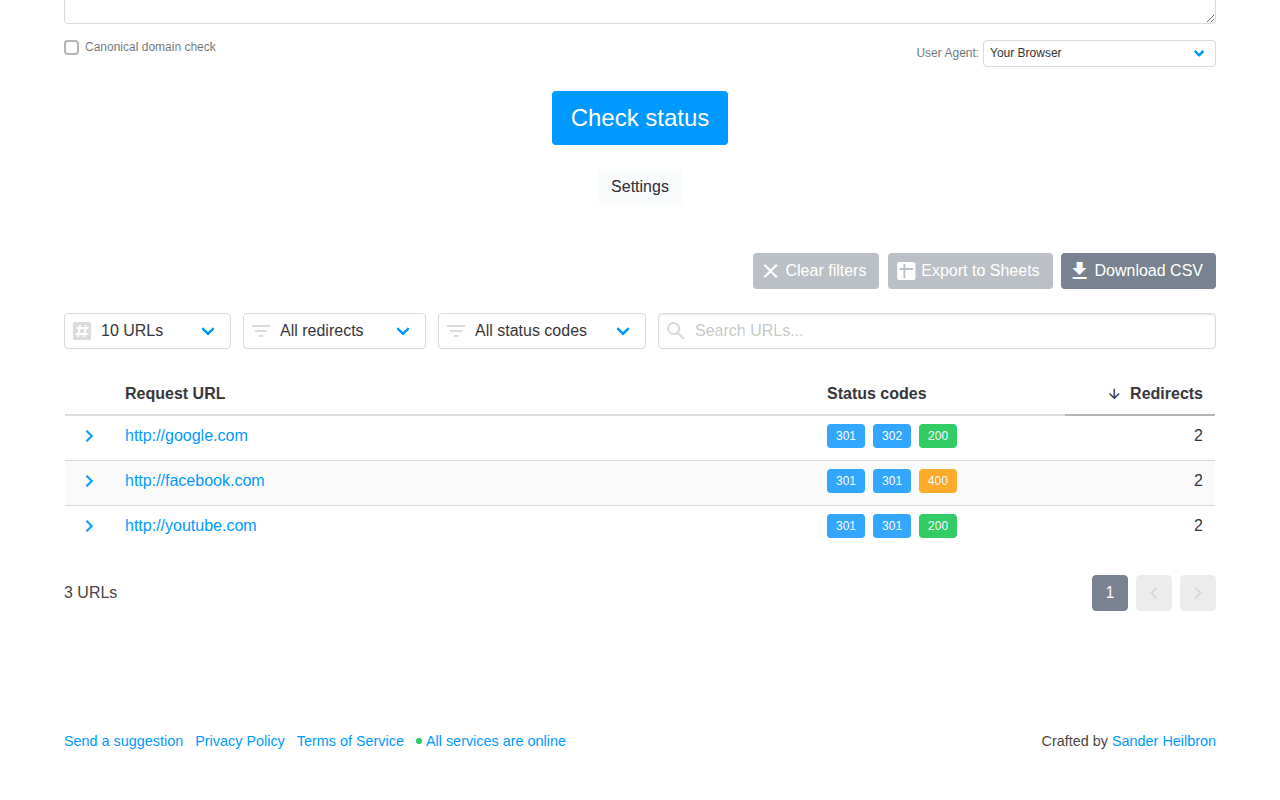
- Redirect chains. Old URL → intermediate URL → final URL. Each hop in a redirect chain dilutes link equity and adds latency. Google recommends keeping redirect chains under 5 hops, and even chains of 2 or more are worth consolidating.
- Mixed content. Pages loading over HTTPS but referencing HTTP resources (images, scripts, stylesheets) from the old domain.
Check Your Old URLs
Crawl your old domain separately to verify redirects are working. Every URL from your pre-migration crawl should return a 301 redirect to the correct new URL. Flag anything that returns a 404, 302, or redirects to the wrong destination.
Use Broken Link Checker
Start a Broken Link Checker extension site scan on the new domain, then search the results for the old hostname. This finds old-domain links on pages the scan discovered and shows the source pages under Found on. Filter Redirect to find old URLs that still work through redirects, and Broken to find references whose migration path ends in an error.
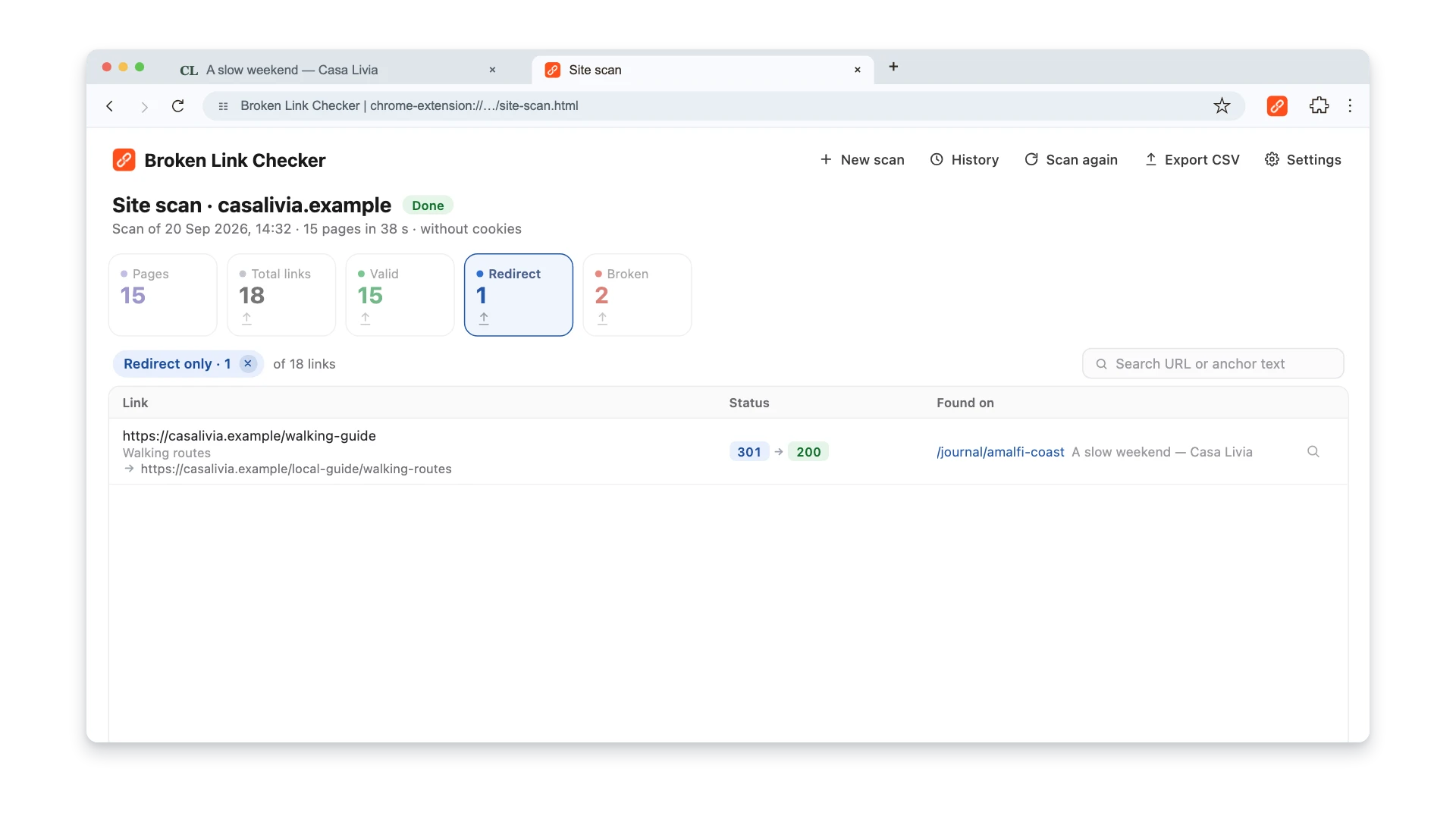
Export the result when you need one row per link and source page, including status codes, redirect chain, final URL, and title. Keep your independent pre-migration old-URL list: the scanner follows same-host links and sitemap discovery from the start URL, so historical URLs that are no longer linked still need to be tested from that list. For a comprehensive approach to link checking, see our complete guide to finding broken links.
Update Hardcoded URLs in Your Database
Many CMS platforms store absolute URLs in the database — in post content, widget settings, custom fields, and serialized data. A domain migration doesn't automatically update these.
For WordPress, use the Better Search Replace plugin or WP-CLI:
wp search-replace 'oldsite.com' 'newsite.com' --all-tables --dry-run
Run with --dry-run first to preview changes. Then run again without it to apply.
For other CMS platforms, check your database for any instances of the old domain. A SQL query like this works for most setups:
SELECT * FROM posts WHERE content LIKE '%oldsite.com%';
Update these references to the new domain. Leaving them means your content will either serve broken links or rely on redirects forever — adding unnecessary latency to every page load.
Handling External Backlinks
External backlinks are the links you don't control. Other websites link to your old domain, and those links won't update themselves. Your 301 redirects handle most of the SEO impact, but there are additional steps worth taking.
Outreach to High-Value Linking Sites
For your most valuable backlinks — links from high-authority domains, links to your top-ranking pages — reach out to the site owners and ask them to update the link to your new domain. This matters because:
- A direct link passes more value than a link through a redirect
- It speeds up Google's recognition of your new domain
- It eliminates dependency on your old domain staying active
Draft a short, specific email:
Subject: Quick link update on [their page title]
Hi — we recently moved from oldsite.com to newsite.com. I noticed your page [URL] links to our old domain. Would you mind updating the link to [new URL]? The content is the same, just at a new address. Thanks!
Don't mass-email everyone. Focus on the top 20-50 referring domains that drive the most value. Use your backlink data to prioritize.
Update Your Own External Profiles
Update every profile and listing you control: Google Business Profile, social media bios, directory listings, email signatures, third-party integrations, and guest post author bios. These are easy wins that people forget in the chaos of a migration.
Google Search Console Setup
Google Search Console is your primary tool for monitoring how Google processes your migration.
Add and Verify the New Property
Add your new domain as a property in Google Search Console. Verify ownership via DNS record, HTML file, or Google Analytics. Keep the old domain's property active — you'll need it to submit the change of address.
Submit the Change of Address
In the old domain's Search Console property:
- Go to Settings > Change of Address
- Select your new domain from the dropdown
- Google runs pre-move checks: it verifies that 301 redirects are in place and that you've verified ownership of both domains
- Submit the change
This tells Google explicitly that you've moved. Without it, Google has to figure out the migration on its own from redirect signals, which takes longer.
Submit Your New Sitemap
Upload your new sitemap (with all new URLs) to the new property. This gives Google a complete list of every page on your new domain, speeding up the crawl and index process.
Optionally, submit a sitemap on the old property containing the old URLs — Google will follow these, hit the redirects, and discover the new URLs faster.
Monitor Coverage Reports
Check the Pages report (formerly Coverage) in Search Console weekly for at least 3 months after migration. Watch for:
- Not found (404) — pages Google is trying to crawl that don't exist on the new domain. These need redirects.
- Crawled – currently not indexed — Google found the page but isn't indexing it. Could indicate quality issues or that Google hasn't processed the redirect yet.
- Page with redirect — Google is aware of your redirects. This is normal and expected during migration.
- Indexed pages count — the total number of indexed pages on your new domain should gradually increase as the old domain's count decreases. If the new domain's count isn't rising, something is wrong.
Common Domain Migration Mistakes
These are the errors that cause the most post-migration damage — and the ones that show up most often when auditing failed migrations.
Redirecting Everything to the Homepage
This is the single most destructive mistake. When you redirect all old URLs to the new homepage instead of their equivalent pages, Google treats every redirect as a soft 404. You lose the link equity from every backlink, and every old page drops from the index.
Take the time to map each old URL to its correct new destination. Yes, this means mapping hundreds or thousands of URLs. There's no shortcut.
Creating Redirect Chains
Old URL → temporary staging URL → new URL. Or old URL → old redirect → new redirect → final URL. Each hop in a chain adds latency, and Google's crawler stops following after 5 hops. More importantly, link equity diminishes with each hop.
Audit your redirects to ensure every old URL redirects directly to its final destination in a single hop.
Using 302 Instead of 301
A 302 redirect tells search engines the move is temporary. Google may keep the old URL in its index instead of replacing it with the new one, and link equity may not transfer. Always use 301 for permanent domain migrations.
Forgetting Non-HTML Resources
Your URL map probably covers all your web pages. But what about:
- PDF documents that other sites link to
- Images that appear in Google Image Search
- Downloadable files (whitepapers, guides, templates)
- RSS feed URLs
- API endpoints that third-party tools call
All of these need redirects too. Check your backlink data and crawl data for non-HTML URLs that receive traffic or links.
Letting the Old Domain Expire
Your old domain must stay active and serving redirects for at least 12 months — Google's recommendation. For high-traffic sites, keep it indefinitely. If the old domain expires, anyone can register it. At best, your redirects stop working. At worst, someone uses your old domain to serve spam, and the backlinks that once boosted your SEO now point to a malicious site.
Changing URL Paths and Domain Simultaneously
Migrating from oldsite.com/blog/post to newsite.com/articles/post introduces two changes at once: domain and path. This makes debugging harder and increases the chance of redirect errors. If possible, migrate the domain first (keeping the same URL paths), then restructure paths in a separate project.
Not Monitoring After Launch
The migration isn't done when the redirects go live. Traffic dips are normal, but you need to actively monitor for at least 30 days to catch issues. Set up alerts in Google Analytics for traffic drops greater than 20%. Check Search Console weekly. Crawl your site regularly to catch new broken links as Google processes the migration.
How Long Does a Domain Migration Take?
The full process — from Google's perspective — takes longer than most people expect.
Week 1-2: Google discovers your redirects and starts processing them. You'll see the old domain's indexed pages begin to drop. The new domain's pages start appearing in search results, but rankings may fluctuate significantly.
Month 1-2: The bulk of the migration happens. Most pages should be re-indexed under the new domain. Traffic stabilizes but may still be below pre-migration levels. This is normal.
Month 3-6: The long tail. Less popular pages finish migrating. Rankings settle to their new baseline. Google's Change of Address signal remains active for 180 days.
6+ months: The migration is functionally complete. Keep your redirects active. Keep your old domain registered. Monitor for any remaining 404s.
The timeline depends on your site's size, how frequently Google crawls your pages, and whether you've set up everything correctly. A 50-page site might fully migrate in 2-3 weeks. A site with 100,000 pages could take 6+ months.
Post-Migration Link Maintenance
A domain migration isn't a one-time event — it starts a period of ongoing maintenance. Links break gradually through a process called link rot, and a migration accelerates this decay.
Schedule Regular Link Audits
For the first 6 months after migration, audit your links monthly. After that, quarterly is sufficient. Each audit should check:
- Internal links on your new site (look for any remaining references to the old domain)
- Redirect health (verify old URLs still redirect correctly)
- New 404 errors in Search Console
- Backlink profile changes (are referring domains dropping?)
For a detailed walkthrough of the audit process, see our guide to auditing links before a website redesign — the methodology applies equally to post-migration monitoring.
Keep a Redirect Log
Maintain a document listing every redirect rule, when it was added, and why. This prevents future developers from accidentally removing redirects during server config changes — which happens more often than you'd think.
FAQ
How long should I keep 301 redirects active after a domain migration?
Google recommends keeping redirects active for at least 180 days (6 months). In practice, keep them as long as you own the old domain — ideally indefinitely. Removing redirects before Google has fully processed the migration means losing whatever link equity those backlinks carry.
Will I lose rankings after a domain migration?
Some temporary ranking fluctuation is normal and expected. Most sites see a dip of 10-30% in organic traffic during the first 2-4 weeks, followed by a gradual recovery. If your redirects are set up correctly and you've used the Change of Address tool in Search Console, traffic should recover to pre-migration levels within 2-3 months. If it doesn't, check for redirect errors, missing pages, or incorrect URL mappings.
Can I migrate to a new domain and change my URL structure at the same time?
You can, but you shouldn't — unless you have no choice. Each change introduces risk. Changing the domain and URL paths simultaneously makes it harder to debug redirect issues and means Google has to process two signals at once. Migrate the domain first with the same URL structure, wait for traffic to stabilize (typically 2-3 months), then restructure your URLs in a separate project.
What happens to my backlinks after a domain migration?
Your backlinks still exist on other websites, but they now point to your old domain. If you have 301 redirects in place, Google passes most of the link equity through to the new URL. However, direct links to your new domain are slightly more valuable than redirected links. For your most important backlinks, reach out to site owners and ask them to update the link to your new domain.
Do I need to update internal links after setting up redirects?
Yes. Redirects are a safety net, not a permanent solution for internal links. Every internal link that still points to your old domain adds an unnecessary redirect hop — slowing down page loads and wasting crawl budget. Update all internal links in your content, templates, navigation, and database to point directly to the new domain. For understanding the full impact of broken internal links, see our guide to what broken links are and why they matter.

Pavel Molyanov
Creator of Broken Link Checker
Content marketer with 10+ years of experience. Founder of a content marketing agency. Writing about SEO, content workflows, and website maintenance.

Check Your Links in One Click
Broken Link Checker finds broken links and redirects on any page or across your whole website, and works in Google Docs and Sheets. Try 3 checks free, with no signup or card required.