How to Create a Custom 404 Page That Saves Traffic
· Updated
Someone clicks a link to your site and lands on a blank page with "404 Not Found" in plain text. No navigation, no search bar, no way forward. They close the tab. You just lost a visitor — and potentially a customer — because your server showed them a default error page instead of something useful.
This happens more often than most site owners realize. Pages get deleted, URLs get restructured, someone shares a mistyped link on social media. Every website generates 404 errors. The difference between sites that lose traffic and sites that recover it comes down to one thing: what visitors see when they hit a dead end.
A custom 404 page turns that dead end into a detour. Instead of bouncing, visitors find their way back to content that matters. And setting one up is simpler than you think.
What Is a 404 Error (and Why It Matters)
A 404 status code means the server received the request but couldn't find the resource at that URL. The server is working fine — the page just doesn't exist at the requested address.
404 errors happen for predictable reasons:
- Deleted or moved pages without proper redirects
- Mistyped URLs in links, emails, or social media posts
- External sites linking to pages that no longer exist (link rot is inevitable)
- URL restructuring during site redesigns or domain migrations
- Crawlers discovering old URLs from cached search results or sitemaps
Without a custom 404 page, your server shows a default error message — usually an ugly, unstyled text block that tells the visitor nothing useful. With a custom page, you control the experience. You can guide visitors to working content, maintain your branding, and reduce the damage that broken links cause to your site's engagement metrics.
The Real Cost of Default 404 Pages
A generic 404 page is an immediate dead end. Most visitors who hit an unbranded error page with no navigation simply close the tab — that's traffic you already earned (through SEO, ads, or referrals) vanishing because of a page you never designed.
The costs stack up in several ways:
Lost engagement. Every visitor who bounces from a 404 page is one who might have read an article, signed up for a newsletter, or made a purchase. Default 404 pages offer zero paths forward.
Wasted ad spend. If you're running paid campaigns and any destination URLs break, you're paying for clicks that convert into nothing. A custom 404 page with alternative navigation can salvage some of that investment.
Brand damage. A plain-text error page signals neglect. Visitors form impressions fast, and "this site can't even handle a missing page" isn't the impression you want.
SEO signals. While Google has confirmed that 404 errors themselves don't directly hurt rankings, the user behavior they trigger does. High bounce rates, short sessions, and low engagement from 404 pages can indirectly affect how search engines evaluate your site quality.
Real Examples of Great 404 Pages
Let's look at how some well-known companies handle their 404 pages — and what makes each one effective.
GitHub
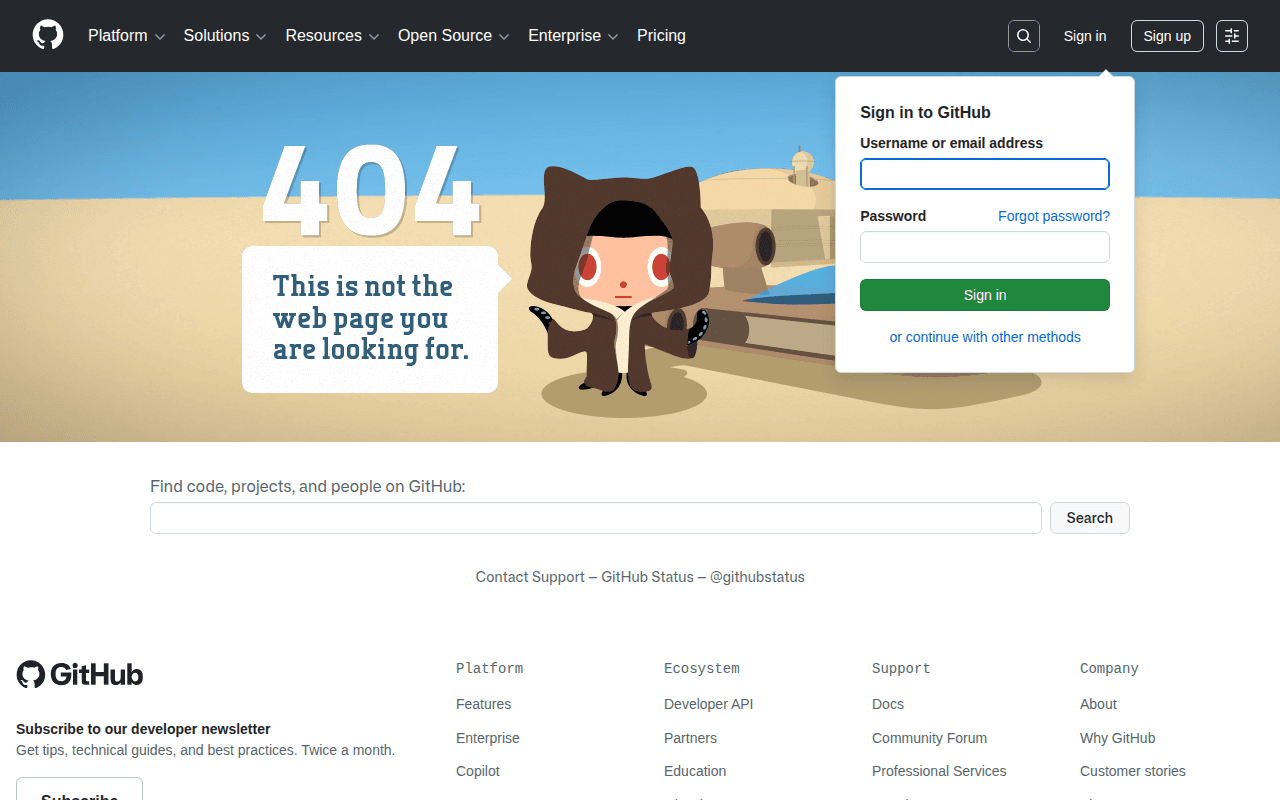
GitHub's 404 page is iconic. It features the Octocat mascot alongside a playful "This is not the web page you are looking for" message, with a parallax effect that responds to mouse movement. But beyond the creative visual, notice the practical elements: a search bar prominently placed at the center, full site navigation in the header, and links to GitHub Status and support in the footer. The page entertains while still providing every tool a lost visitor needs to find their way.
What works: The search bar sits dead center of the page — it's the first thing your eye lands on and the first thing a lost visitor will actually use.
Slack
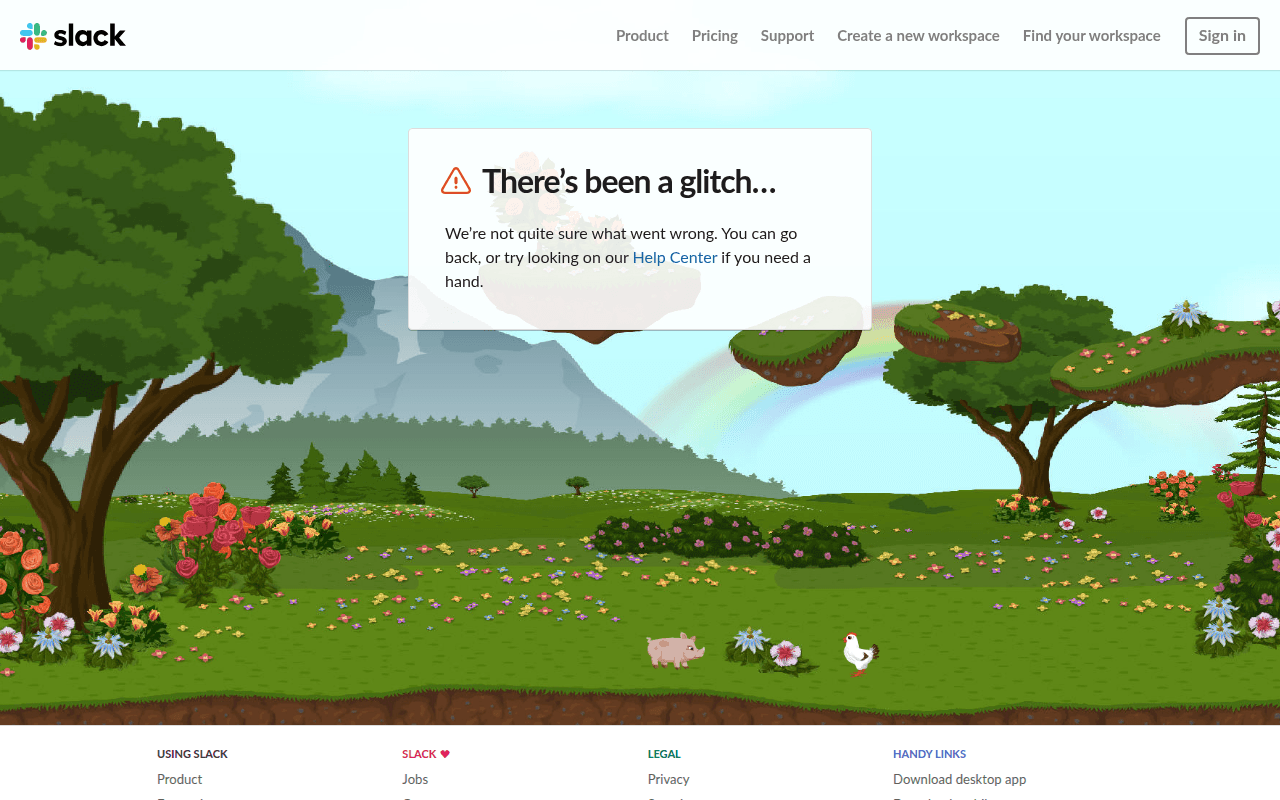
Slack takes a calm, friendly approach. The page features an illustrated landscape with small animals — on-brand for a company that uses similar illustrations throughout its marketing. The headline "There's been a glitch..." uses casual language that matches Slack's voice. Below the illustration, visitors get clear links to go back, visit the Help Center, or browse the main site sections.
What works: The casual "there's been a glitch" copy keeps Slack's voice intact even on an error page — the moment doesn't feel broken, just slightly apologetic.
Pixar

Pixar's 404 page is a masterclass in brand alignment. It pairs Anxiety — the wide-eyed, orange-haired character from Inside Out 2 — with the message "We can't find what you're looking for," followed by a link back to headquarters (the homepage). The character choice is perfect: anxiety is exactly what a lost visitor feels, and seeing it acknowledged by a familiar face turns the moment into a small joke instead of a dead end.
What works: The character choice matches the emotion of the moment, and minimal layout keeps the CTA obvious.
Figma
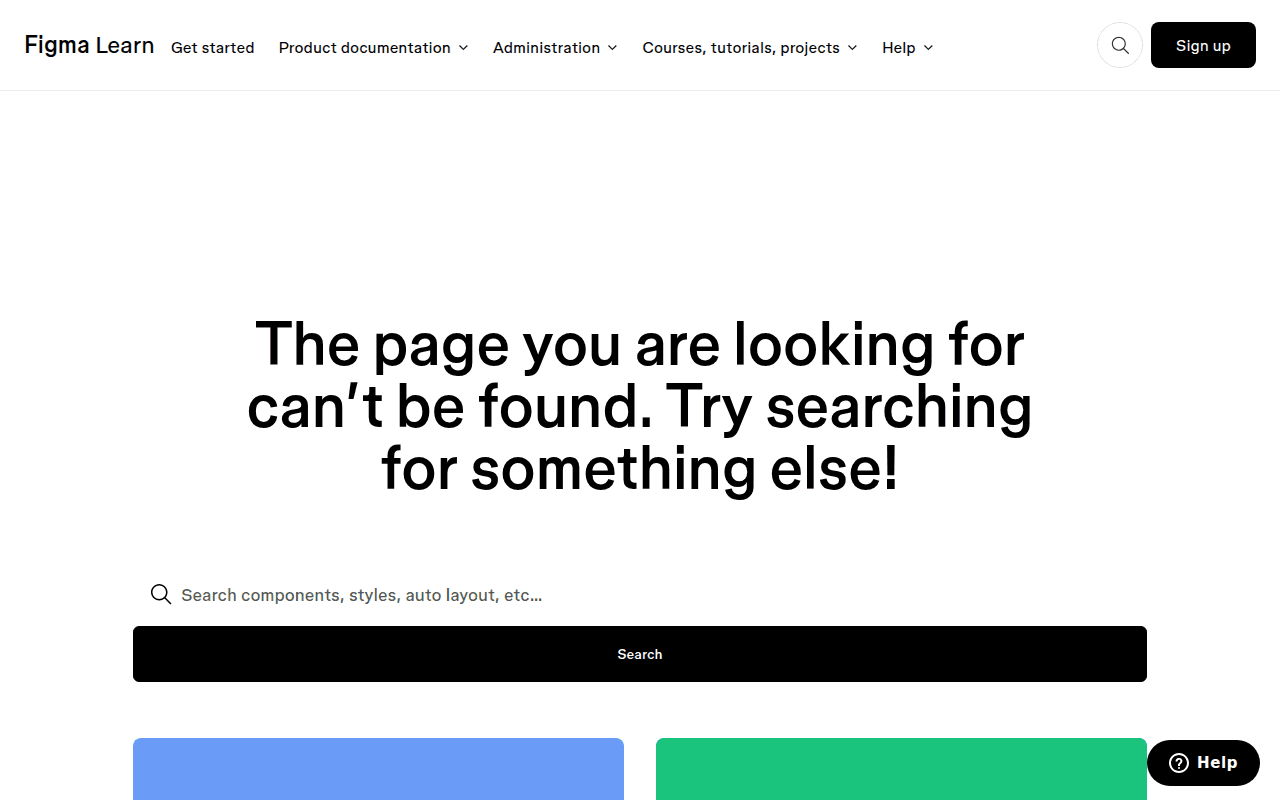
Figma's approach on their Learn subdomain is pure restraint. The page leads with a single large headline — "The page you are looking for can't be found. Try searching for something else!" — followed by a full-width search bar as the primary action. The top navigation stays intact so visitors can keep browsing the docs. No illustration, no mascot, no clever typography. Just the message, the fix, and a way out.
What works: Search bar is the clear primary action, and the top nav gives visitors an immediate way back into the docs.
Dribbble
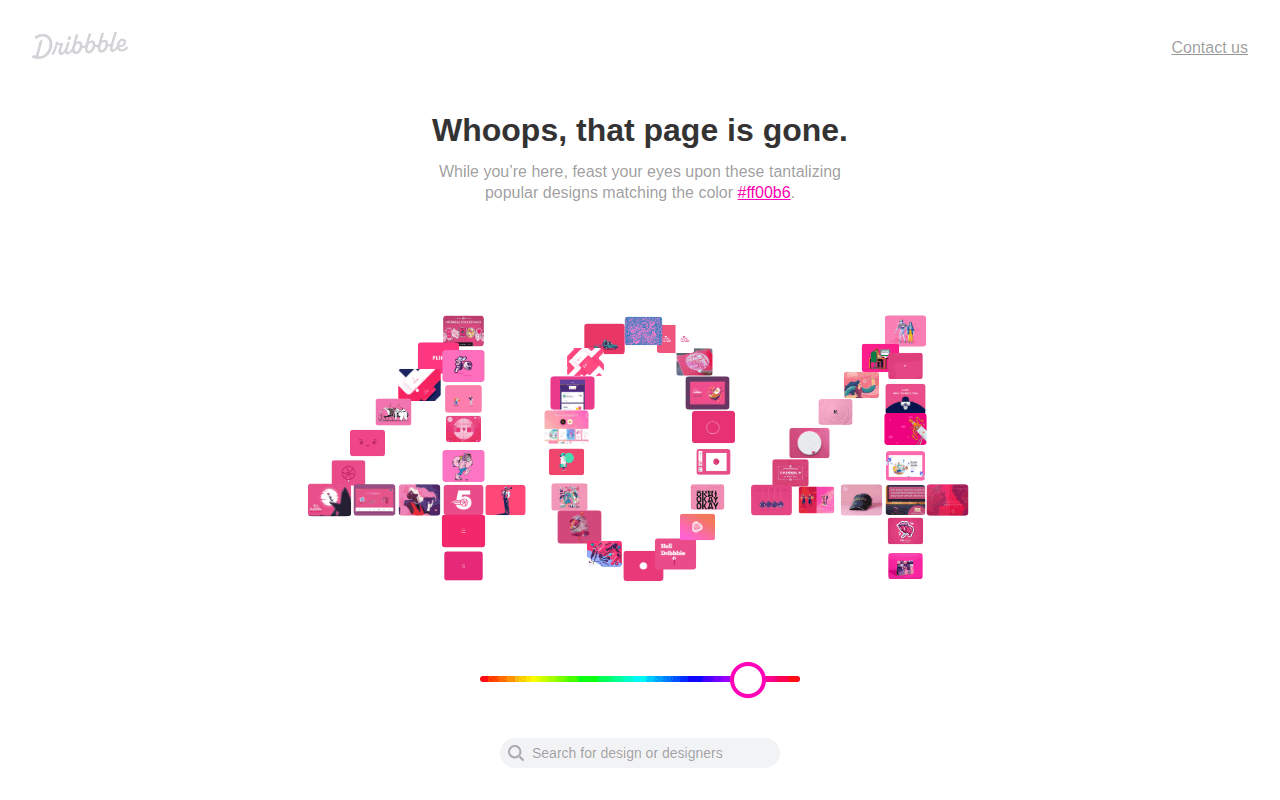
Dribbble's 404 page showcases exactly what the platform is about: design. The "404" is composed of community-created design thumbnails, arranged in the shape of the numbers. There's an interactive color slider that changes the palette of the displayed designs, and a search bar at the bottom. The page turns an error into a gallery — which is perfect for a design community platform.
What works: The error page becomes a tiny showcase of what Dribbble is for — the visitor learns something about the platform instead of just bouncing.
Common Patterns Across All Examples
Every effective 404 page above shares these traits:
- Brand consistency — the page looks and feels like the rest of the site
- Clear messaging — visitors immediately understand what happened
- Navigation options — multiple paths forward, not a dead end
- Personality — the page reflects the company's character
- Correct HTTP status — all return an actual 404 status code (not 200)
How to Set Up a Custom 404 Page
The implementation varies by platform, but the concept is the same everywhere: tell your server to serve a specific page when a requested URL doesn't exist.
Apache (.htaccess)
Add this line to your .htaccess file in the site root:
ErrorDocument 404 /404.html
Then create a 404.html file with your custom design. Apache will automatically return a 404 status code when serving this page.
For a more dynamic approach, you can point to a PHP file:
ErrorDocument 404 /404.php
Nginx
Add an error_page directive inside your server block:
server {
    ...
    error_page 404 /404.html;

    location = /404.html {
        root /var/www/html;
        internal;
    }
}
The internal directive prevents users from navigating directly to /404.html. Nginx will return the proper 404 status code automatically.
WordPress
WordPress themes typically include a 404.php template file. To customize your 404 page:
-
Theme file: Create or edit
404.phpin your theme directory. WordPress automatically uses this template for 404 errors and returns the correct status code. -
Plugins: Plugins like "404page" let you design a 404 page using the WordPress block editor — no code required. They create a regular WordPress page and configure it as the 404 template.
-
Theme customizer: Many modern themes include 404 page settings in the WordPress Customizer under Appearance > Customize.
Important: Make sure your 404 page returns a 404 HTTP status code, not 200. Some poorly coded themes or plugins serve the custom page with a 200 status, which creates soft 404 errors — and those cause real SEO problems.
Next.js (App Router)
Create a not-found.tsx file in your app/ directory:
import Link from 'next/link'

export default function NotFound() {
  return (
    <div>
      <h1>Page Not Found</h1>
      <p>The page you're looking for doesn't exist.</p>
      <Link href="/">Go back home</Link>
    </div>
  )
}
Next.js automatically returns a 404 status code when this page renders. You can also create not-found.tsx files in nested route segments for more specific error pages.
Shopify
Shopify stores have a built-in 404 template. To customize it:
- Go to Online Store > Themes > Edit Code
- Find
templates/404.liquid(or404.jsonfor Online Store 2.0 themes) - Edit the template with your custom content
Shopify handles the 404 status code automatically. You can add product recommendations, a search bar, and links to collections directly in the template.
Wix
- Go to Site Menu > Site Pages
- Find the "404 Error Page" in Custom pages
- Use the Wix Editor to design it like any other page
Wix returns the correct 404 status code by default. You can add any Wix element to the page — text, images, buttons, search bars, and menus.
Static HTML Sites
If you're running a static site without a framework, the setup depends on your hosting:
- Netlify: Create a
404.htmlfile in your publish directory - Vercel: Create a
404.htmlfile in the public directory - GitHub Pages: Create a
404.htmlfile in the repository root - Cloudflare Pages: Create a
404.htmlfile in the output directory
All these platforms automatically serve the file with a 404 status code.
Critical SEO Rules for Custom 404 Pages
A beautiful 404 page that sends the wrong technical signals can do more harm than good. Follow these rules to keep your custom 404 page SEO-friendly.
Always Return a 404 Status Code
This is the most important rule. Your custom 404 page must return an HTTP 404 status code — not 200, not 301, not 302. If your error page returns 200, Google will treat it as a real page and may flag it as a soft 404, which wastes crawl budget and creates indexing confusion.
How to verify: Open your browser's Developer Tools (F12), go to the Network tab, visit a URL that doesn't exist on your site, and check the status code on the HTML document response. It should say 404.
Don't Redirect All 404s to the Homepage
Google's Martin Splitt has explicitly warned against this practice. Redirecting every 404 to your homepage:
- Confuses Google's crawling: The search engine can't tell which URLs are real and which aren't
- Misleads users: They expect to land on the content they clicked, not your homepage
- Creates soft 404 signals: Google may start treating your homepage as a soft 404 if too many dead URLs redirect there
- Hides problems: You won't know which pages are broken if everything redirects silently
The correct approach: redirect 404s only when you know the content has moved to a specific new URL. Use 301 redirects for permanently moved content. Let genuine 404s return 404.
Don't Let Search Engines Index Your 404 Page
If your 404 page returns the correct 404 status code, search engines won't index it. But as an extra precaution, add a noindex meta tag:
<meta name="robots" content="noindex">
This prevents the edge case where a misconfigured server accidentally serves your 404 page with a 200 status code.
Keep Your 404 Page Lightweight
Your 404 page should load fast. Don't include heavy images, videos, or complex JavaScript that increases load time. A visitor who hit a 404 is already frustrated — making them wait for a slow error page only increases the chance they leave.
Don't Use 404 Pages for Expired Content
If a product is out of stock, a blog post was updated, or content was merged with another page — don't just delete the URL and let it 404. Instead:
- 301 redirect to the updated or replacement page
- Show an "out of stock" message with alternatives (for products)
- Keep the page live with a note about the update
Reserve 404s for URLs that genuinely have no equivalent content anywhere on your site.
How to Track and Monitor 404 Errors
Setting up a custom 404 page is step one. Step two is knowing when visitors actually hit it — and which URLs are causing the most problems.
Google Search Console
Google Search Console reports 404 errors under Indexing > Pages > Not found (404). This shows URLs that Googlebot tried to crawl but received a 404 response. Check this report regularly to identify:
- Pages you accidentally deleted
- External sites linking to URLs that no longer exist
- Old URLs that still appear in search results
GSC won't show every 404 a real user encounters — only the ones Googlebot hits during crawling.
Google Analytics 4
Track real user 404 encounters in GA4:
-
Page title method: If your 404 page has a unique title (like "Page Not Found"), go to Reports > Engagement > Pages and filter by that title. You'll see how many users hit 404 pages and which URLs they tried.
-
Custom event method: Set up a Google Tag Manager trigger that fires a custom
page_not_foundevent when your 404 page loads. This gives you cleaner data and lets you build custom reports.
Both methods require your 404 page to have the GA4 tracking code installed — another reason why your custom 404 page should use your site's standard template with the tracking snippet included.
Server Logs
For the most complete picture, check your server's access logs. Filter for responses with a 404 status code:
grep ' 404 ' /var/log/nginx/access.log | awk '{print $7}' | sort | uniq -c | sort -rn | head -20
This shows the top 20 most-hit 404 URLs. Server logs capture every 404 — from bots, crawlers, and real users — giving you the full picture that client-side analytics might miss.
Regular Link Scans
For a manual audit, Broken Link Checker can crawl discovered pages on the same host and group broken destinations by the source pages that contain them. Set a page limit from 1 to 10,000, start the scan, then expand Found on to locate the pages that send visitors to a 404. Use a scheduled crawler or monitoring service if you need scans to start automatically.
Regular scanning is especially important after site updates, content migrations, or design changes — the most common times for new broken links to appear. The question of how often to check depends on your site's size and how frequently you update content.
Common Mistakes to Avoid
Even with good intentions, many sites get their 404 pages wrong. Here are the mistakes that cause the most damage:
Returning a 200 status code. The number one mistake. Your page looks like a 404 to humans but looks like a real page to search engines. This creates soft 404 problems and wastes your crawl budget. Always verify the HTTP status code in your browser's developer tools.
No navigation or links. A custom 404 page that says "page not found" but offers no way forward is only marginally better than the default. Always include navigation, a search bar, or links to popular content.
Redirecting all 404s to the homepage. This seems helpful but actually creates SEO and UX problems. Let genuine 404s be 404s. Only redirect when you know where the content moved.
Using the same generic message for every 404. If your site structure allows it, customize 404 messages based on the URL path. A 404 in /blog/ could suggest popular blog posts. A 404 in /products/ could show bestsellers.
Forgetting analytics tracking. If your 404 page doesn't have your analytics code, you're flying blind. You won't know how many visitors hit 404s, which URLs cause the most errors, or whether your broken link fixes are working.
Overdesigning the page. An interactive game or complex animation is fun, but not if it takes 5 seconds to load. Keep the page lightweight. The priority is helping visitors, not winning design awards.
Not testing after deployment. Deploy your 404 page, then verify it works: correct status code, proper rendering, analytics firing, search bar functioning. Test on mobile too — many 404 pages look fine on desktop but break on smaller screens.
FAQ
Do 404 errors hurt my Google rankings?
404 errors themselves don't directly impact rankings. Google expects them — they're a normal part of how the web works. Google has stated that for sites with naturally high content turnover (like classifieds), even 30-40% of URLs returning 404 is perfectly normal and won't harm rankings. However, the user experience around 404 pages matters. High bounce rates and poor engagement from hitting too many dead ends can indirectly signal quality issues. A custom 404 page mitigates this by keeping visitors engaged instead of losing them.
Should I redirect all 404 pages to my homepage?
No. Google's Martin Splitt has explicitly warned against this. Blanket redirects to the homepage confuse search engines (they can't distinguish real pages from dead URLs), mislead users who expected specific content, and can cause Google to treat your homepage as a soft 404. Only redirect a 404 when the content has genuinely moved to a new, specific URL — and use a 301 redirect for permanent moves.
What's the difference between a 404 and a soft 404?
A 404 is when your server correctly returns a 404 HTTP status code for a missing page. A soft 404 is when your server returns a 200 (success) status code, but the page content looks like an error page to Google. Soft 404s are worse for SEO because they send conflicting signals — the server says "this page exists" while the content says "nothing here." Always make sure your custom 404 page returns an actual 404 status code.
How do I check if my 404 page returns the correct status code?
Open your browser's Developer Tools (press F12 or right-click > Inspect), go to the Network tab, then navigate to a URL that doesn't exist on your site (like yoursite.com/test-404-page-xyz). Click on the first request (the HTML document) and check the Status column. It should show 404. If it shows 200, your server is misconfigured and you need to fix it to avoid soft 404 issues.
Can a custom 404 page actually recover lost traffic?
Yes. While you can't force every visitor to stay, a well-designed 404 page with search functionality, popular content links, and clear navigation gives visitors reasons to continue browsing instead of leaving. The exact recovery rate depends on your page design and audience, but any custom 404 page with useful navigation will outperform a default error page that offers nothing. The key elements are a search bar, links to your most popular pages, and clear navigation back to main sections of your site.

Pavel Molyanov
Creator of Broken Link Checker
Content marketer with 10+ years of experience. Founder of a content marketing agency. Writing about SEO, content workflows, and website maintenance.

Check Your Links in One Click
Broken Link Checker finds broken links and redirects on any page or across your whole website, and works in Google Docs and Sheets. Try 3 checks free, with no signup or card required.