How to Find and Fix Broken Links with Semrush
· Updated
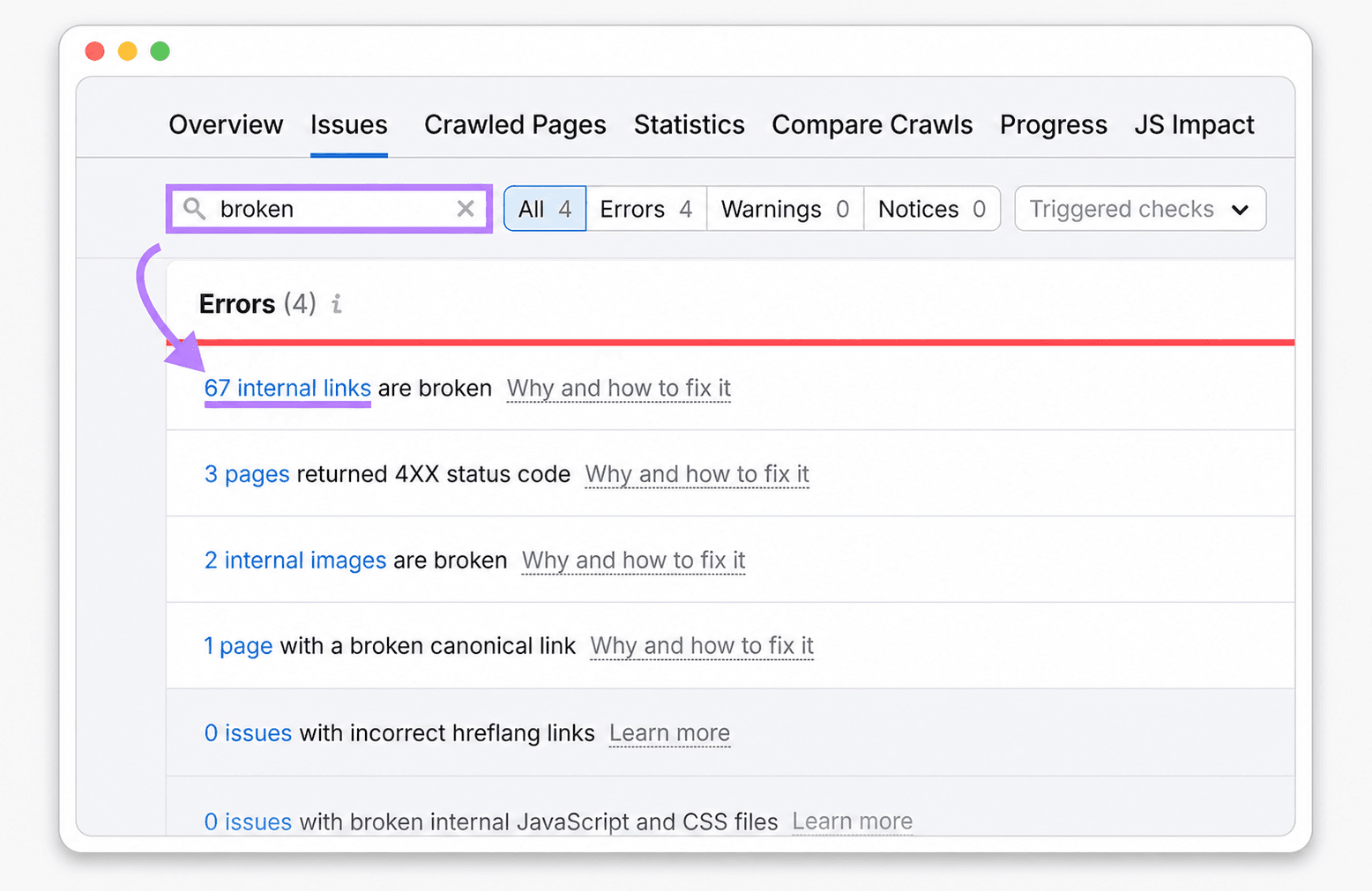
To find broken links in Semrush, run Site Audit, open the Issues tab, search for broken, and select the report for broken internal or external links. Open a failed destination to see its details, then use Incoming Internal Links to identify the source pages that need editing.
Do not treat every crawler failure as a confirmed dead link. Verify 403, 429, timeout, DNS, and 5xx results in a normal browser before removing a useful destination. After fixing the source pages, rerun the audit to confirm the issue has disappeared.
Screenshot source: Semrush's official internal linking mistakes guide; presentation frame added for this article.
Semrush Broken Link Checker: Quick Workflow
| Task | Where to do it in Semrush | Result you need |
|---|---|---|
| Define what gets checked | Site Audit settings | Correct domain, subdomain, or subfolder scope |
| Choose how URLs are discovered | Pages to crawl | Website links, robots.txt sitemap, a specific sitemap, or an uploaded URL list |
| Find confirmed link issues | Issues, then search broken | Broken internal links, external links, images, scripts, and other resources |
| Locate pages that contain a bad internal link | Broken URL details > Incoming Internal Links | Every source URL that needs an edit |
| Review one crawled page | Crawled Pages | Status code, incoming links, outgoing links, and page-level issues |
| Confirm the repair | Rerun campaign | The fixed link no longer appears in the issue report |
Semrush Site Audit is a broader technical SEO crawler with scheduled cloud audits. Broken Link Checker can also scan a public site across multiple pages, trace each result to its source pages, export the report, and keep the last 10 scans for that site locally. Its site scan is started manually in Chrome and does not replace Semrush's scheduled monitoring or wider SEO issue set.
What Semrush Checks for Broken Links
Semrush includes broken links inside a broader technical audit. Its official issue list documents checks for broken internal and external links, 4xx and 5xx pages, broken images, broken JavaScript and CSS files, broken canonical URLs, redirects, and crawl failures.
The reports answer two different questions:
- Which destinations failed? Review the Issues and Crawled Pages reports.
- Which pages link to a failed internal destination? Open the affected URL and inspect its incoming internal links.
That distinction matters. A list containing only /old-page is not yet a repair list. You also need the article, navigation item, footer, or template where that URL appears.
Can You Use Semrush Site Audit for Free?
Yes, for a small crawl. Semrush's current Site Audit limits allow an account without the SEO Toolkit to crawl up to 100 pages per month and run one audit at a time. Paid toolkit limits are much higher. Limits and plan names can change, so confirm them before relying on Semrush for a large recurring crawl.
The free allowance is enough to learn the workflow or inspect a small site. It is not enough for a large store, documentation portal, or frequently repeated full-site audit.
Step 1: Configure the Site Audit Crawl
Create or open a Semrush project, select Site Audit, and define the crawl boundary before starting. The official configuration guide allows a domain, subdomain, or subfolder as the scope.
Use the smallest scope that still contains the pages you are responsible for. Crawling an entire multi-subdomain platform when you only manage /docs/ wastes the crawl allowance and makes the report harder to review.
Choose the Right Crawl Source
Semrush offers four discovery sources:
| Crawl source | Best use | Important limitation |
|---|---|---|
| Website | Follow links starting from the homepage | Cannot discover a page that nothing links to |
Sitemap from robots.txt | Audit the URLs declared by the site | Misses unlisted pages and may include stale sitemap URLs |
| Specific sitemap URL | Focus on one known sitemap | Uses only the sitemap you provide |
| URL file | Audit an exact list of priority pages | Finds only uploaded URLs unless links are also followed within the configured crawl |
For a normal public website, start with website discovery and make sure the XML sitemap is available as another source. This gives the crawler a better chance of finding both linked pages and important URLs that are difficult to reach from navigation.
Set the Limit and Schedule
Keep Limit per audit inside the monthly allowance for your account. Run the first crawl once and review the result before scheduling it. A weekly audit is a practical baseline for an active marketing site; a small static site may only need a monthly check.
Semrush supports one-time, daily, and weekly schedules. JavaScript rendering is a separate setting and is currently limited to higher toolkit tiers. If navigation or links only appear after client-side rendering, a raw HTML crawl may not see them. Use the dedicated guide for broken links in JavaScript applications when that boundary applies.
Step 2: Run the Audit and Filter for Broken Links
Start the audit and wait for the crawl to finish. Then:
- Open Issues.
- Enter
brokenin the issue search field. - Open # internal links are broken to review internal destinations.
- Open the broken external links issue separately when outbound references are in scope.
- Review broken images, scripts, CSS files, and canonical links as separate issue types.
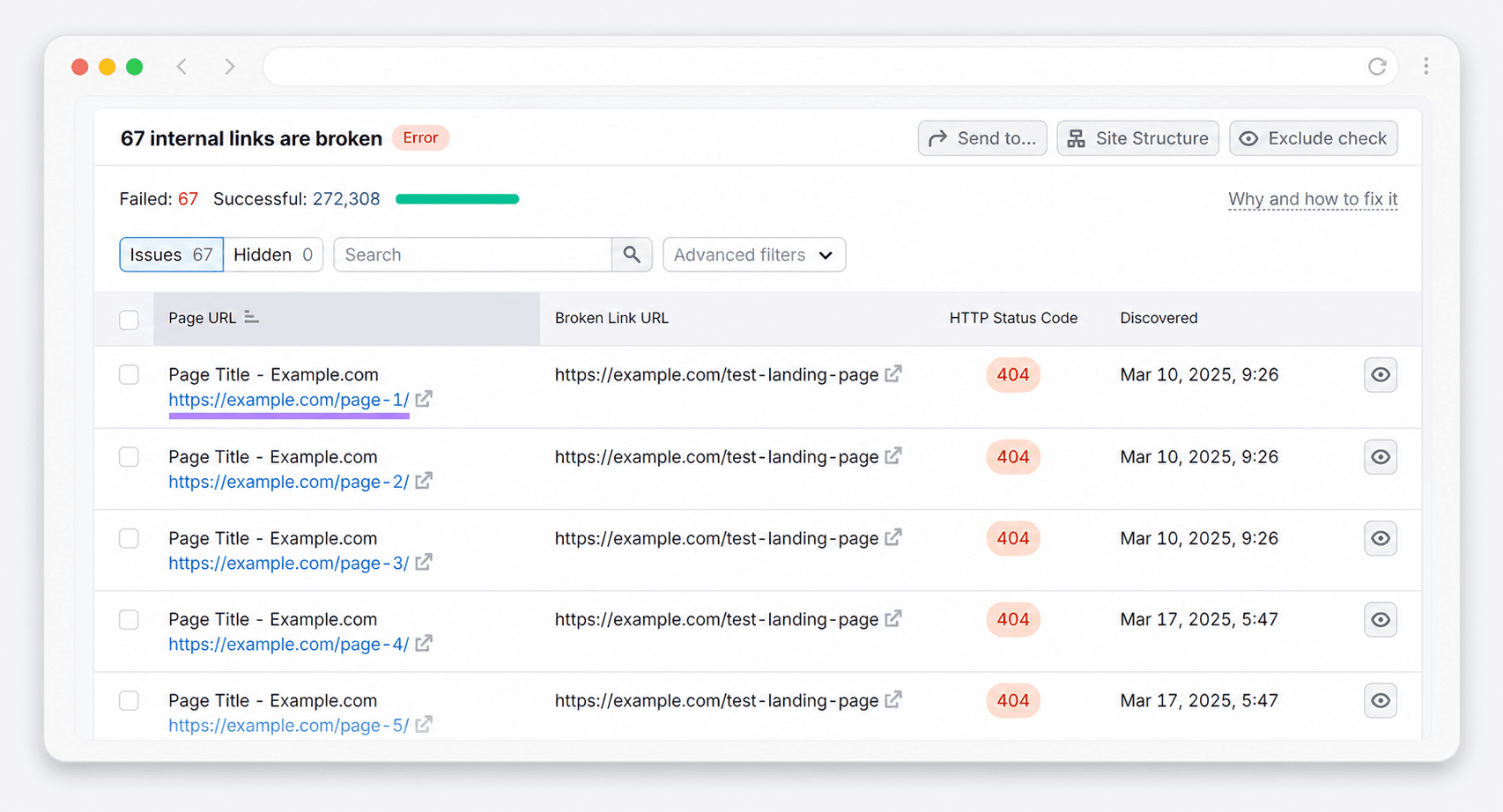
Semrush's own internal-linking workflow documents the same path: search for broken issues, open the internal-link error, select a failed URL, and inspect the URLs linking to it.
Source: Semrush.
Do not combine every result into one undifferentiated backlog. Separate at least these groups:
- broken internal page links;
- broken external references;
- missing images and downloadable files;
- failed scripts and stylesheets;
- temporary server or network errors;
- redirects that need review but are not broken.
Step 3: Find the Source Pages
A broken destination is only half of the diagnosis. To fix the link, you need to know where it appears.
For an internal destination:
- Open the broken internal-links issue.
- Select one failed destination URL.
- Open the page details.
- Find Incoming Internal Links.
- Click the URL count to view the source pages linking to that destination.
The Crawled Pages report documentation confirms that page-level reports include status codes, incoming internal links, outgoing internal links, outgoing external links, and the issues found on each URL.
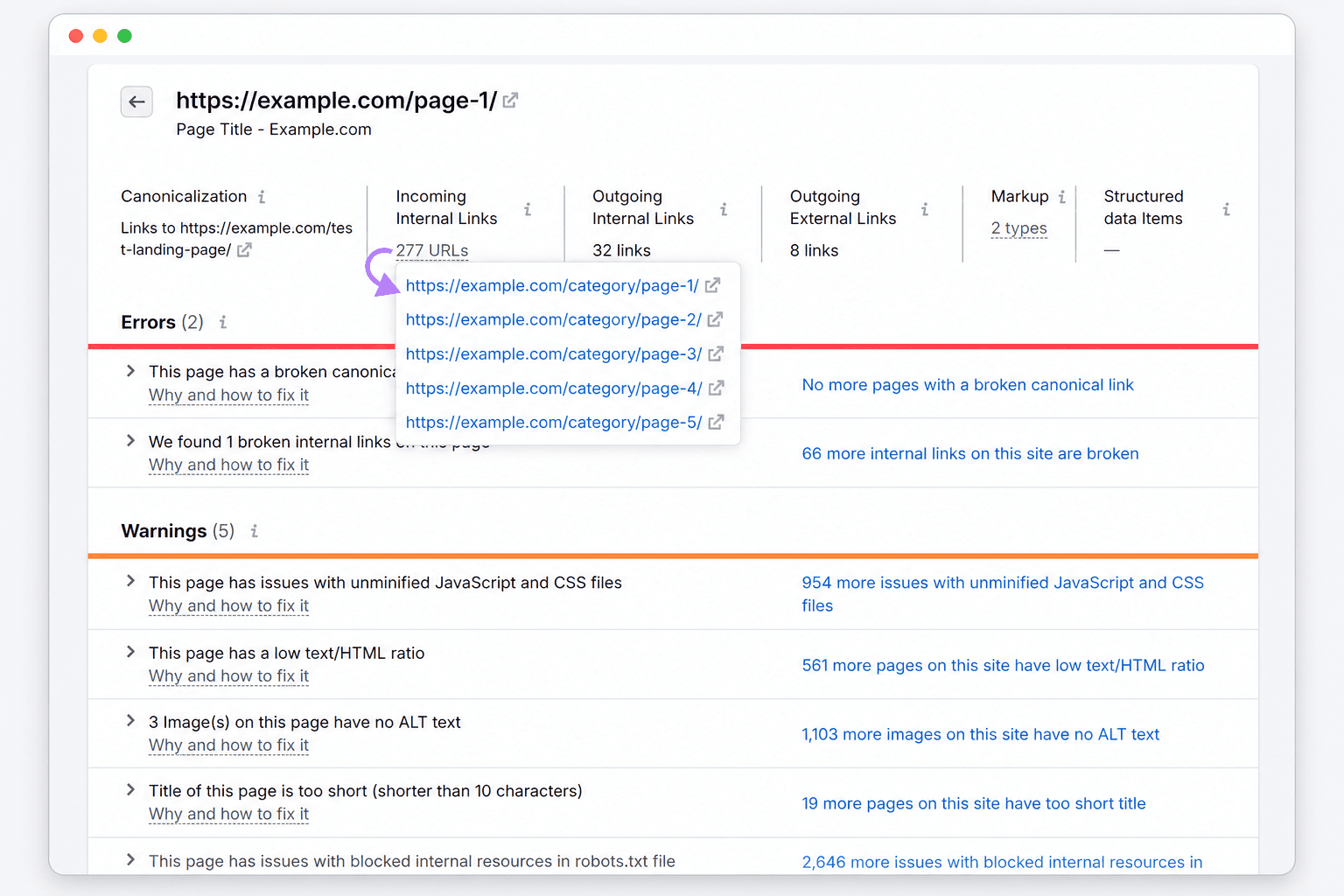
Source: Semrush. Open the incoming-link count to identify the pages that contain the broken internal link.
Export or record these fields for the repair queue:
| Field | Why it matters |
|---|---|
| Source URL | Identifies the page or template to edit |
| Broken destination | Identifies the failed target |
| HTTP status or crawl error | Separates a confirmed 404 from a temporary failure |
| Link type | Distinguishes internal links, external links, images, and other resources |
| First verification result | Records whether the failure also occurs in a browser |
| Owner and resolution | Prevents the same issue from being investigated repeatedly |
If dozens of pages contain the same failed link, inspect their common layout before editing them one by one. A footer, menu, reusable content block, or CMS template may be the real source.
Step 4: Interpret the Status Before Fixing It
The crawler result suggests the next diagnostic step; it does not always determine the final action.
| Result | What it usually means | What to do |
|---|---|---|
404 Not Found | The URL does not currently provide the resource | Restore it, update the source link, remove it, or redirect a genuinely moved page |
410 Gone | The resource was intentionally removed | Remove or replace source links; redirect only when a close replacement exists |
5xx | The destination server failed | Retry before editing; investigate your server if the destination is internal |
| Timeout or DNS error | The crawler could not reach the host | Retry from another network or later time |
403 Forbidden | Access was denied | Check whether the site blocks the crawler but works for visitors |
429 Too Many Requests | The crawler was rate-limited | Reduce crawl speed and retry |
301, 302, 307, or 308 | The destination redirects | Review separately; a redirect is not automatically a broken link |
Semrush documents common false positives when a crawler is blocked by robots.txt, a firewall, hosting protection, DNS problems, or stale server cache. Its false-positive troubleshooting guide recommends checking the live page and adjusting crawl speed when appropriate.
Step 5: Fix Internal Broken Links
Choose the repair based on what happened to the destination.
Update the Source Link
Point the link directly to the correct live URL when the destination moved and you know its replacement. Update your own links even if an old URL already redirects; this removes unnecessary hops and reduces future redirect chains.
Restore the Missing Page
Restore a page deleted by mistake or recreate a resource that still has a clear purpose. Check analytics, backlinks, and business importance before deciding that restoration is worth the maintenance cost.
Add a Relevant Redirect
Use a permanent redirect when the missing page genuinely moved or has a close equivalent. Do not send unrelated missing URLs to the homepage. A mismatched redirect can confuse visitors and may be treated as a soft 404.
Remove the Link
Remove a link when the destination is intentionally gone and no useful replacement exists. Rewrite the surrounding sentence if removing the link leaves an unsupported claim or an unclear instruction.
Step 6: Fix Broken External Links
You cannot repair another website, so the source page is your control point.
- Open the destination in a normal browser.
- Confirm that the failure is not a crawler-only block.
- Look for an updated URL from the same organization.
- Replace it with another primary source if the original resource is permanently gone.
- Remove or rewrite the reference when no replacement supports the claim.
Do not replace a dead citation with the first page discussing the same topic. The new destination should support the specific statement around the link. An archived copy can help you understand what disappeared, but a current primary source is usually better for readers.
Step 7: Rerun the Audit
After publishing the repairs:
- Check the edited pages in a browser.
- Run a link check on the rendered result or rescan the affected site.
- Rerun the Semrush campaign or the affected crawl scope.
- Confirm that the original issue count decreased.
- Investigate any new failures created by the repair.
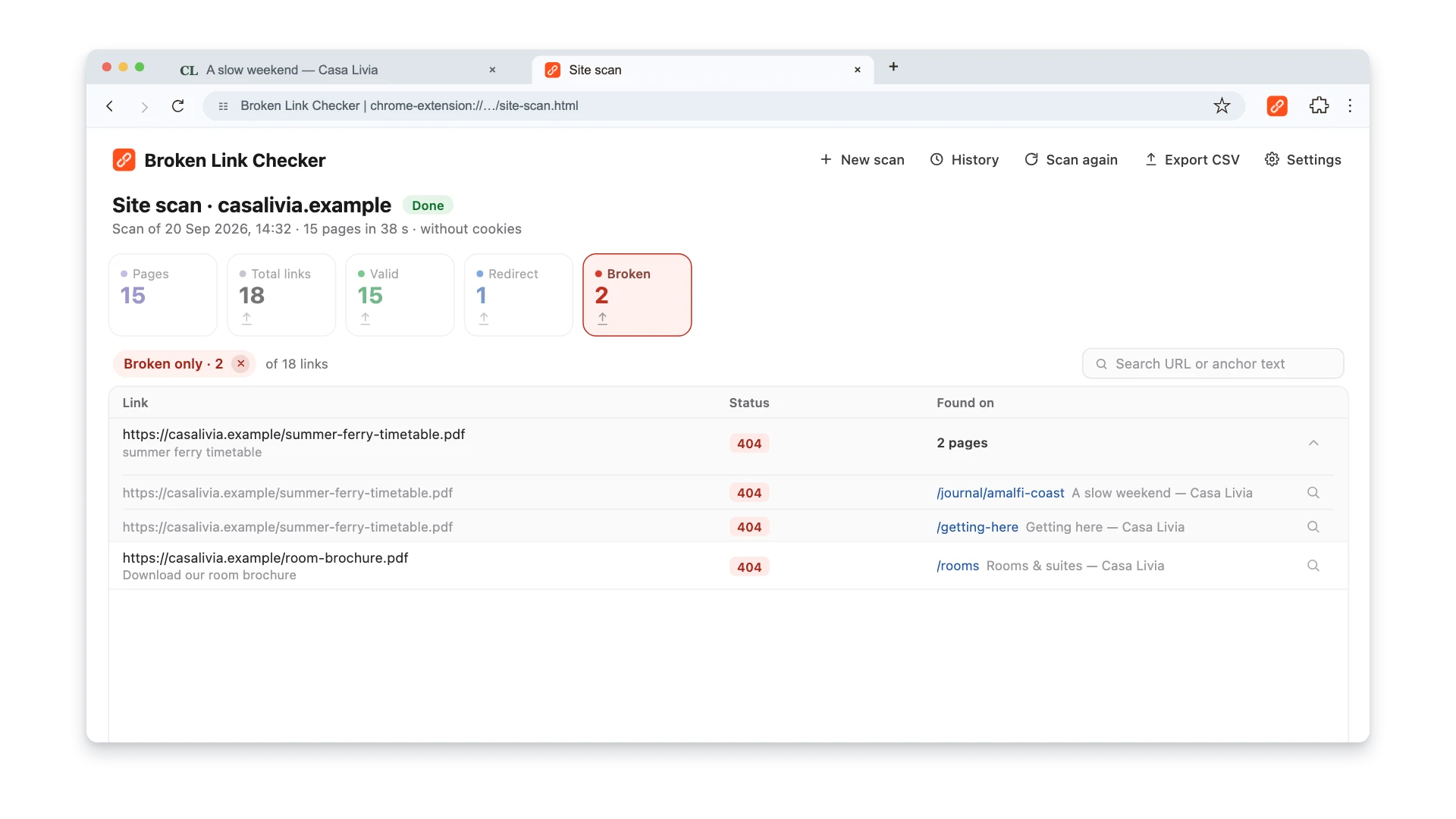
The Broken Link Checker Chrome extension is useful at step two because it can check the current rendered page or start a whole-site scan. In a site report, expand Found on to see the pages that contain a failed destination.
For recurring detection, connect the crawl to a small maintenance routine instead of treating each audit as a one-off project. The automatic broken-link monitoring guide compares Semrush scheduling with other hosted, desktop, CI, and self-hosted options.
Semrush Site Audit vs. a Chrome Extension
| Capability | Semrush Site Audit | Browser extension |
|---|---|---|
| Full-site crawl | Yes, within scope and plan limits | Yes, manually started; 1–10,000 pages on the same normalized host |
| Scheduled checks | Yes | No |
| Find source pages across the site | Yes | Yes, through Found on and CSV export |
| Check the rendered page you are viewing | Depends on crawl configuration | Yes |
| Work on an authenticated page | Requires compatible crawl setup | Current-page checks can; whole-site scans are public and do not use cookies |
| Verify one repaired page quickly | Slower than necessary | Best fit |
| Broader technical SEO checks | Yes | No |
| Local scan history | Campaign history in Semrush | Last 10 scans per site on this device |
Use Semrush when you need scheduled cloud recrawls and a broader technical SEO audit. Use the extension for an on-demand full-site link report, a quick check after editing a page, or a rendered current-page check while you are logged in. For a wider comparison, see seven methods for finding broken links.
Common Reasons Semrush Misses or Misclassifies a Link
The page is outside the crawl scope. A subfolder audit will not inspect the rest of the domain.
The page is orphaned. Website discovery cannot find a URL with no incoming links. Add a sitemap or URL file when orphan pages are in scope.
The link appears only after JavaScript runs. Enable the supported rendering mode or verify the rendered page separately.
A firewall blocks SiteAuditBot. Confirm the page in a browser before changing content and review the crawler rules with the site owner.
The crawl was rate-limited. Reduce speed and rerun instead of classifying every 429 as a dead page.
The report is stale. A crawl describes the version it saw. Rerun after deployment rather than checking an old export.
Frequently Asked Questions
Does Semrush Have a Broken Link Checker?
Yes. Broken links are reported inside Semrush Site Audit rather than as a separate single-purpose checker. Search for broken in the Issues tab to find internal links, external links, images, and other failed resources.
Does Semrush Show Which Page Contains a Broken Link?
Yes for crawled internal relationships. Open the failed internal URL and inspect Incoming Internal Links to see the source URLs. For external links, use the affected-page details in the issue report and export the relevant rows when available on your plan.
Can Semrush Check External Broken Links?
Yes. Site Audit reports broken external links separately from internal ones. Verify external failures because another website may block the crawler while still loading normally for visitors.
Is Semrush Site Audit Free?
A free account can currently crawl up to 100 pages per month and run one audit at a time. Larger sites, frequent recrawls, JavaScript rendering, and higher limits require an appropriate paid tier. Check the current Semrush pricing page before purchasing.
Should I Fix Every 404 Found by Semrush?
Fix every bad link from a useful source page, but do not redirect every missing URL. A real 404 or 410 is correct when content is intentionally gone and has no relevant replacement. The task is to repair navigation and references, not eliminate the existence of 404 responses.
How Often Should I Run a Semrush Site Audit?
Weekly is a reasonable default for an active marketing site or blog. Run it daily only when the website changes often enough to justify the crawl budget and review workload. A small static site may need a monthly crawl plus checks after deployments.
The useful output of a Semrush broken-link audit is not a health score. It is a verified list containing the failed destination, every affected source page, the correct repair, and a successful recrawl after publication.

Pavel Molyanov
Creator of Broken Link Checker
Content marketer with 10+ years of experience. Founder of a content marketing agency. Writing about SEO, content workflows, and website maintenance.
Check Your Links in One Click
Broken Link Checker finds broken links and redirects on any page or across your whole website, and works in Google Docs and Sheets. Try 3 checks free, with no signup or card required.