How to Set Up Automatic Broken Link Monitoring
· Updated
Automatic broken link monitoring means running a link checker on a schedule, alerting the right person when new failures appear, and tracking each issue until it is verified as fixed. For most active websites, the simplest setup is a weekly site-wide crawl, a check on every deployment, and a browser-based spot check after each repair.
You do not need every tool in this guide. Choose one site-wide monitor, add a pre-deploy check if your site is built from a repository, and use a page-level checker for verification. That covers the three moments when broken links matter: after an external page disappears, before your own changes go live, and after you apply a fix.
Choose the Right Broken Link Monitoring Setup
| Your situation | Best starting point | What runs automatically | Main limitation | Current price |
|---|---|---|---|---|
| You already use Ahrefs | Ahrefs Site Audit | Scheduled crawls; optional always-on crawl | Broad SEO platform, not a dedicated link monitor | Free limited Site Audit for verified sites; Starter is $29/month |
| You already use Semrush | Semrush Site Audit | Daily or weekly audits | Expensive if link monitoring is all you need | SEO Toolkit Pro is $139.95/month |
| You prefer a desktop crawler | Screaming Frog SEO Spider | Scheduled crawls and exports on your computer | The computer must be available when the task runs | £199/year; free version is limited to 500 URLs and does not include scheduling |
| Your content lives in Git | Lychee in CI/CD | Checks on pull requests and a cron schedule | Checks repository files, not every runtime-only route | Open source |
| You can maintain a server job | LinkChecker + cron | Scheduled live-site crawls | You own alerts, updates, and false-positive handling | Open source; hosting costs may apply |
| You only need Google's view of missing pages | Google Search Console | Google reports URLs it encountered while crawling | Does not scan outbound links on your pages | Free |
| You need an on-demand page or whole-site check | Broken Link Checker extension | Manually started crawl; local history for the last 10 scans per site | No scheduling, alerts, or automatic run comparison | 3 checks free; paid plans start at $2.90/month |
Prices and limits above were checked on August 24, 2026. Confirm them on the vendor's site before buying because plans can change.
If you are unsure, start with this baseline:
- Run a full crawl every week.
- Check links on every deployment if your site has a CI/CD pipeline.
- Review only newly detected failures, not the complete historical list each time.
- Verify each reported URL in a real browser before changing content.
- Recheck the affected page after the fix.
Weekly is a practical default for an active marketing site or blog. High-change ecommerce, publishing, and documentation sites may need daily scans. Small, mostly static sites can often use a monthly crawl. See the scan-frequency guide for a schedule by site type.
What an Automated Monitor Must Do
A scheduled scan alone is not a monitoring system. A useful workflow needs four parts:
Discovery. The crawler must reach your important pages. Use your sitemap as a crawl source when possible, then allow the crawler to follow internal links. This helps find both listed URLs and pages linked from the site.
Comparison. Focus alerts on new failures or changes since the previous crawl. Otherwise, the same unresolved URLs create noise every week.
Notification. Send the report to a channel someone already checks, such as email or a GitHub issue queue. A CSV saved on an unattended server is not an alert.
Verification. A crawler can be blocked, rate-limited, or served a temporary error. Open the reported link in a browser and retry it before removing or replacing it.
Record at least the source page, destination URL, HTTP status, first-seen date, owner, and resolution. This small audit trail prevents teams from repeatedly investigating the same false positive.
Option 1: Scheduled Site Audits Without Code
Choose this route when marketing or SEO owns website maintenance and already works in Ahrefs, Semrush, or Screaming Frog.
Ahrefs Site Audit
Ahrefs Site Audit can crawl verified projects on a schedule and report pages that link to broken destinations. Ahrefs also offers Always-on Audit through a Project Boost, which crawls continuously and sends alerts about critical changes between scheduled audits.
Set it up like this:
- Add or verify your website as an Ahrefs project.
- Open Site Audit and define the crawl scope. Include the production hostname and exclude staging, account, search, and parameter-heavy areas that should not be audited.
- Use the sitemap and website links as discovery sources. Enable Check HTTP status of external links if outbound links are part of the audit.
- Start with a weekly schedule. Move to daily only if the site changes frequently enough to justify the extra crawl usage.
- After the first crawl, open All issues and review the reports for pages linking to broken internal or external pages.
- Treat the first crawl as a baseline. On later runs, prioritize newly added errors and changes on high-traffic pages.
Ahrefs documents Starter at $29/month and Lite at $129/month, while verified site owners can use a limited free Site Audit. Its broken-page issue guide confirms that the report separates internal and external 4xx and 5xx outlinks. The Always-on Audit description confirms that it requires a Project Boost. That add-on is useful for fast-changing sites, but a weekly scheduled crawl is enough for many blogs and company websites.
Semrush Site Audit
Semrush Site Audit is a good fit when your team already uses the SEO Toolkit. It reports broken internal links and lets you inspect the source pages that contain them.
For the complete report path, status-code decisions, and false-positive checks, use the dedicated Semrush broken link checker guide.
Set it up like this:
- Create a project and open Site Audit.
- Set the scope to the domain, subdomain, or subfolder you want to monitor.
- Choose a crawl source. Semrush supports website discovery, the sitemap from
robots.txt, a specific sitemap URL, or an uploaded URL list. - Set the audit to Weekly or Daily. A weekly crawl is the better starting point for most sites.
- Run the baseline audit, then review Issues and the Internal Linking report.
- Export the affected source pages or assign them through your existing maintenance workflow.
Semrush's official Site Audit configuration guide confirms the daily, weekly, and one-time schedules. Its SEO Toolkit pricing page lists Pro at $139.95/month, Guru at $249.95/month, and Business at $499.95/month.
If you only need broken link monitoring, do not buy a broad SEO suite for this feature alone. Use the platform you already have or choose an open-source option below.
Screaming Frog SEO Spider
Screaming Frog is a desktop crawler with built-in scheduling. It is useful when you want detailed exports and control over crawl settings without storing the project in a cloud SEO platform.
- Configure a normal crawl and confirm it reaches the right pages.
- Choose which resources to check, including external links and images.
- Save the configuration.
- Open File > Scheduling, add a task, and select the crawl interval.
- Configure automatic exports for client errors, server errors, and redirect chains.
- In the scheduled task’s Notifications options, configure a completion email. The email does not include the exports, so keep the report location accessible to the person handling alerts.
- Check File > Scheduling > History after the first unattended run to confirm the task completed.
Screaming Frog's official user guide notes that a scheduled export runs headlessly in a new application instance. Avoid overlapping large crawls on the same machine. The paid license is £199 per user per year; the free version can crawl up to 500 URLs but scheduling is a licensed feature.
Option 2: Check Links Before Deployment with Lychee
Use CI link checking when your pages or documentation are stored in a repository. It catches a broken URL introduced in a pull request before that change reaches production.
This GitHub Actions workflow checks Markdown and HTML files on pull requests and once a week:
name: Check links

on:
  pull_request:
  workflow_dispatch:
  schedule:
    - cron: "17 6 * * 1"

permissions:
  contents: read

jobs:
  link-check:
    runs-on: ubuntu-latest
    steps:
      - uses: actions/checkout@v4

      - name: Check repository links
        uses: lycheeverse/lychee-action@v2
        with:
          fail: true
          jobSummary: true
          args: >-
            --root-dir "${{ github.workspace }}"
            --verbose
            --no-progress
            './**/*.md'
            './**/*.mdx'
            './**/*.html'
The official Lychee action repository documents the @v2 action and these file patterns. Add a .lychee.toml file for exclusions, timeouts, accepted status codes, and caching only after you see real failures. A long exclusion list created in advance can hide genuine broken links.
Complete the Loop: Failure, Notification, Repair
Save the workflow as .github/workflows/check-links.yml in the repository you want to monitor. Use a repository with Markdown or HTML source files; a CMS-only site needs a live-site crawler instead. The schedule runs on Mondays at 06:17 UTC. Scheduled runs use the default branch and can be delayed; this is not an exact-time availability monitor.
- Establish a baseline. Once the workflow exists on the default branch, open Actions → Check links → Run workflow. Open the completed run and read its summary. Fix genuine failures and investigate blocked requests before treating it as your baseline.
- Enable delivery. In your GitHub account's Settings → Notifications → System → Actions, enable email and select Only notify for failed workflows. Confirm the delivery email is verified.
- Test detection without publishing a broken page. On a temporary branch, add
link-check-demo.mdat the repository root with the sample below. Open a pull request so the check runs. Do not merge the intentionally broken fixture.
[Intentional missing-file check](./link-check-demo-missing.txt)
- Verify the alert. First confirm
link-check-demo-missing.txtdoes not exist. The link check should fail and its summary should identify the missing local target. Check that you receive the failed-run notification and can follow it to the report. This tests local-link detection and notification delivery, not remote HTTP behavior. - Repair and rerun. Add the missing text file on that same branch and push the commit. The next run should no longer report that link. If other links fail, inspect those failures separately; creating the fixture file does not fix them.
- Remove the fixture. Close the test pull request without merging, and verify the next scheduled run on the default branch appears in Actions. Failed-only notifications do not send a recovery email, so use the successful run as your confirmation.
The action's documented inputs support failing the job and writing a Markdown job summary. The example uses GitHub's built-in Actions notifications, so it needs no separate mail password or webhook.
Notifications are personal, not a team-wide alert route. GitHub describes who receives scheduled-run notifications: ownership can change when someone changes the cron schedule or re-enables the workflow. Confirm the responsible person receives alerts. If a run is missing, check whether Actions or the schedule has been disabled; a missing run cannot produce a failed-run email.
This minimal setup reports all current failures. It does not deduplicate old issues or alert only on newly broken URLs. For that, compare consecutive reports or use a monitor with change tracking. The manual-run documentation explains the default-branch and access requirements.
CI checks have an important boundary: they see URLs present in repository files. They may miss links generated at runtime, injected by a CMS, rendered only after client-side JavaScript runs, or visible only behind authentication. Keep a live-site crawl as a separate layer. If JavaScript rendering is central to your site, use the dedicated guide to broken links in SPAs.
Option 3: Self-Hosted Monitoring with LinkChecker
LinkChecker recursively checks a live website and supports text, HTML, CSV, XML, and other output formats. It is a practical choice when you can maintain a small server job and do not need a hosted dashboard.
Install it in an isolated environment, then test a manual crawl first:
python -m pip install linkchecker
linkchecker https://example.com/
Once the result is clean enough to act on, schedule it. For example, a weekly cron entry can write the report to a dedicated directory:
0 3 * * 1 /opt/link-monitor/bin/linkchecker https://example.com/ --output text > /var/log/link-monitor/latest.txt 2>&1
The LinkChecker command reference documents recursive checking, output formats, authentication, URL filters, and thread limits. Start with the default concurrency. Reduce it if your server, CDN, or external sites begin returning rate-limit errors.
Do not stop at writing a log file. Connect the job's non-zero result to your existing monitoring or ticketing system, and keep the full report as an artifact. Avoid placing email passwords, chat webhooks, or other secrets directly in the script or cron line; store them in your server's secret or environment configuration.
Use Google Search Console as a Safety Net
Google Search Console is not a complete broken link monitor. It reports URLs Google encountered while crawling your site, including hard and soft 404s, but it does not crawl every outbound link on your pages for you.
Use the Page indexing report to review Not found (404) and Soft 404 groups. Then ask two questions:
- Is this URL supposed to exist? Restore it or fix the internal link.
- Was it intentionally removed? Keep a real 404 or 410 unless there is a close replacement that deserves a 301 redirect.
Google's crawl-error guidance explains that soft 404s return a success status while showing error-like content. For a report-by-report workflow, see how to handle 404 errors in Google Search Console.
Search Console tells you what Google found, not whether every link on every page works today. Combine it with a crawler.
Configure Alerts That Lead to Action
The best alert contains enough context to make a decision without opening five reports. Include:
- the page containing the link;
- the failed destination URL;
- the observed status or error;
- whether the link is internal or external;
- whether the failure is new;
- a link to the crawl report;
- the person or team responsible for the source page.
Route weekly summaries to email if link maintenance is non-urgent. Create a GitHub issue or ticket when a CI check fails. Reserve real-time chat alerts for high-value routes or sudden spikes, otherwise temporary timeouts will create alert fatigue.
Before escalating a failure, retry it. A 429 can mean the target rate-limited your crawler, and a 403 can mean the target blocks bots while still working for visitors. DNS and 5xx errors may also be temporary. Never remove a useful source because of one unverified crawl result.
What to Monitor Besides 404s
Internal 4xx and 5xx responses. Fix these first because you control both the source link and usually the destination.
Broken external links. Replace the destination with a current source, update the citation, or remove the link if it no longer supports the page.
Redirect chains and loops. Update the source link to the final destination when the redirect is legitimate. Investigate loops immediately. See the redirect chain repair guide.
Broken images and downloadable files. Configure the crawler to check image, PDF, CSS, and JavaScript URLs where appropriate. Missing images require a different repair workflow from ordinary hyperlinks; use the broken images guide.
Timeouts, DNS failures, and TLS errors. Track them separately from confirmed 404s. They often need a retry before action.
New failures versus known backlog. A monitor should make regression visible. If old unresolved issues dominate every report, assign owners or explicitly suppress a confirmed false positive with a reason and review date.
Where a Browser Extension Fits
Automated crawlers run without you. This browser extension supports both the rendered page in front of you and a manually started whole-site crawl. Those are different jobs from scheduled monitoring.
The Broken Link Checker Chrome extension is useful after an automated tool reports a problem:
- open the source page and verify the failed destination in a real browser;
- confirm that a repaired link now works;
- check a page behind authentication while logged in;
- inspect links rendered by client-side JavaScript;
- spot-check a high-value page before publishing an update;
- start a bounded whole-site scan, filter broken links and redirects, and reopen one of the last 10 local reports for that site.
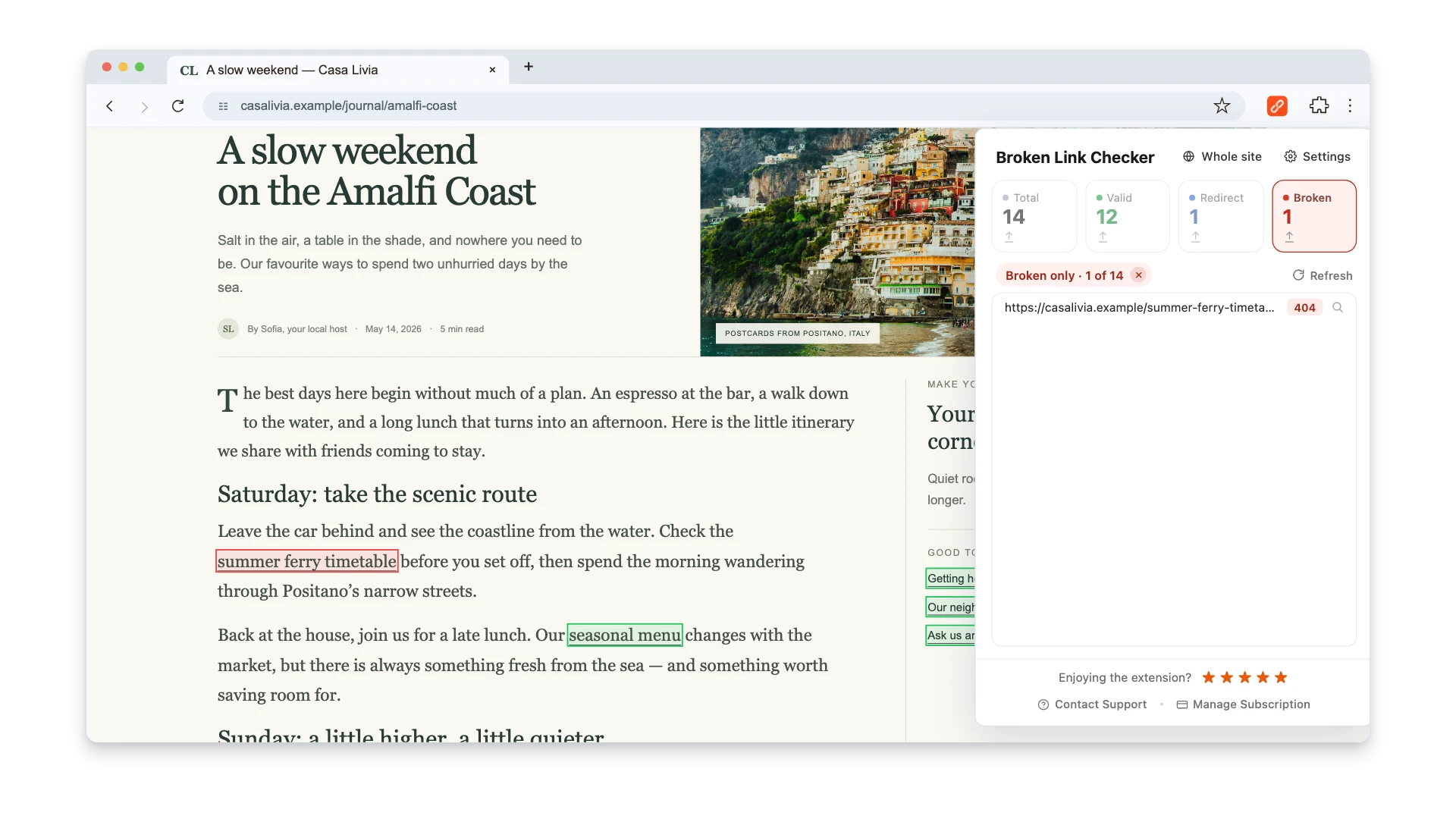
It is not a background site monitor and should not be presented as one. Whole-site scans must be started manually; local history does not compare runs or calculate trends. Use it beside a scheduled crawler when alerts or unattended checks are required. For other one-time methods, read how to find broken links on a website.
A Practical Weekly Workflow
- Run the scheduled live-site crawl.
- Compare it with the previous successful crawl.
- Separate confirmed failures from crawler blocks and temporary errors.
- Fix internal links before external links, starting with high-traffic and conversion pages.
- Update redirecting links to their final destinations when appropriate.
- Verify each changed page with the browser extension.
- Re-run the affected URLs or the full crawl.
- Record the resolution so the issue does not return as unexplained noise.
This workflow keeps monitoring small and repeatable. The goal is not a dashboard with a perfect score. The goal is to shorten the time between a link breaking and a visitor reaching a repaired path.
Frequently Asked Questions
Can broken link monitoring be free?
Yes. LinkChecker can crawl a live site, Lychee can check repository content, and Google Search Console can show missing URLs Google encountered. The tradeoff is operational work: you must schedule the jobs, route alerts, update the tools, and investigate false positives yourself.
How often should a broken link checker run?
Weekly is the best default for most active websites. Run daily for frequently changing ecommerce, news, or large documentation sites. Also run a repository-based check on every deployment. Monthly can be enough for a small static site.
Should a monitor check internal or external links first?
Check both, but prioritize internal failures because you control them and they can interrupt navigation and crawling. External links still need maintenance because dead citations and resources reduce trust and usefulness.
Will a crawler slow down the website?
A controlled crawl should not cause a noticeable problem, but aggressive concurrency can overload a small server or trigger rate limits. Start slowly, schedule large scans outside peak traffic, and increase speed only after checking server metrics and crawl duration.
What should I do with a reported 403 or 429?
Verify it in a browser and retry it before editing the page. A 403 may be a bot block, while a 429 means the crawler sent requests faster than the target allows. Reduce concurrency or exclude a confirmed crawler-only false positive with a documented reason.
What is the best setup for WordPress?
Use a cloud or external crawler if you do not want background scanning to consume WordPress hosting resources. A plugin can be convenient, but test its resource use on your hosting plan. The WordPress broken link guide covers the platform-specific repair steps.
Automatic monitoring works when it produces a small, owned queue of verified problems. Choose the simplest crawler that covers your site, connect it to a channel your team already uses, and keep page-level verification in the loop.

Pavel Molyanov
Creator of Broken Link Checker
Content marketer with 10+ years of experience. Founder of a content marketing agency. Writing about SEO, content workflows, and website maintenance.
Check Your Links in One Click
Broken Link Checker finds broken links and redirects on any page or across your whole website, and works in Google Docs and Sheets. Try 3 checks free, with no signup or card required.