Broken Links in Wix: How to Find and Fix Them
· Updated
To fix a broken link in Wix, update the link in the Editor or CMS and create a 301 redirect when an old published URL has a relevant replacement. The current route is SEO & GEO → Tools and settings → URL Redirect Manager. Wix can create redirects for some slug changes, but Wix Blog posts, deleted pages, group path changes, and migrations still need deliberate checks.
Fast Wix Triage
| Change | What to do |
|---|---|
| Standard page, product, or category slug changed | Confirm the automatic redirect exists after publishing |
| Wix Blog post slug changed | Create and test a manual redirect |
| Page, product, or app route deleted | Update source links and map the old URL to a relevant live page if one exists |
| Dynamic item's individual slug changed | Confirm the automatic redirect on a connected domain |
| Dynamic page URL structure changed | Export the old item URLs and verify each old-to-new mapping |
| Repeated path changed during migration | Use a group redirect if the old and new structures preserve the same variable part |
Why Wix Sites Get Broken Links
Understanding the causes helps you prevent the problem. Here are the patterns specific to Wix that create dead links.
Page Deletions Without Redirects
The most common cause. You delete an old page from your Wix Editor, and every link pointing to that page — from your navigation, other pages on your site, Google search results, social media posts — now leads to a 404 error. Wix does not automatically create a redirect when you delete a page.
URL Slug Changes
When you rename a page or edit its URL slug in Wix, the platform usually creates an automatic redirect from the old URL to the new one. The exception: Wix Blog posts. When you change a blog post's URL slug, Wix does not create an automatic redirect. You have to set it up manually through the URL Redirect Manager.
This catches many site owners off guard. They rename a blog post, assume the old URL still works, and don't realize it's broken until Google Search Console shows a spike in 404 errors.
Dynamic Pages and CMS Collections
If you use Wix's CMS (Content Management System) with dynamic pages, broken links can appear in less obvious ways:
- Changing the URL slug field in a CMS collection breaks every link to items that used the old slug structure.
- Deleting a CMS item removes its dynamic page URL without any redirect.
- Misconfigured dynamic page links — if the URL slug in page settings doesn't match the collection's Page Link field, visitors get a 404.
- Duplicate slugs in a collection cause conflicts where only one item's page loads correctly.
Dynamic pages are powerful, but the link between collection data and page URLs is fragile. One field change in the CMS can cascade into dozens of broken links.
Wix Stores Product URLs
Wix Stores products follow a specific URL pattern: yoursite.com/product-page/product-name. When you change the default URL prefix in SEO Settings (for example, removing "product-page" from the path), Wix offers to create automatic redirects. But this only works if you select the "Automatically redirect all traffic" option during the change.
Other product-related broken link triggers:
- Deleting a product removes its URL immediately.
- Changing a product's name after it's been indexed by Google can create confusion if the URL slug isn't also updated.
- Removing product categories breaks any saved links to category-filtered views.
App Removals
Third-party apps from the Wix App Market (booking systems, event calendars, forums, membership areas) often create their own pages and URL routes. Uninstall the app, and those URLs vanish. Any external links or Google-indexed pages pointing to those app-generated pages break instantly.
Domain Changes
Switching your Wix site from a free username.wixsite.com/sitename URL to a custom domain, or changing between custom domains, can break every existing link to your site. Wix's redirect system only works with connected custom domains — if you don't have one connected, old URLs simply stop working.
How to Find Broken Links on Your Wix Site
You can't fix what you haven't found. Here are the most effective methods, ordered from quickest to most thorough.
Method 1: Chrome Extension (Page or Whole Site)
Open the extension on your landing page after editing it or preparing a campaign. Use Whole site after changing page slugs, dynamic-page structures, menus, product URLs, or installed apps.
- Install the Broken Link Checker, choose Whole site, and confirm the published Wix domain.
- Set a page limit, start the scan, and keep the scan tab open and in front while Wix pages render.
- Filter to Broken, expand Found on, and use the magnifying glass to highlight the link on its source page.
- Repair that source in the Wix Editor, the site menu, or the connected CMS collection field. If the same failure appears on many dynamic pages, fix the shared dataset field or page element rather than editing rendered URLs one by one.
- Publish, test the public domain, and choose Scan again. Export CSV when the report will be divided between content and development work.
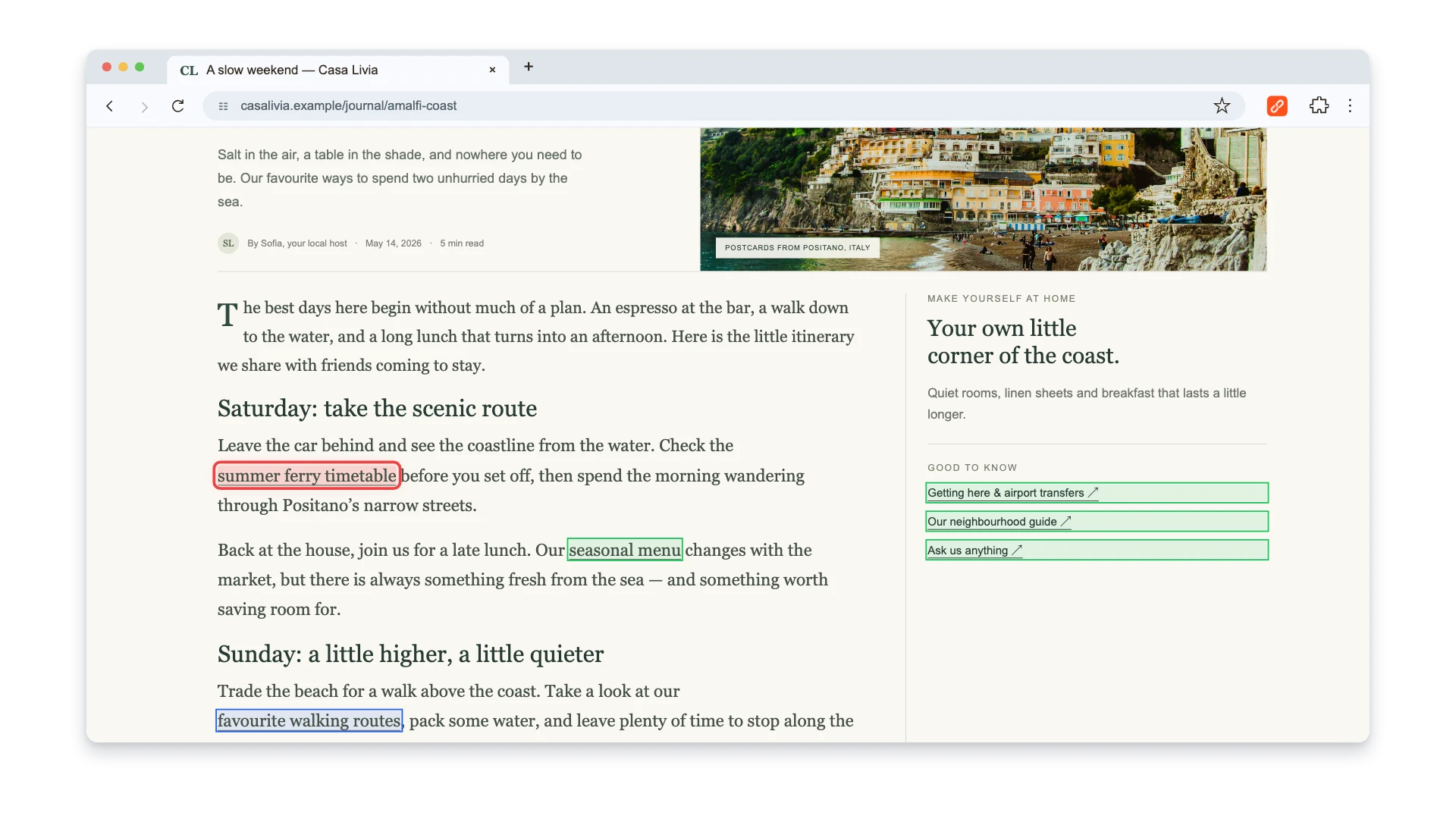
Watch this 3-minute walkthrough to see a page check, a whole-site scan, and report export on an example website. Use the same checking steps on your published Wix site, then follow the repair instructions below to edit links in your platform.
Method 2: Google Search Console
If your Wix site is connected to Google Search Console (and it should be — Wix makes this easy through the SEO Dashboard), go to Pages and filter by "Not found (404)" under "Why pages aren't indexed."
This shows every URL where Googlebot hit a dead end on your site. It's the most authoritative source for broken internal links because it uses Google's actual crawl data — the same data that determines your rankings.
Search Console also reveals which external sites link to your broken pages through the Links report. This helps you prioritize which redirects to create first: fix the ones with the most inbound links.
The downside: Search Console only shows pages Google has tried to crawl. It won't catch broken outbound links on your pages — links from your site to other websites that have gone dead.
Method 3: Wix Site Inspection
Wix has a built-in Site Inspection tool that scans your pages for issues affecting search performance. Access it through your Wix SEO Dashboard. It checks for indexability problems, mobile usability issues, and can flag pages returning errors.
It's useful as a starting point, but it doesn't specifically scan for broken outbound links or check every internal link on your pages. Think of it as a complement to other methods, not a replacement.
Method 4: Screaming Frog (Full Crawl)
For a comprehensive audit, Screaming Frog SEO Spider crawls your entire Wix site and reports every broken link. The free version handles up to 500 URLs — enough for most Wix sites.
Enter your site URL, let it crawl, then filter by Response Codes → Client Error (4xx). You'll see every broken link, what page it's on, and the anchor text used. Screaming Frog also catches redirect chains — where one redirect points to another redirect — which slow down page loads and dilute link equity.
One caveat with Wix: because Wix uses JavaScript rendering, some dynamic content may not be visible to Screaming Frog's default crawler. Enable JavaScript rendering in Screaming Frog's settings (Configuration → Spider → Rendering → JavaScript) for complete results.
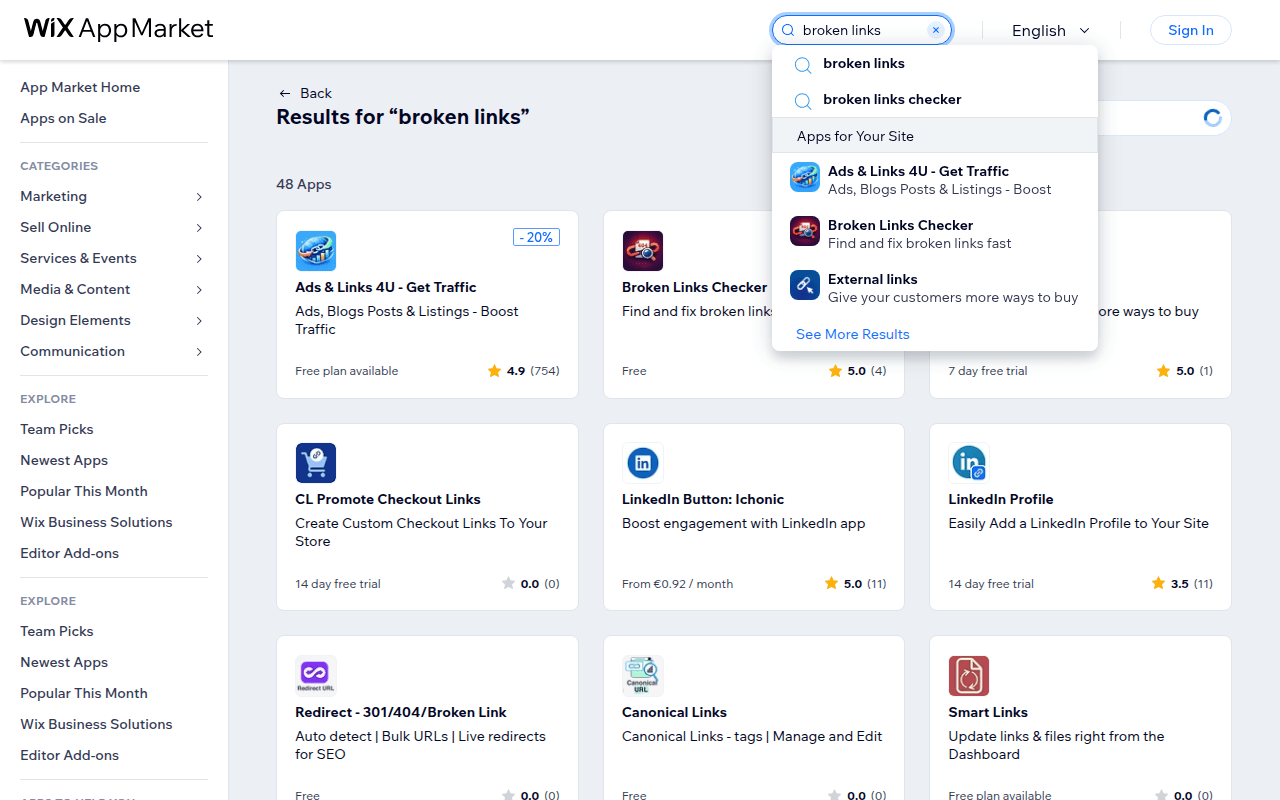
Method 5: Wix App Market Tools
The Wix App Market offers a few SEO apps that include broken link detection:
- Broken Links Checker — the simplest option if you just want a dashboard button that spits out a list of dead links on your Wix site. Free, no setup, works on the pages Wix has already published.
- SEO Analyzer — use this one if you also want internal linking insights alongside broken link detection. Free trial, then paid. Best as a broader SEO companion rather than a pure broken-link tool.
- SE Ranking — overkill if broken links are your only concern, but worth it if you already want keyword tracking and competitor analysis in the same dashboard.
These apps are convenient because they work inside your Wix dashboard. The tradeoff is that free tools tend to have limited depth, and premium ones add monthly costs.
How to Fix Broken Links in Wix
Once you've found the broken links, here's how to fix them.
Fix Individual Links: URL Redirect Manager
Wix's built-in URL Redirect Manager handles 301 redirects. Here's the process:
- In your Wix dashboard, go to SEO & GEO, scroll to Tools and settings, and open URL Redirect Manager.
- Click + New Redirect and select Single Redirect.
- Under Old URL, enter the broken path — for example,
/old-page-name. - Under New URL, start typing the slug of the page you want to redirect to. Wix auto-suggests existing pages. For external URLs, enter the full address.
- Click Save.
The redirect takes a few minutes to go live. Test it by visiting the old URL in an incognito browser window.
Important limitations:
- Requires a custom domain. 301 redirects only work on sites connected to a custom domain. Free Wix sites (
username.wixsite.com/sitename) don't support redirects. - Group redirects are path-based, not arbitrary regex rules. They work when related old and new URLs share a consistent path structure, but they cannot express every migration map.
Wix documents supported page types and the current workflow in its official 301 redirect guide.
Fix Links in Bulk: CSV Import
If you have dozens or hundreds of broken links, creating redirects one by one is slow. Use Wix's CSV import:
- Create a CSV file with two columns: Old URL and New URL.
- Use relative paths starting with
/. For example:/old-page, nothttps://yoursite.com/old-page. - In the URL Redirect Manager, click Import from CSV.
- Upload your file and review the preview.
- Click Import.
The CSV format:
Old URL,New URL
/old-about-page,/about
/blog/outdated-post,/blog
/product-page/discontinued-item,/shop
CSV limitations to know:
- Maximum 500 redirects per CSV file. If you need more, split into multiple files and import them sequentially.
- If any rows fail, Wix generates a status report CSV you can download to see which redirects weren't created and why.
Group Redirects
Wix offers group redirects for changing URL path prefixes in bulk. For example, if you moved all your service pages from /services/ to /our-services/, a group redirect can handle the entire folder at once.
To create one:
- In the URL Redirect Manager, click + New Redirect and select Group Redirect.
- Enter the old path prefix (e.g.,
/services). - Enter the new path prefix (e.g.,
/our-services). - Save.
Group redirects have restrictions:
- You can't redirect from the homepage.
- You can't redirect to an external domain.
- You can't redirect a group of different pages to a single page (many-to-one).
- Paths can't contain spaces.
- A path already used in another redirect can't be reused.
Fix Links in Page Content
Redirects handle external traffic and search engine links. But you should also update broken links inside your actual page content:
- Text links in pages — open the page in the Wix Editor, find the broken link, click it, and update the URL.
- Button links — select the button, go to the link settings, and point it to the correct page.
- Image links — same process: select the image, update the link target.
- Navigation menus — go to your site menu settings and update or remove the broken menu item.
- Blog post content — open the blog post editor and fix inline links. This is especially important because blog posts often contain the most outbound links.
- Footer and header links — these appear on every page, so a single broken link in the footer means a broken link on every page of your site.
Wix-Specific Broken Link Patterns
Some broken link issues are unique to how Wix handles URLs and site structure.
The Blog Post URL Problem
Wix Blog URLs follow this default pattern: yoursite.com/post/post-title. If you change the URL structure in SEO Settings — say, switching to yoursite.com/blog/post-title — Wix can set up automatic redirects for the new structure. But there's a catch: it only works if you enable "Automatically redirect all traffic" during the change.
If you skip this step, every existing link to your blog posts (from search engines, social media, email newsletters) breaks simultaneously. And unlike regular pages, going back to the old structure doesn't undo the damage — you'll need to create redirects manually for each post.
Dynamic Page URL Changes Need Two Checks
Dynamic pages pull their URLs from CMS collection fields. The URL for each item is generated from the dynamic page's slug structure and its variables. This creates a dependency chain:
- A collection field holds the slug value.
- The dynamic page settings reference that field for URL generation.
- Changing a field value, an individual item slug, or the page's slug structure can change public URLs.
Wix says an individual dynamic item's old slug can redirect automatically when a custom domain is connected. A change to the dynamic page's overall URL structure is broader: export or crawl the current item URLs first, make the change, then verify the complete old-to-new set rather than assuming one sample proves the migration. See Wix's dynamic URL documentation for current behavior.
Product Page Prefix Changes
Wix Stores defaults to /product-page/ as the URL prefix for all products. Many site owners want to remove this prefix for cleaner URLs. When you change this in SEO Settings, Wix offers automatic redirects — but only for the prefix change, not for individual product slug changes made at the same time.
If you change the prefix and rename several products in the same session, some redirects may not be created correctly. Make structural changes one step at a time and verify each step before moving on.
Multilingual Sites
Wix's multilingual feature creates separate URL paths for each language (e.g., /es/about, /fr/about). If you rename a page, you need to check that redirects work for every language version, not just the primary language. The URL Redirect Manager handles this, but it's easy to forget the secondary languages.
Tools Comparison
Here's how the main broken link detection options compare for Wix sites:
| Tool | Best for | Coverage | Cost |
|---|---|---|---|
| Broken Link Checker extension | Page checks and whole-site scans | Current page or reachable site pages | 3 checks free; paid plans from $2.90/mo |
| Google Search Console | Finding 404s Google knows about | Google's crawl data | Free |
| Wix Site Inspection | Basic technical health checks | Wix-specific issues | Free (built-in) |
| Screaming Frog | Full site audit | Up to 500 URLs free | Free / £199/yr |
| Wix Broken Links Checker app | Dashboard-based scanning | Internal links | Free |
| Ahrefs / Semrush | Comprehensive SEO audit | Full site + backlinks | From $129/mo |
For most Wix sites, the combination of Broken Link Checker for spot checks and Google Search Console for ongoing monitoring covers the essentials. Broken Link Checker includes 3 free checks, with paid plans for continued use. Use Whole site in the extension for a broader scan in Chrome, or Screaming Frog for a desktop crawl.
Preventing Broken Links in Wix
Fixing broken links is reactive. These habits keep them from appearing.
Create Redirects Before Deleting Pages
Make this your standard process. Before you delete any page in Wix:
- Open the URL Redirect Manager.
- Create a redirect from the page's URL to the most relevant alternative.
- Then delete the page.
This takes 30 seconds and prevents the most common source of broken links on Wix sites.
Never Change Blog Post Slugs Without a Redirect
Since Wix doesn't auto-redirect blog post URL changes, treat every blog post slug change as a two-step process:
- Change the slug in the blog post settings.
- Immediately create a manual redirect in the URL Redirect Manager from the old slug to the new one.
Better yet: finalize your blog post URL slug before publishing. Changing it later always carries risk.
Audit After Structural Changes
Any time you make significant changes to your Wix site — reorganizing pages, changing URL structures in SEO Settings, switching CMS collection configurations — run a broken link check immediately after:
- Use the Broken Link Checker extension on your homepage, main landing pages, and navigation.
- Click through your site's menu items manually.
- Check Google Search Console over the next 1-2 weeks for new 404 errors.
Monitor External Links
External links rot over time. A resource you linked to six months ago may have moved or disappeared. Check your outbound links regularly — quarterly at minimum for active sites with lots of external references.
The link rot problem affects every website, but Wix sites tend to be checked less frequently than WordPress sites (which have automated plugins for this). Don't let the simplicity of Wix lull you into skipping link maintenance.
Keep a Redirect Inventory
Redirects accumulate after redesigns and slug changes. Periodically review the inventory without removing rules solely because they are old:
- Export your redirects as CSV from the URL Redirect Manager.
- Check whether the destination still exists and is still the best match.
- Fix chains so old URLs point directly to the final live destination.
- Keep redirects that still serve backlinks, bookmarks, campaigns, or indexed historical URLs.
Wix vs. WordPress: Link Management
If you're evaluating platforms or considering a migration, link management is worth comparing.
| Feature | Wix | WordPress |
|---|---|---|
| Automatic redirects on page rename | Yes (except blog posts) | With plugins (Yoast, Rank Math) |
| Bulk redirect import | CSV, up to 500 rows per file | Depends on the selected plugin or server setup |
| Pattern/regex redirects | Group redirects (limited) | Full regex support with plugins |
| Broken link monitoring | App Market tools (basic) | Plugins (Link Whisper, Broken Link Checker) |
| Internal linking tools | Manual only | Automated suggestions (Link Whisper, Rank Math) |
| Server access for .htaccess redirects | No | Yes (self-hosted) |
WordPress offers more control and flexibility for link management, primarily through its plugin ecosystem. But that control comes with complexity — you need to choose, install, configure, and maintain those plugins.
Wix handles common redirects without server configuration. WordPress offers more implementation choices, but the exact bulk, pattern, and monitoring capabilities depend on the host and plugins you maintain.
FAQ
Does Wix automatically create redirects when I delete a page?
No. Wix does not create automatic redirects when you delete a page. You must create redirects manually through the URL Redirect Manager before deleting the page. Wix does create automatic redirects when you change a page's URL slug — but not for blog posts, which require manual redirects.
How many redirects can I import at once in Wix?
Wix's current CSV importer accepts up to 500 redirects per file. Use the provided template, review failed rows in the generated status report, and split larger migrations into verified batches. Wix documents the current format in its CSV import guide.
Will broken links hurt my Wix site's SEO?
They can disrupt navigation and crawling, and an old URL with backlinks or search visibility stops serving the page visitors expected. Prioritize broken URLs that receive internal links, external links, traffic, or impressions instead of treating every historical 404 as equally urgent.
Can I use the Broken Link Checker Chrome extension on my Wix site?
Yes. The Broken Link Checker extension works on any website, including Wix. Navigate to any page on your published Wix site, click the extension icon, and it scans every link on that page. It checks both internal links (to other pages on your site) and external links (to other websites). For a complete guide on finding broken links across any platform, see our how to find broken links guide.
How do I check for broken links on a Wix site for free?
Start with the 3 free checks in the Broken Link Checker Chrome extension. They are shared by current-page and whole-site checks, and one fresh whole-site scan counts as one check. Use Google Search Console to find 404 errors Google has detected, and the free version of Screaming Frog for a full crawl of up to 500 URLs. Continued extension use requires a paid plan. For other CMS workflows, see WordPress, Shopify, and Webflow; for a migration, start with the pre-redesign link audit.

Pavel Molyanov
Creator of Broken Link Checker
Content marketer with 10+ years of experience. Founder of a content marketing agency. Writing about SEO, content workflows, and website maintenance.

Check Your Links in One Click
Broken Link Checker finds broken links and redirects on any page or across your whole website, and works in Google Docs and Sheets. Try 3 checks free, with no signup or card required.